---
Title: Ant Design Component Semantic Descriptions
URL: https://ant.design/llms-semantic.md
---
# Ant Design 组件语义化描述
本文档包含了 Ant Design 组件库中所有组件的语义化描述信息。
> 总计 65 个组件包含语义化描述
## 组件列表
### alert
- `root`: 根元素,包含边框、背景色、内边距、圆角、位置布局等警告提示框的基础样式
- `section`: 内容元素,采用 flex 布局控制内容区域的排版和最小宽度
- `icon`: 图标元素,包含图标的颜色、行高、外边距等样式,支持不同类型的状态图标
- `title`: 标题元素,包含标题文字的颜色、字体等样式
- `description`: 描述元素,包含描述文字的字体大小、行高等排版样式
- `actions`: 操作组元素,包含操作按钮的布局和间距样式
### anchor
- `root`: 根元素,包含布局定位、内边距、边距、背景色等基础样式
- `item`: 链接项元素,包含内边距、文字颜色、悬停状态、过渡动画等样式
- `title`: 标题文字元素,包含字体样式、颜色变化、文本装饰、过渡效果等样式
- `indicator`: 指示器元素,包含宽度、高度、背景色、位置变化、过渡动画等样式
### badge
- `root`: 根元素,包含相对定位、行内块布局、适应内容宽度等基础布局样式
- `indicator`: 指示器元素,包含定位、层级、尺寸、颜色、字体、文本对齐、背景、圆角、阴影、过渡动画等完整的徽标样式
### breadcrumb
- `root`: 根元素,包含文字颜色、字体大小、图标尺寸等基础样式,内部使用 flex 布局的有序列表
- `item`: Item 元素,包含文字颜色、链接的颜色变化、悬浮效果、内边距、圆角、高度、外边距等样式
- `separator`: 分隔符元素,包含分隔符的外边距和颜色样式
### button
- `root`: 根元素,包含边框样式、背景色、内边距、圆角、阴影效果、过渡动画、光标样式、文字权重、对齐方式等完整的按钮外观样式
- `content`: 内容元素,包装按钮文本内容,控制文本的不换行显示、居中对齐、中文字符间距优化等文本排版样式
- `icon`: 图标元素,包含图标的字体大小、颜色继承、SVG 样式重置等图标显示相关样式
### calendar
- `root`: 根元素,包含日历组件的背景色、边框、圆角等基础样式和整体布局结构
- `header`: 头部元素,包含年份选择器、月份选择器、模式切换器的布局和样式控制
- `body`: 主体元素,包含日历表格的内边距、布局控制等样式,用于容纳日历网格
- `content`: 内容元素,包含日历表格的宽度、高度等尺寸控制和表格样式
- `item`: 条目元素,包含日历单元格的背景色、边框、悬停态、选中态等交互样式
### card
- `root`: 卡片根元素,包含位置定位、背景色、边框、圆角、阴影、内边距等卡片容器的基础样式
- `header`: 卡片头部区域,包含 flex 布局、最小高度、内边距、文字颜色、字体权重、字体大小、背景色、下边框、顶部圆角等样式
- `body`: 卡片内容区域,包含内边距、字体大小等内容展示的基础样式
- `extra`: 卡片右上角的操作区域,包含额外内容的文字颜色和布局样式
- `title`: 卡片标题,包含行内块布局、flex 占比、文本省略等标题显示样式
- `actions`: 卡片底部操作组,包含 flex 布局、列表样式重置、背景色、上边框、底部圆角等操作按钮容器样式
- `cover`: 标题封面,包含封面图片的显示和布局样式
### card:meta
- `root`: 设置元信息根元素
- `section`: 设置元信息内容元素
- `avatar`: 设置元信息图标
- `title`: 设置元信息标题
- `description`: 设置元信息描述
### checkbox
- `root`: 根元素,包含行内 flex 布局、基线对齐、光标样式、重置样式等复选框容器的基础样式
- `icon`: 选中框元素,包含尺寸、方向、背景色、边框、圆角、过渡动画,以及选中状态的勾选标记样式
- `label`: 文本元素,包含文本的内边距和与复选框的间距样式
### collapse
- `root`: 根元素,包含折叠面板的边框、圆角、背景色等容器样式,控制面板的整体布局和外观
- `header`: 头部元素,包含flex布局、内边距、颜色、行高、光标样式、过渡动画等面板头部的交互和样式
- `title`: 标题元素,包含flex自适应布局、右边距等标题文字的布局和排版样式
- `body`: 内容元素,包含内边距、颜色、背景色等面板内容区域的展示样式
- `icon`: 图标元素,包含字体大小、过渡动画、旋转变换等展开收起箭头的样式和动效
### colorPicker
- `root`: 触发器容器,包含边框样式、过渡动画、尺寸控制等样式,显示颜色块和文本内容
- `popup`:
- `root`: 弹出面板根容器,包含背景色、阴影效果、色彩选择面板、滑块控制和预设颜色等样式
### datePicker
- `root`: 根元素,包含相对定位、行内flex布局、内边距、边框圆角、过渡动画等日期选择器容器的基础样式
- `prefix`: 前缀元素,包含flex布局、右外边距等前缀内容的布局样式
- `input`: 输入框元素,包含相对定位、宽度、颜色、字体、行高、过渡动画等输入框的核心交互样式
- `suffix`: 后缀元素,包含flex布局、颜色、行高、指针事件、过渡动画等后缀内容的样式
- `popup`:
- `header`: 弹出框头部元素,包含导航按钮、月份年份选择器等头部控制区域的布局和样式
- `body`: 弹出框主体元素,包含日期面板表格的容器布局和样式
- `content`: 弹出框内容元素,包含日期表格的宽度、边框、单元格等内容展示样式
- `item`: 弹出框单项元素,包含日期单元格的尺寸、背景色、边框圆角、悬停态、选中态等交互样式
- `footer`: 弹出框底部元素,包含确认取消按钮、快捷选择等底部操作区域的布局样式
### descriptions
- `root`: 根元素,包含描述列表容器的基础样式、重置样式、边框样式、布局方向等整体样式
- `header`: 头部元素,包含flex布局、对齐方式、下边距等头部区域的布局和样式控制
- `title`: 标题元素,包含文本省略、flex占比、颜色、字体权重、字体大小、行高等标题文字样式
- `extra`: 额外内容元素,包含左边距、颜色、字体大小等额外操作区域的样式
- `label`: 标签元素,包含颜色、字体权重、字体大小、行高、文本对齐、冒号样式等标签文字的样式
- `content`: 内容元素,包含表格单元格布局、颜色、字体大小、行高、文字换行等内容展示样式
### divider
- `root`: 根元素,包含边框顶部样式、分隔线样式等分割线容器的基础样式
- `content`: 内容元素,包含行内块显示、内边距等分割线文本内容的样式
- `rail`: 背景条元素,包含边框顶部样式等分割线连接条的样式
### drawer
- `root`: 根元素,包含固定定位、层级控制、指针事件、颜色等抽屉容器的基础样式和布局控制
- `mask`: 遮罩层元素,包含绝对定位、层级、背景色、指针事件等遮罩层的样式和交互控制
- `section`: Drawer 容器元素,包含flex布局、宽高、溢出控制、背景色、指针事件等抽屉主体的样式
- `header`: 头部元素,包含flex布局、对齐方式、内边距、字体大小、行高、下边框等头部区域的样式
- `body`: 内容元素,包含flex占比、最小尺寸、内边距、溢出滚动等内容区域的展示和布局样式
- `footer`: 底部元素,包含flex收缩、内边距、上边框等底部操作区域的样式
- `title`: 标题元素,包含flex占比、外边距、字体权重、字体大小、行高等标题文字的样式
- `extra`: 额外元素,包含flex固定布局等额外操作内容的样式控制
### dropdown
- `root`: dropdown 的根元素,设置定位、层级和容器样式
- `itemTitle`: dropdown 选项的标题内容区域,设置布局和文字样式
- `item`: dropdown 的单个选项元素,设置选项的交互状态和背景样式
- `itemContent`: dropdown 选项的主要内容区域,设置内容布局和链接样式
- `itemIcon`: dropdown 选项的图标区域,设置图标的尺寸和间距样式
### empty
- `root`: 根元素,设置文本对齐、字体和行高样式
- `image`: 图标元素,设置高度、透明度、边距和图片样式
- `description`: 描述元素,设置文本颜色样式
- `footer`: 底部元素,设置顶部边距和操作按钮样式
### floatButton
- `root`: 根元素,设置悬浮按钮的基础样式、形状尺寸、类型主题、固定定位、层级、阴影、间距等容器样式
- `content`: 内容元素,设置按钮内文字内容的字体大小、颜色、对齐、换行等文本显示样式
- `icon`: 图标元素,设置按钮内图标的尺寸、颜色、行高、对齐等图标显示样式
### floatButtonGroup
- `root`: 根元素,设置悬浮按钮组的容器样式、固定定位、层级、内边距、间距、方向模式等组合布局样式
- `list`: 列表元素,设置按钮组列表的Flex布局、圆角、阴影、动画过渡、垂直对齐等列表容器样式
- `item`: 列表项元素,设置单个悬浮按钮的样式、尺寸、形状、类型、状态、图标内容等按钮基础样式
- `itemIcon`: 列表项图标元素,设置悬浮按钮内图标的尺寸、颜色、对齐等图标显示样式
- `itemContent`: 列表项内容元素,设置悬浮按钮内文字内容、徽标、描述等内容区域样式
- `trigger`: 触发元素,设置菜单模式下触发按钮的样式、形状、图标、悬停态、展开收起状态等交互样式
- `triggerIcon`: 触发图标元素,设置触发按钮内图标的样式、旋转动画、切换状态等图标交互样式
- `triggerContent`: 触发内容元素,设置触发按钮内容区域的文字、标识、状态指示等内容样式
### form
- `root`: 根元素,包含表单项的底边距、垂直对齐、过渡动画、隐藏状态、错误警告状态等表单项容器的基础样式
- `label`: 标签元素,包含 flex 布局、溢出隐藏、文本不换行、文本对齐、垂直对齐,以及标签的颜色、字体大小、高度、必填标记等标签显示样式
- `content`: 内容元素,包含表单内容区域的布局、样式和控件容器的相关样式
### image
- `root`: 根元素,设置相对定位和行内块布局样式
- `image`: 图片元素,设置宽度、高度和垂直对齐样式
- `cover`: 悬浮图片显示的提示元素,设置绝对定位、背景色、透明度和过渡动画样式
- `popup`:
- `root`: 预览根元素,设置固定定位、层级和背景遮罩样式
- `mask`: 预览遮罩元素,设置绝对定位和半透明背景样式
- `body`: 预览内容元素,设置flex布局、居中对齐和指针事件样式
- `footer`: 预览页脚元素,设置绝对定位、居中布局和底部操作区域样式
- `actions`: 预览操作组元素,设置flex布局、背景色、圆角和操作按钮样式
### input
- `root`: 根元素,包含相对定位、行内块布局、宽度、最小宽度、内边距、颜色、字体、行高、圆角、过渡动画等输入框容器的基础样式
- `input`: 输入框元素,包含输入框的核心交互样式和文本输入相关的样式
- `prefix`: 前缀的包裹元素,包含前缀内容的布局和样式
- `suffix`: 后缀的包裹元素,包含后缀内容的布局和样式
- `count`: 文字计数元素,包含字符计数显示的字体和颜色样式
### input:password
- `root`: 根元素
- `input`: 输入框元素
- `prefix`: 前缀的包裹元素
- `suffix`: 后缀的包裹元素
- `count`: 文字计数元素
### inputNumber
- `root`: 根元素,设置行内块布局、宽度、边框圆角和重置样式
- `input`: 输入框元素,设置字体、行高、文本输入和交互样式
- `prefix`: 前缀的包裹元素,设置flex布局、对齐方式和右边距样式
- `suffix`: 后缀的包裹元素,设置flex布局、边距和过渡动画样式
- `actions`: 操作元素,设置绝对定位、宽度、flex布局和数值调节按钮样式
### inputSearch
- `root`: 根元素
- `input`: 输入框元素
- `prefix`: 前缀的包裹元素
- `suffix`: 后缀的包裹元素
- `count`: 文字计数元素
- `button`:
- `root`: 按钮根元素
- `icon`: 按钮图标元素
- `content`: 按钮内容元素
### list
- `extra`: 设置额外内容
- `actions`: 设置列表操作组
### masonry
- `root`: 根元素,设置相对定位、flex布局和瀑布流容器样式
- `item`: 条目元素,设置绝对定位、宽度计算、过渡动画和瀑布流项目样式
### mentions
- `root`: 根元素,设置行内flex布局、相对定位、内边距和边框样式
- `textarea`: 文本域元素,设置字体、行高、文本输入和背景样式
- `popup`: 弹出框元素,设置绝对定位、层级、背景色、圆角、阴影和下拉选项样式
### menu
- `root`: 根元素,包含菜单容器的基础样式和布局
- `item`: 条目元素,包含相对定位、块级显示、外边距、空白符处理、光标样式、过渡动画等菜单项的基础交互样式
- `itemContent`: 条目内容元素,包含菜单项内容的布局和排版样式
- `itemIcon`: 图标元素,包含最小宽度、字体大小、过渡动画、图标重置样式,以及与文本的间距控制
- `itemTitle`: 菜单标题元素(horizontal 模式不生效),包含标题文字的样式和布局
- `list`: 菜单列表元素(horizontal 模式不生效),包含菜单列表的布局和容器样式
- `popup`: 弹出菜单(inline 模式不生效),包含弹出层的定位、层级、背景等样式
- `subMenu`:
- `itemTitle`: 子菜单标题元素,包含子菜单标题的样式和交互效果
- `list`: 子菜单列表元素,包含子菜单列表的布局和容器样式
- `item`: 子菜单单项元素,包含子菜单项的样式和交互效果
- `itemIcon`: 子菜单条目图标元素,包含子菜单图标的尺寸和样式
- `itemContent`: 子菜单条目内容元素,包含子菜单内容的布局和排版
### message
- `root`: 根元素,设置固定定位、层级、内边距、背景色、圆角、阴影和动画样式
- `icon`: 图标元素,设置字体大小、右边距和状态颜色样式
- `content`: 内容元素,设置行内块布局、文字颜色和内容展示样式
### modal
- `root`: 根元素,包含相对定位、顶部位置、宽度、最大宽度、外边距、底部内边距等模态框容器的基础布局样式
- `mask`: 遮罩层元素,包含固定定位、层级、背景色、动画过渡等遮罩层的样式
- `wrapper`: 包裹层元素,一般用于动画容器,包含动画和过渡效果的样式
- `container`: Modal 容器元素,包含相对定位、背景色、背景裁剪、边框、圆角、阴影、指针事件、内边距等模态框主体样式
- `header`: 头部元素,包含头部内边距、下边框等头部区域样式
- `title`: 标题元素,包含外边距、颜色、字体权重、字体大小、行高、文字换行等标题文字样式
- `body`: 内容元素,包含内容区域的背景色、内边距等内容展示样式
- `footer`: 底部元素,包含底部的背景色、内边距、上边框、圆角等底部区域样式
### notification
- `root`: 根元素,设置固定定位、层级、内边距、背景色、圆角、阴影和动画样式
- `icon`: 图标元素,设置绝对定位、字体大小、行高和状态颜色样式
- `title`: 标题元素,设置颜色、字体大小、行高和外边距样式
- `description`: 描述元素,设置字体大小、颜色和外边距样式
- `actions`: 操作组元素,设置右浮动、上边距和操作按钮布局样式
### otp
- `root`: 根元素,设置行内flex布局、对齐方式、列间距和包装样式
- `input`: 输入框元素,设置文本居中、内边距和数字输入样式
- `separator`: 分隔符元素,设置OTP输入框之间的分隔符显示样式
### pagination
- `root`: 根元素,设置flex布局、对齐方式、换行和列表样式
- `item`: 页码元素,设置尺寸、内边距、边框、背景色、悬停态和激活态样式
### popconfirm
- `root`: 根元素,包含定位样式、层级控制、变换原点等基础容器样式
- `body`: 主体元素,包含内边距、背景色、圆角边框、阴影效果、背景裁剪等内容区域样式
### popover
- `root`: 根元素,设置绝对定位、层级、变换原点、箭头指向和弹层容器样式
- `body`: 内容元素,设置背景色、内边距、圆角、阴影、边框和内容展示样式
### progress
- `root`: 根元素,设置相对定位和基础容器样式
- `body`: 主体元素,设置进度条的布局和尺寸样式
- `rail`: 导轨元素,设置背景轨道的颜色和圆角样式,steps 模式下没有该元素
- `track`: 轨迹元素,设置进度填充部分的颜色和过渡动画样式
- `indicator`: 指示器元素,设置百分比文本或图标的位置和字体样式
### qrCode
- `root`: 根元素,设置flex布局、内边距、背景色、边框、圆角和相对定位样式
- `cover`: 遮罩层元素,设置绝对定位、层级、背景色和加载状态覆盖样式
### radio
- `root`: 根元素,包含布局样式、鼠标样式、禁用状态文字颜色等基础容器样式
- `icon`: 选中框元素,包含圆角样式、过渡动画、边框样式、悬停状态、焦点状态等交互样式
- `label`: 文本元素,包含内边距、文字颜色、禁用状态、对齐方式等文本样式
### result
- `root`: 根元素,包含文本对齐、布局样式等基础容器样式
- `title`: 标题元素,包含字体大小、文字颜色、行高、对齐方式等文字样式
- `subTitle`: 副标题元素,包含字体大小、文字颜色、行高等文字样式
- `body`: 内容元素,包含外边距、内边距、背景色等内容区域样式
- `extra`: 操作区域元素,包含外边距、文本对齐、内部元素间距等布局样式
- `icon`: 图标元素,包含外边距、文本对齐、字体大小、状态颜色等图标样式
### ribbon
- `root`: 根元素,设置相对定位和包装容器样式
- `indicator`: 指示器元素,设置绝对定位、内边距、背景色、圆角和缎带样式
- `content`: 文本元素,设置文本颜色和缎带内容显示样式
### segmented
- `root`: 根元素,设置行内块布局、内边距、背景色、圆角、过渡动画和容器样式
- `item`: 选项元素,设置相对定位、文本对齐、光标样式、过渡动画、选中态背景色和悬停态样式
- `icon`: 图标元素,设置图标的尺寸、颜色和与文本的间距样式
- `label`: 标签内容元素,设置最小高度、行高、内边距、文本省略和内容布局样式
### skeleton:element
- `root`: 根元素
- `content`: 内容元素
### slider
- `root`: 根元素,设置相对定位、高度、边距、内边距、光标样式和触摸事件控制
- `track`: 轨道选取条元素,设置绝对定位、背景色、圆角和过渡动画样式
- `tracks`: 多段轨道容器元素,设置绝对定位和过渡动画样式
- `rail`: 背景轨道元素,设置绝对定位、背景色、圆角和过渡动画样式
- `handle`: 滑块控制点元素,设置绝对定位、尺寸、轮廓线、用户选择、背景色、边框阴影、圆角、光标样式和过渡动画
### space
- `root`: 根元素,包含 flex 布局、间隙设置、对齐方式、换行等间距容器的基础样式
- `item`: 包裹的子组件,包含间距项的布局和样式,为每个子元素提供包装用于内联对齐
- `separator`: 分隔符,包含分隔元素的样式
### spin
- `root`: 根元素,设置绝对定位、显示控制、颜色、字体大小、文本对齐、垂直对齐、透明度和过渡动画(fullscreen 为 false 时才有效)
- `indicator`: 指示器元素,设置宽度、高度、字体大小、行内块显示、过渡动画、变换原点、行高和颜色
### spin:fullscreen
- `mask`: 遮罩层元素
- `indicator`: 指示器元素
### splitter
- `root`: 根元素,设置flex布局、宽度高度、对齐方式和拉伸样式
- `panel`: 面板元素,设置flex基础值、增长比例和面板容器样式
- `dragger`: 拖拽控制元素,设置绝对定位、用户选择、层级、居中对齐、背景色、悬停态和激活态样式
### statistic
- `root`: 根元素,包含统计数值组件的重置样式和整体容器样式
- `header`: 头部元素,包含下内边距和标题区域的布局样式
- `title`: 标题元素,包含文字颜色、字体大小等标题文字的显示样式
- `content`: 内容元素,包含文字颜色、字体大小、字体族等数值内容的展示样式
- `prefix`: 前缀元素,包含行内块显示、右外边距等前缀内容的布局样式
- `suffix`: 后缀元素,包含行内块显示、左外边距等后缀内容的布局样式
### steps
- `root`: 根元素,包含 flex 布局、禁止换行、对齐方式、CSS 变量等步骤条容器的基础样式
- `item`: 步骤项元素,包含 flex 布局、相对定位等单个步骤项的基础容器样式
- `itemWrapper`: 步骤项内裹元素,包含 flex 布局、禁止换行、顶部内边距等步骤项内容的包装样式
- `itemIcon`: 步骤项图标元素,包含图标的尺寸、定位、字体大小等图标显示相关样式
- `itemHeader`: 步骤项头部元素,包含 flex 布局、禁止换行、对齐方式等头部区域的布局样式
- `itemTitle`: 步骤项标题元素,包含颜色、字体大小、行高、文字换行、过渡动画等标题文字样式
- `itemSubtitle`: 步骤项副标题元素,包含颜色、字体权重、字体大小、行高、外边距、文字换行等副标题样式
- `itemSection`: 步骤项区域元素,包含步骤项内容区域的布局和样式
- `itemContent`: 步骤项内容元素,包含颜色、字体大小、行高、文字换行、过渡动画等内容文字样式
- `itemRail`: 步骤项连接线元素,包含边框样式、边框宽度、过渡动画等连接线的样式
### steps:items
- `root`: 根元素
- `wrapper`: 步骤项内裹元素
- `icon`: 步骤项图标元素
- `header`: 步骤项头部元素
- `title`: 步骤项标题元素
- `subtitle`: 步骤项副标题元素
- `section`: 步骤项区域元素
- `content`: 步骤项内容元素
- `rail`: 步骤项连接线元素
### switch
- `root`: 根元素,包含最小宽度、高度、行高、垂直对齐、背景色、边框、圆角、光标样式、过渡动画、用户选择等开关容器的基础样式
- `content`: 内容元素,包含块级显示、溢出隐藏、圆角、高度、内边距、过渡动画等开关内容区域的布局和样式
### table
- `root`: 根元素,包含字体大小、背景色、圆角、滚动条颜色等表格容器的基础样式
- `section`: 容器元素,包含清除浮动、最大宽度、滚动条背景等表格包装容器样式
- `header`:
- `wrapper`: 头部容器元素,包含表头的布局和容器样式
- `row`: 头部行元素,包含表头行的布局和样式
- `cell`: 头部单元格元素,包含相对定位、内边距、文字换行、背景色、文字颜色、字体权重等表头单元格样式
- `title`: 标题元素,包含表格标题的样式和布局
- `body`:
- `wrapper`: 主体容器元素,包含表格主体的布局和容器样式
- `row`: 主体行元素,包含数据行的悬浮效果、选中状态、展开状态等交互样式
- `cell`: 主体单元格元素,包含相对定位、内边距、文字换行等数据单元格的基础样式
- `footer`: 底部元素,包含表格底部的背景色、文字颜色等样式
- `content`: 内容元素,包含表格内容区域的样式和布局
- `pagination`:
- `root`: 分页根元素,包含分页组件的基础样式和布局
- `item`: 分页单项元素,包含分页项的样式和交互效果
### tabs
- `root`: 根元素,包含标签页容器的基础样式、布局和方向控制
- `item`: Item 元素,包含相对定位、内边距、颜色、文本省略、圆角、过渡动画等标签项的样式和交互效果
- `header`: 头部元素,包含标签页头部导航的布局、背景、边框等样式
- `indicator`: 指示器元素,包含指示条的颜色、位置、尺寸、过渡动画等活跃状态指示样式
- `content`: 内容元素,包含标签页内容面板的布局、内边距等内容展示样式
- `popup`:
- `root`: 弹出菜单元素,包含下拉菜单的绝对定位、层级、显示控制、最大高度、滚动等样式
### tag
- `root`: 根元素,包含行内块布局、自动高度、内边距、字体大小、行高、禁止换行、背景色、边框、圆角、透明度、过渡动画、文本对齐、相对定位等标签的基础样式
- `icon`: 图标元素,包含字体大小、颜色、光标样式、过渡动画等图标的显示样式
- `content`: 内容元素,包含文本内容的颜色、字体样式等内容区域的样式
### tag:group
- `root`: 根元素,设置标签组的容器样式和布局
- `item`: 标签项元素,设置行内块显示、高度、内边距、字体大小、行高、背景色、边框、圆角、透明度、过渡动画、可选中状态等样式
### textArea
- `root`: 根元素,设置文本域包装器的样式、边框、圆角、过渡动画和状态控制
- `textarea`: 文本域元素,设置字体、行高、内边距、颜色、背景、边框、文本输入和多行文本展示样式
- `count`: 文字计数元素,设置字符计数显示的位置、字体、颜色和数值统计样式
### timeline
- `root`: 根元素,设置时间轴容器的列表样式重置、垂直布局、点状图标、轮廓样式、交替布局等基础容器样式
- `item`: 节点元素,设置单个时间节点的相对定位、外边距、内边距、字体大小、完成状态、颜色主题、布局方向等节点基础样式
- `itemWrapper`: 节点包装元素,设置时间节点内容的包装容器样式
- `itemIcon`: 节点图标元素,设置节点头部图标的绝对定位、宽高尺寸、背景色、边框、圆角、波纹动画等图标样式
- `itemHeader`: 节点头部元素,设置包含标题和连接线的头部区域布局、对齐方式、文本方向等样式
- `itemTitle`: 节点标题元素,设置节点标题文字的字体大小、行高、颜色等文本样式
- `itemSection`: 节点区域元素,设置包含头部和内容的区域容器的Flex布局、换行、间距等布局样式
- `itemContent`: 节点内容元素,设置节点详细内容的相对定位、顶部偏移、左侧外边距、文字颜色、词汇换行等内容样式
- `itemRail`: 节点连接线元素,设置连接时间节点的轨道线条的绝对定位、顶部偏移、左侧偏移、高度、边框颜色、宽度、样式等连接线样式
### timeline:items
- `root`: 根元素
- `wrapper`: 节点内裹元素
- `icon`: 节点图标元素
- `header`: 节点头部元素
- `title`: 节点标题元素
- `section`: 节点区域元素
- `content`: 节点内容元素
- `rail`: 节点连接线元素
### tooltip
- `root`: 根元素 (包含箭头、内容元素),设置绝对定位、层级、块级显示、最大宽度、可见性、变换原点和箭头背景色
- `body`: 内容元素,设置最小宽度高度、内边距、颜色、文本对齐、背景色、圆角、阴影和边框样式
### tour
- `root`: 引导根容器,设置绝对定位、层级控制、最大宽度、可见性、箭头背景色变量、主题样式等容器样式
- `cover`: 卡片封面区域,设置文本居中对齐、内边距、图片宽度等图片展示样式
- `section`: 卡片主要内容区域,设置文本对齐、边框圆角、盒阴影、相对定位、背景色、边框、背景裁剪等卡片样式
- `footer`: 卡片底部操作区域,设置内边距、文本右对齐、边框圆角、Flex布局等底部容器样式
- `actions`: 操作按钮组容器,设置左侧自动外边距、按钮间距等按钮组布局样式
- `indicator`: 单个指示器元素,设置宽高尺寸、行内块显示、圆角、背景色、右外边距、激活状态等圆点样式
- `indicators`: 指示器组容器,设置行内块显示等指示器容器样式
- `header`: 卡片头部区域,设置内边距、宽度计算、词汇换行等头部容器样式
- `title`: 引导标题文字,设置字体粗细等标题文本样式
- `description`: 引导描述文字,设置内边距、词汇换行等描述文本样式
- `mask`: 遮罩层元素,设置固定定位、全屏覆盖、层级、指针事件、过渡动画等遮罩样式
### transfer
- `root`: 根元素,设置flex布局、穿梭框容器的基础样式和布局控制
- `section`: 区域元素,设置flex布局、宽度、高度、最小高度、边框、圆角等单侧穿梭框的容器样式
- `header`: 头部元素,设置flex布局、对齐方式、高度、内边距、颜色、背景色、下边框、圆角等头部区域的样式
- `title`: 标题元素,设置文本省略、flex占比、文本对齐、自动左边距等标题文字的布局和样式
- `body`: 内容元素,设置列表主体区域的容器样式和布局控制
- `list`: 列表元素,设置列表内容的样式、布局和滚动控制
- `item`: 列表项元素,设置相对定位、内边距、边框、悬停态、选中态、禁用态等列表项的交互样式
- `itemIcon`: 列表项图标元素,设置复选框等图标的样式和交互状态
- `itemContent`: 列表项内容元素,设置文本省略、内边距等列表项文本内容的展示样式
- `footer`: 页脚元素,设置底部操作区域的样式和布局
- `actions`: 操作元素,设置穿梭按钮组的样式、布局和交互状态
### tree
- `root`: 根元素,设置树形控件的基础样式、布局和容器控制
- `item`: 条目元素,设置树节点的基础样式、拖拽状态、角色属性、缩进、切换器、内容包装器等节点结构
- `itemTitle`: 标题元素,设置树节点标题文字的显示样式和文本内容
- `itemIcon`: 图标元素,设置树节点图标的样式、尺寸和状态显示
### treeSelect
- `root`: 根元素,设置树选择器的基础样式、边框、圆角容器样式
- `prefix`: 前缀元素,设置前缀内容的布局和样式
- `input`: 输入框元素,设置文本输入、搜索、选择值显示等输入框的核心交互样式
- `suffix`: 后缀元素,设置后缀内容、清除按钮、下拉箭头等后缀区域的样式
- `popup`:
- `item`: 弹出菜单条目元素,设置树节点选项的样式、悬停态、选中态等交互状态
- `itemTitle`: 弹出菜单标题元素,设置树节点标题文字的显示样式
- `root`: 弹出菜单元素,设置下拉树形选择面板的定位、层级、背景、边框、阴影等弹层样式
### upload
- `root`: 根元素容器,包含布局样式、禁用状态文字颜色、用户选择控制、鼠标样式等基础样式
- `list`: 文件列表容器,包含布局排列、过渡动画、间距控制等样式
- `item`: 文件项元素,包含内边距、背景色、边框样式、悬停效果、状态颜色、过渡动画等样式
---
Title: Resources
URL: https://ant.design/docs/resources
---
## Design Resources
Please find below some of the design resources and tools about Ant Design that we consider valuable. More of this is still being collected. You can leave feedback about Sketch Symbols [here](https://www.yuque.com/kitchen/topics/216).
- Sketch Symbols
- https://gw.alipayobjects.com/zos/basement_prod/048ee28f-2c80-4d15-9aa3-4f5ddac50465.svg
- Sketch Symbols for Desktop
- https://github.com/ant-design/ant-design/releases/download/5.13.3/AntDesign5.0_UI.KIT_202401.sketch
- Official
- Mobile Components
- https://gw.alipayobjects.com/zos/basement_prod/c0c3852c-d245-4330-886b-cb02ef49eb6d.svg
- Sketch Symbols File for Mobile
- https://gw.alipayobjects.com/os/bmw-prod/d6266aef-25b7-4892-b275-ce214121831c.sketch
- Official
- Ant Design Pro
- https://gw.alipayobjects.com/zos/basement_prod/5edc7f4d-3302-4710-963b-7b6c77ea8d06.svg
- Common Templates and Pages
- https://gw.alipayobjects.com/os/bmw-prod/22208f9d-f8c5-4d7c-b87a-fec290e96527.sketch
- Official
- Ant Design Chart
- https://gw.alipayobjects.com/zos/basement_prod/a9dc586a-fe0a-4c7d-ab4f-f5ed779b963d.svg
- Sketch Symbols for Chart
- https://gw.alipayobjects.com/os/bmw-prod/704968a5-2641-484e-9f65-c2735b2c0287.sketch
- Official
- Kitchen
- https://gw.alipayobjects.com/zos/basement_prod/d475d063-2754-4442-b9db-5d164e06acc9.svg
- A Sketch plugin collection
- http://kitchen.alipay.com
- Official
- Ant Design Landing
- https://gw.alipayobjects.com/zos/basement_prod/b443f4be-5116-49b7-873f-a7c8502b8f0e.svg
- Landing Templates
- https://landing.ant.design/docs/download-cn
- Official
- Figma Resources
- https://gw.alipayobjects.com/zos/basement_prod/7b9ed3f2-6f05-4ddb-bac3-d55feb71e0ac.svg
- Always up-to-date Ant Design Figma resources
- https://www.antforfigma.com
- Figma Open Source Library
- https://gw.alipayobjects.com/zos/basement_prod/7b9ed3f2-6f05-4ddb-bac3-d55feb71e0ac.svg
- Free open source Figma library with complete accurate to code components
- https://www.figma.com/community/file/831698976089873405
- AntBlocks UI for Figma
- https://uploads-ssl.webflow.com/64dc925e7cb893427a5c9cdc/64e4610f7818dcc7501057ad_antblocks-ui-card-img.svg
- High-quality, responsive, and customizable React components built on Ant Design
- https://www.antblocksui.com/#figma
- Ruyi Design Assistant
- https://github.com/ant-design/ant-design/assets/507615/45201521-37d0-4360-b81e-a1260dedad7a
- Figma Plugin,Design using Antd code component library and deliver component code that is friendly to developers
- https://www.figma.com/community/plugin/1192146318523533547
- UI Kit for Adobe XD
- https://uploads-ssl.webflow.com/5ecbd337fe499992c9ed75ba/5f2a7a30f3e817085cec5ac9_ant-xd-svg.svg
- Library of components for Desktop
- https://www.antforxd.com
- MockingBot
- https://cdn.modao.cc/logo_mockingbot.svg
- Rich component resources
- https://modao.cc/square/ant-design
- JiShi Design
- https://gw.alipayobjects.com/mdn/rms_08e378/afts/img/A*dxzdQYWlmjMAAAAAAAAAAAAAARQnAQ
- Use full components and templates from JiShi Design
- https://js.design/antd
- MasterGo
- https://mastergo-local-default.oss-cn-beijing.aliyuncs.com/ant-design-mastergo.svg
- Use full components and templates from MasterGo
- https://mastergo.com/community/?utm_source=antdesign&utm_medium=link&utm_campaign=resource&cata_name=AntDesign
- Ant for Plasmic
- https://user-images.githubusercontent.com/7129/149994038-76214796-cd6a-4e80-b0a4-117e8edac050.png
- Drag/drop live Ant components and manipulate props in this React visual builder
- https://www.plasmic.app/ant-design
## Articles
Do you want to know the story behind the Ant Design design system? How can I better apply Ant Design? You can check out our well selected articles below. You are also welcome to follow [Ant Design Official Column](https://www.zhihu.com/column/c_1310524851418480640). There you will find the latest sharings and discussions related to the Ant Design design system, such as Ant Design, AntV visualization, Kitchen design Plug-ins, B-side product design, SaaS product design, natural interaction, growth design, intelligent design, design engineering, etc.
## Reference
Please find below the books that inspired us, saved our time and helped us to overcome difficulties when designing components and patterns. If you want to know more about UI design, we recommend you these awesome design systems: [Fiori Design](https://experience.sap.com/fiori-design-web/), [Human Interface Guidelines](https://developer.apple.com/ios/human-interface-guidelines/), [Lightning Design System](https://lightningdesignsystem.com/getting-started/), [Material Design](https://material.io/).
- About Face 4 #C7EBD6
- https://gw.alipayobjects.com/mdn/rms_08e378/afts/img/A*GA-CRIRqKjgAAAAAAAAAAABkARQnAQ
- The Interactive Design Guide for Digital Products and System
- https://www.wiley.com/en-sg/About+Face%3A+The+Essentials+of+Interaction+Design%2C+4th+Edition-p-9781118766576
- Designing Web Interfaces #009C94
- https://gw.alipayobjects.com/mdn/rms_08e378/afts/img/A*KK2xSJu0M80AAAAAAAAAAABkARQnAQ
- Best Practice, Patterns and Principles for Web Interface
- http://shop.oreilly.com/product/9780596516253.do
- Designing Interfaces #9489CF
- https://gw.alipayobjects.com/mdn/rms_08e378/afts/img/A*slN2QpTvIs0AAAAAAAAAAABkARQnAQ
- Interface Design Guidelines
- https://www.amazon.com/Designing-Interfaces-Patterns-Effective-Interaction/dp/1449379702/ref=pd_sbs_14_t_1/131-2623973-6077764?_encoding=UTF8&pd_rd_i=1449379702&pd_rd_r=ebe12a8d-435f-474b-a593-72aadf26c45a&pd_rd_w=18rob&pd_rd_wg=bhRFl&pf_rd_p=5cfcfe89-300f-47d2-b1ad-a4e27203a02a&pf_rd_r=8V8CD0EE336ZZEG15DEN&psc=1&refRID=8V8CD0EE336ZZEG15DEN
- Non-Designer's Design Book, The, 4th Edition #FAF0CD
- https://gw.alipayobjects.com/mdn/rms_08e378/afts/img/A*1HbNSIju7pEAAAAAAAAAAABkARQnAQ
- Basic Principles of Good Design
- http://www.peachpit.com/store/non-designers-design-book-9780133966152
- The Design of Everyday Things #F8F3D1
- https://gw.alipayobjects.com/mdn/rms_08e378/afts/img/A*4woBSLvOjfMAAAAAAAAAAABkARQnAQ
- About the People-oriented Design Philosophy
- https://jnd.org/the-design-of-everyday-things-revised-and-expanded-edition/
- Emotional Design #E8EEB4
- https://gw.alipayobjects.com/mdn/rms_08e378/afts/img/A*6ZQJQoKRORsAAAAAAAAAAABkARQnAQ
- Explain the Role of Emotional Factors in Design
- https://www.amazon.com/Emotional-Design-Love-Everyday-Things/dp/0465051367
- Web Form Design #C2DAED
- https://gw.alipayobjects.com/mdn/rms_08e378/afts/img/A*VhhwRo7axKQAAAAAAAAAAABkARQnAQ
- The Essence of Form Design
- https://rosenfeldmedia.com/books/web-form-design/
---
Title: Visualization Page
URL: https://ant.design/docs/spec/visualization-page
---
Data visualization templates depict information and assist users to understand the data, by displaying a series of multiple charts. By viewing and interacting with the charts, users can analyze the data and eventually create data-driven strategies.
## Design Goals
To help users quickly and clearly understand the meaning of data, analyze trends and make decisions.
---
## Design Principles
Organized
Define the layout logically, sort the content by priority. In most cases, in order to emphasize the common-used analysis thoughts, you should organize the information from top to bottom and from left to right, or use progressive interactions. To sum up, put the summary first, then focus on filters, and finally provide details whenever the user needs.
Focused
Put the most important charts and the key scorecards on the top or upper part the page.
Accurate
Keep data accurate, clear and complete. 1. Use the correct chart type. 2. Provide explanations where necessary.
### Do’s & Don’ts
When the data is highly aggregated, add details to your chart.
Try to highlight the primary information by placing it first on a screen. Limit the sum of modules to 5-9 to avoid information overload.
Make good use of filtering capability. Let users observe the overview and check the detailed data at the same time. This way users can explore data quickly whenever they have questions. [text](vscode-file://vscode-app/Applications/VSCodium.app/Contents/Resources/app/out/vs/code/electron-sandbox/workbench/workbench.html)
## Typical Templates
### Presentation Dashboards
In order to help users make decisions, tile the most critical data from the overall perspective on the whole page. When all of the indicators share similar importance, choose the layout on the left; to emphasize one of them, select the one on the right.
#### Indicator Dashboards
**When to use**
When decision-makers need an overview and the option to gain further insights via drill-down.
**Related capabilities**
Key indicator, scorecard, filter, chart.
#### [Monitor Dashboards](https://preview.pro.ant.design/dashboard/monitor)
**When to use**
This type of dashboard provides an overview of the data for decision making. Usually there is a central topic, around which presents multi-dimension indicators, helping the users find out abnormal immediately.
**Related capabilities**
Key indicator, scorecard, chart, map.
### Analytics Dashboards
Analytics dashboards separate the data-analysis interface into several parts. Usually their layouts are "summary and description" structure, showing overviews of the whole information with different aspects. These dashboards can assist the users to discover the current problems.
#### Multi-dimension Analytics Dashboards
**When to use**
To analyze multiple dimension of data, surround the same topic.
**Related capabilities**
Key indicator, scorecard, filter, chart.
### Detail Templates
Detail templates display the overview and detailed information of a report or a unique indicator. Users can set texts, lists and charts according to their business needs.
#### Data Details
**When to use**
To show the details of the reports.
**Related capabilities**
Filter, chart, table.
### Design Suggestions
#### Connect Analysis Steps
- Figure out users’ roles and aims, and choose the categories of template accordingly. Different business roles pay attention to different key data. There are two common-used types of indicators: high-level dashboard data, and detailed information.
- Decision-makers can select templates which describe the results;
- Operators can choose templates which provide more analysis capabilities and detailed information.
- Confirm the priority of the key indicators, and then define the page layouts accordingly. Put the most important data on the most outstanding positions.
- Please remember, you can connect the user interfaces through interactive modes, telling your own stories.
#### Combination Methods of Cards
1. One card, one topic.
2. Place closely-related datasets on one card, and use split lines to break it into different areas.
#### Use Suitable Charts
After designing the draft layout, select related visualization charts based on how summarized or detailed the data is. Usually scorecards and ranking lists are used for information summaries, tables and texts express details, and charts are between the two categories.
#### Color Palette
## Read more
### Relative Rules
- [AntV Visualizatio Design Principles](https://www.yuque.com/mo-college/vis-design/pwh679)
- [AntV Visualization Color Palette](https://www.yuque.com/mo-college/vis-design/ugbofr)
- [AntV Visualization Interaction Design Guidelines](https://www.yuque.com/mo-college/vis-design/yygtlg)
### Relative Modules or Components
- [AntV Chart Samples](https://g2plot.antv.vision/en/examples/gallery)
---
Title: Visualization
URL: https://ant.design/docs/spec/visual
---
The visual language is based on a set of design guidelines with data visualization features derived from the intermediate design language Ant Design, which makes the data expression more in line with the user's psychology, helping the “designer” to incubate visual solutions with more business characteristics to meet the individualization. Design requirements, shielding unnecessary design differences and implementation costs, thus liberating the "designer" and front-end R&D resources, and achieving comprehensive improvement of data chart development efficiency.
At the same time, this is a dynamically updated design document, your reading and feedback is the driving force for us to continue to advance, here is our [GitHub feedback url](https://github.com/antvis/site/issues).
## Design Resources
We provide comprehensive design principles & guidelines and design resource files (Sketch), as well as a complete graphical usage note to help users quickly understand charts and design high quality visualization charts.
- [Design Principles](https://antv.vision/zh/docs/specification/principles/basic)
- [Design Resources](https://antv.vision/zh/docs/specification/resources)
- [Charts Usage](https://antv-2018.alipay.com/zh-cn/vis/chart/index.html)
## Front end implementation
We encapsulate a set of AntV component libraries based on native JavaScript, which includes a high-interaction base chart library G2Plot, a chart library G6 focusing on process and relationship analysis, a chart library F2 for mobile applications, and other frameworks in the community.
- [G2: Grammar of Graphics](https://g2.antv.vision/en)
- [G2Plot: a charting library](https://g2plot.antv.vision/en) 🔥
- [G6: Graph Visualization Framework](https://g6.antv.vision/en)
- [F2: Mobile Charts](https://f2.antv.vision/en)
- [L7: Geospatial Visualization Analysis](https://l7.antv.vision/en)
- [React AntV](https://charts.ant.design/en)
## How to Design
### Understanding the users
Who are the users? What information do they want to get from the visualisations? In an enterprise product, users may be company executives, BI analysts, operations, data developers, and other different roles. Different roles may use visualisations for different purposes and in different ways. It is recommended to fully profile the users before starting the design in order to tell your data story completely and present your data insights accurately.
### Design Principles
- Accuracy: The conversion of data into visual representations that do not distort, mislead or omit, and that faithfully reflect the information contained in the data;
- Effective: Information is conveyed in a focused manner, with restraint and without redundancy, avoiding information overload, and using the most appropriate amount of Data-ink Ratio (Data-ink Ratio) to express the most useful information to the user;
- Clarity: The presentation is clear, easy to read and organised, which helps users to reach their goals quickly and get more information in the least amount of time;
- Aesthetics: perfect expression of the data, reasonable use of visual elements for artistic creation, without excessive modification, to give users an elegant experience.
## Chart usage
### Choosing the right chart type
We provide a complete description of chart usage to help you choose chart types more wisely.
#### Time series
Typically used to show trends and changes in data in the time dimension.
#### Comparison
Uses the length, width, position, area, angle and colour of a graph to compare the magnitude of values and is often used to show comparisons of values between different classifications.
#### Distribution
Typically used to show the distribution of values on continuous data.
#### Process
Typically used to represent process flow, flow relationships.
#### Proportion
Shows the percentage relationship on the same dimension.
For more chart usage content, go to [AntV Chart usage](https://antv-2018.alipay.com/zh-cn/vis/chart/index.html)
### Colour Swatches
AntV provides a default set of chart colours, including colour usage.For more colour swatches, go to [AntV - Design language - Vision](https://antv.vision/specification/language/palette)
### Component Usage Recommendations
#### Title and Notes
The title is a paragraph that elaborates on the subject of the chart; the notes indicate the source of the data and make the chart appear to be from a clear and reliable source.
#### Axle
Used to define the mapping relationship between data in a coordinate system in terms of direction and value.
#### Legend
Used to explain the meaning of all visual elements contained in the chart area.
#### Labels
Content annotation for the current set of data.
#### Alerts Message
This means that when the mouse hovers over the chart or the finger clicks on a data point of the mobile device, the data of the point is displayed in the form of interactive prompts, such as the value of the point, the unit of the data, etc.
#### Graphics
The graph is the visual presentation of the visual channels of the statistical chart mapped on the shape and is the main part of the chart, the other chart components are intended to help the reader to better understand the relationship of the data mapped on the graph.
For suggestions on how to use the components, go to [AntV - Design language - Component Design Guidelines](https://antv.vision/zh/docs/specification/components/titlenotes)
### Chart layout adaptation
Data visualisation is always facing the conflict between massive data volume and limited screen space, how to solve the problem of adapting the content to different ends and different screen sizes, and help users understand the information and analyse the insights faster in the limited space is the problem we have been committed to research.
In Ant Design's visualisation system, we have developed a set of layout adaptation rules for full-volume charts, sorting out a layout adaptation system that applies to all charts, from the overall chart, to the atomic components within the chart. Take the moving image on the right as an example, where the axis labels of the horizontal axis are rotated to follow the specific dimensions. More content will be released soon, stay tuned.
### Interaction
Different from the relatively static presentation of traditional data reports, interactive charts do not stop at the level of information display. Users continuously interact with the charts to get deeper analysis and information from the data.
In data visualisation, we break down the interaction actions into three layers, namely "data acquisition", "information processing" and "knowledge flow", according to the user's level of consciousness and the goals corresponding to each level. It matches the motto of "overview first, focus on filtering, and then view the details as needed" in visual information retrieval. It is also in line with the basic logic of human seeking information: first general, then local, and then focus on the point of interest to explore, which is a process from the surface to the inside.
For more interactive charts go to [AntV - Design language - Interaction](https://antv.vision/zh/docs/specification/language/interact)
---
Title: Design Values
URL: https://ant.design/docs/spec/values
---
The design values of Ant Design provide designers with internal standards for evaluation, enlighten and inspire the design principles and design patterns, and then offer guidance and general solutions for specific design problems.
Here are four design values of Ant Design:
## Natural
The light-speed iteration of the digital world makes products more complex. However, human consciousness and attention resources are limited. Facing this design contradiction, the pursuit of natural interaction will be the consistent direction of Ant Design.
- **Natural user cognition**: According to cognitive psychology, about 80% of external information is obtained through visual channels. The most important visual elements in the interface design, including layout, colors, illustrations, icons, etc., should fully absorb the laws of nature, thereby reducing the user's cognitive cost and bringing authentic and smooth feelings. In some scenarios, opportunely adding other sensory channels such as hearing, touch can create a richer and more natural product experience.
- **Natural user behavior**: In the interaction with the system, the designer should fully understand the relationship between users, system roles, and task objectives, and also contextually organize system functions and services. At the same time, a series of methods such as behavior analysis, artificial intelligence and sensors could be applied to assist users to make effective decisions and reduce extra operations of users, to save users' mental and physical resources and make human-computer interaction more natural.
> To get to know the past and present of natural values, [please move to the column](https://zhuanlan.zhihu.com/p/44809866).
## Certain
Interfaces are the medium of interaction between users and the system. They are the means rather than the purpose. Based on the pursuit of "natural" interaction, the product interfaces created by Ant Design should be high certainty and low cooperative entropy.
- **Designer certainty**: Enterprise products are made by collaboration. The more participants, the higher the entropy of cooperation. This is why low-efficiency design and difficult maintenance of the product system exists. By exploring the design rules and modular design ideas, designers should be provided with simplified design rules, components and patterns so they can reduce the cooperative entropy and a more efficient design process.
- **Keep restraint**: Don't make a decision before you figure it out. Designers should focus on the most valuable product features using minimal design elements to express. As Antoine de St. Exupery said: "Perfection is achieved, not when there is nothing more to add, but when there is nothing left to take away."
- **Object-oriented**: Explore design rules and abstract them as "objects" to enhance the flexibility and maintainability of user interface design, while reducing the designer's subjective judgment and uncertainty of the system. For example, color value conversion and spacing typesetting.
- **Modular design**: Encapsulating the complex or reusable parts could provide limited interfaces to interact with other modules, ultimately reducing overall system complexity, thereby improving reliability and maintainability. Designers can use existing resources or abstract their reusable resources to save the unnecessary and low additional design to keep their focus on where creativity is most needed.
- **User certainty**: User's daily work is completed through the collaboration of enterprise products. In addition to considering the consistency of a single product design, good certainty is required to be maintained across products, terminals, and systems. Consistent appearance and interaction, maintaining a familiarity to user, can reduce the difficulty of learning, cognitive and operating costs, and improve work efficiency.
## Meaningful
A product or function is created by a designer not because of the designer's needs, but to carry a user's work mission. Product design should be user-centered to promote the achievement of the user's mission. Simultaneously, based on "nature" and "certainty" design values, we should regard user's human needs and create meaningful human-computer interaction for the work process.
- **Meaning of result**: Clear goals, immediate feedback. Understand the objectives, clearly disassemble the sub-objectives according to the use process, and let each interaction revolve around the achievement of the main objectives. Provide appropriate and immediate feedback for each action, so that users can understand the operation results. Besides, emotional design can be used to pacify users' negative emotions and enhance users' positive emotions.
- **Meaning of process**: Moderate challenge, full devotion. Adjust the difficulty of work in different scenarios, make the function trigger at the right time to match the user's skill. If not necessary, do not add entities. Do not distract users, let users focus on task achievement, rather than the interface. Let the current work be neither to simple nor too complex. The challenges are moderate, but higher challenges are raised as the user's capabilities grow. It allows users to continue to immerse themselves in the flow of work and gain fulfilling work experience.
## Growing
The growth of enterprise product's capabilities is accompanied by the evolution of user system roles. Designers should be responsible for the products they create and improve the discoverability of functions and values. Designers should design with the vision of development and consider the common growth of both ends of humans and computers.
- **Value connection**: The growth of products depends on the expansion and deep use of users, while the growth of users depends on the growth of product functions. Designers should establish system design thinking, understand the value of product functions, explore user needs in different scenarios, and establish a connection between value and needs. Let product value be discovered and help users build more effective and efficient ways of working.
- **Man-Computer Symbiosis**: More connections between product functions and user requirements make human-computer interaction closer and users and system are growing together. When designing products, users and systems should not be separated from each other. They should be considered as a dynamic group to ensure that they are flexible, inclusive and full of vitality.
---
Title: Use Transition
URL: https://ant.design/docs/spec/transition
---
Our Gray Matter are wired to react to dynamic things like movement, shape change and color change. Transitions smooth out the jarring world of the Web, making changes appear more natural. The main purpose for Transitions is to provide an engaging interface and reinforce communication.
- Adding: The added elements should inform the users how to use, and the modified elements should be recognized.
- Receding: The irrelevant page elements should be removed properly.
- Normal: The elements without any change on the page can be safely ignored.
---
## Maintain Context While Changing Views
Slide In and Slide Out: Create an illusion of virtual space.
Carousel: Carousels are great for extending virtual space.
Accordion: Accordion helps maintain context while switching views.
---
## Explain What Just Happened
Adding an Object: Add an object in the table or chart.
Deleting an Object: Delete an object in the table or chart.
Modifying an Object: Modify an object in the table or chart.
Calling out an Object: Click the page element and call out a new object.
---
## Improve Perceived Performance
If actual performance can hardly improved, there is a difference between actual performance and perceived performance. Diverting the user's attention is a good way to improve the perceived time an operation takes.
---
## Natural Motion
Please refer to [Ant Motion, a motion language](https://motion.ant.design/language/basic).
---
Title: Stay on the Page
URL: https://ant.design/docs/spec/stay
---
Solve most of problems on the same page and avoid a new one, because the page refresh and forwarding can lead to change blindness, in addition to disrupting the user's mental flow.
> **Change Blindness** is a surprising perceptual phenomenon that occurs when a change in a visual stimulus is introduced and the observer does not notice it. People's poor ability to detect changes has been argued to reflect fundamental limitations of human attention, from the term of Change blindness, Wikipedia.
> **Flow**, also known as the zone, is the mental state of operation in which a person performing an activity is fully immersed in a feeling of energized focus, full involvement, and enjoyment in the process of the activity, from the term of Flow, Wikipedia
---
## Overlays
---
## Inlays
---
## Virtual Pages
In the process of interaction design, Overlays allow you to bring additional interactions or content in a layer above the current page. Inlays allow you to do this within the page itself. However, another powerful approach to keeping users engaged on the current page is to create a virtual page. That is to say, we create the illusion of a larger virtual page.
---
## Process Flows
It has long been common practice on the Web to turn each step into a separate page. While this may be the simplest way break down the problem, it may not lead to the best solution. For some Process Flows it makes sense to keep the user on the same page throughout the process.
---
Title: Shadow
URL: https://ant.design/docs/spec/shadow
---
Shadow originates from the physical phenomenon of reflecting the distance between objects in real life. For the user interface (UI), we often simulate this through element projection to inform the user about the height distance and layer hierarchy between elements.
## Height
Shadows are produced by two surfaces at different levels, and the intensity is determined by the distance between them. Therefore, the height of an object directly affects its shadow. The farther an object is from the ground, the larger and blurrier the shadow becomes. We will divide the system into four UI levels: none, low, medium, and high, each distributed across different height levels, with varying shadow properties.
**Layer 0**: When an object is close to the ground, its shadow overlaps completely with the object itself. In the UI, no shadow value is defined for this layer. For example: input boxes.
**Layer 1**: When an object appears at the low level, it enters a floating state when manipulated (hovered, clicked, etc). Once the operation is completed or canceled, the hover state feedback disappears, and the object returns to its original level. For example: card hovering.
**Layer 2**: When an object appears at the medium level, it expands and follows the relationship with the reference layer. The object opens from elements on the ground and moves with the movement of the elements at that level. For example: dropdown panels.
**Layer 3**: When an object appears at the high level, its movement is independent of other levels. For example: dialog boxes.
## Light Source
The direction of a shadow is determined by the relative position of the light source and the object. Assuming the height of the light source remains constant, the distance between the light source and the object, as well as the distance between the object and the shadow, are directly proportional. The further away the light source, the further away the shadow from the object. In the UI, the direction of shadows is typically represented using the `X, Y` coordinates.
## Shadow Values
As mentioned above, shadows are generated by illumination. The main factors affecting their values are the height of the object and the position of the light source:
1. At different heights, the shadow's color, blur, and area vary. Objects further from the ground produce lighter shadows with higher blur and larger area, while those closer to the ground create darker shadows with lower blur and smaller area.
2. The direction of the projection is primarily determined by the relative position of the light source and the object.
In Ant Design, different shadow directions are used in various contexts:
- Downwards Shadow: mainly used inside components or the components themselves, which is the most common use case.
- Upwards Shadow: mainly applied to bottom navigation or toolbars, etc.
- Leftwards Shadow: mainly used in right-side navigation bars, drawer components, or fixed table headers.
- Rightwards Shadow: mainly used in left-side navigation bars, drawer components, or fixed table headers.
Shadow simulates real-world feedback. To make shadows more realistic, Ant Design adopted a three-layer shadow expression method in version 4.0, making shadows softer and more realistic.
### Common Shadow Usage Design Table
**Layer One:**
Shadow Type
Shadow Color (rgba)
Direction (X, Y)
Blur
Spread
@shadow-1-up
rgba(0, 0, 0, 0.16)
0px, -1px
2px
-2px
rgba(0, 0, 0, 0.12)
0px, -3px
6px
0px
rgba(0, 0, 0, 0.09)
0px, -5px
12px
4px
@shadow-1-down
rgba(0, 0, 0, 0.16)
0px, 1px
2px
-2px
rgba(0, 0, 0, 0.12)
0px, 3px
6px
0px
rgba(0, 0, 0, 0.09)
0px, 5px
12px
4px
@shadow-1-left
rgba(0, 0, 0, 0.16)
-1px, 0px
2px
-2px
rgba(0, 0, 0, 0.12)
-3px, 0px
6px
0px
rgba(0, 0, 0, 0.09)
-5px, 0px
12px
4px
@shadow-1-right
rgba(0, 0, 0, 0.16)
1px, 0px
2px
-2px
rgba(0, 0, 0, 0.12)
3px, 0px
6px
0px
rgba(0, 0, 0, 0.09)
5px, 0px
12px
4px
**Layer Two:**
Shadow Type
Shadow Color (rgba)
Direction (X, Y)
Blur
Spread
@shadow-2-up
rgba(0, 0, 0, 0.12)
0px, -3px
6px
-4px
rgba(0, 0, 0, 0.08)
0px, -6px
16px
0px
rgba(0, 0, 0, 0.05)
0px, -9px
28px
8px
@shadow-2-down
rgba(0, 0, 0, 0.12)
0px, 3px
6px
-4px
rgba(0, 0, 0, 0.08)
0px, 6px
16px
0px
rgba(0, 0, 0, 0.05)
0px, 9px
28px
8px
@shadow-2-left
rgba(0, 0, 0, 0.12)
-3px, 0px
6px
-4px
rgba(0, 0, 0, 0.08)
-6px, 0px
16px
0px
rgba(0, 0, 0, 0.05)
-9px, 0px
28px
8px
@shadow-2-right
rgba(0, 0, 0, 0.12)
3px, 0px
6px
-4px
rgba(0, 0, 0, 0.08)
6px, 0px
16px
0px
rgba(0, 0, 0, 0.05)
9px, 0px
28px
8px
**Layer Three:**
Shadow Type
Shadow Color (rgba)
Direction (X, Y)
Blur
Spread
@shadow-3-up
rgba(0, 0, 0, 0.08)
0px, -6px
16px
-8px
rgba(0, 0, 0, 0.05)
0px, -9px
28px
0px
rgba(0, 0, 0, 0.03)
0px, -12px
48px
16px
@shadow-3-down
rgba(0, 0, 0, 0.08)
0px, 6px
16px
-8px
rgba(0, 0, 0, 0.05)
0px, 9px
28px
0px
rgba(0, 0, 0, 0.03)
0px, 12px
48px
16px
@shadow-3-left
rgba(0, 0, 0, 0.08)
-6px, 0px
16px
-8px
rgba(0, 0, 0, 0.05)
-9px, 0px
28px
0px
rgba(0, 0, 0, 0.03)
-12px, 0px
48px
16px
@shadow-3-right
rgba(0, 0, 0, 0.08)
6px, 0px
16px
-8px
rgba(0, 0, 0, 0.05)
9px, 0px
28px
0px
rgba(0, 0, 0, 0.03)
12px, 0px
48px
16px
---
Title: Workbench
URL: https://ant.design/docs/spec/research-workbench
---
The workbench is often used as the homepage of an application, providing a convenient hub for users. It offers common information entry points, navigating to various functional modules of the application in a hub-and-spoke manner; it presents information that the user currently needs to focus on, shortening the path to key information; and allows users to directly perform some high-frequency tasks on the workbench.
---
## Design Goals
User-side: Provide shortcuts for handling and viewing information and necessary help for users; Product-side: Communicate better with users, appropriately promote new trends and operational content of the product.
## Design Principles
Findability
Can users locate the information they want?
Reduce Memory Load
Understand the core goals of users returning to the site and provide the shortest navigation paths to possible destinations.
## How to Design
#### Template - Workbench
**When to Use**
- Shorten the navigation path for users returning to the site;
- Provide common navigation entry points for users.
**Involved Functions**
Help; Core Data; Shortcuts; To-Do List; Focus; Operational Modules.
**Design Suggestions**
- Display modules related to daily work, keeping the total number of modules between 5-9;
- Present the most frequently used content on the first screen whenever possible;
- Provide role-based differentiated views.
#### Template - New User Guide
**When to Use**
- When new users arrive at the platform and have not yet started any work, shorten the learning time for new users;
- When some modules have no content, refer to the "Empty State" guidelines.
**Involved Functions**
Help; Empty State Guide.
**Design Suggestions**
- Introduce the platform's purpose to users and guide them to start working;
- If users need to manage complex objects, provide a Demo preview entry;
### Design Suggestions
#### Choose the Right Navigation Method
This type of page generally provides two types of navigation forms.
① Users know the function they want to use and need to navigate to it. For example:
② Discovery navigation, where users need to complete a task but do not know which function to use. For example:
#### Arrange Content by Usage Frequency
Arrange the content based on usage frequency in the daily work.
#### Consider Error States
See Error Page
> Additionally, whether to recommend personalized customization for users is still under exploration.
---
Title: Result Page
URL: https://ant.design/docs/spec/research-result
---
A result page is a page that provides feedback on the outcome of an operation. It is the strongest form of feedback mode.
## When to Use
When an operation process is completed and clear feedback is needed for the user, such as the final step of a step form. When a large amount of information needs to be displayed on the result page.
## Design Goals
Convey the task completion result to the user, guide the user to the next operation, and establish the user's trust in the system through effective feedback.
## Design Principles
Use Cautiously
The result page is a heavy feedback method, only suitable for scenarios where strong user attention is needed, the information volume is large, and the page stays permanently. It is not recommended for other scenarios.
End Instantly
When the result status is successful, it can automatically jump after a few seconds (3-5 seconds is recommended).
Simplify Information
The information on the result page should be the result triggered by the submission action, such as validation should be completed in the form. The information on the result page should be concise, only displaying result-related content. Additional information can be added for special scenarios.
## Design Suggestions
The title should be constructed as "Object + Action + Result/Status" or "Action + Result/Status".
It is recommended to limit the guidance operations to no more than 2 items, as too many operations can cause confusion for users.
For lighter feedback, it is not recommended to use a result page. Use global tips, warning tips, notification boxes, etc. Refer to feedback design guidelines for details.
If the result status is successful, inform the user that it will automatically jump after a few seconds on the main button.
## How to Design
### Basic Layout
The result page can provide the following content:
1. Result Feedback: Clearly inform the user of the submission result;
2. Result Explanation (optional): Used for brief explanations of the result if needed;
3. Suggested Actions: Guide the user to continue with subsequent tasks;
4. Additional Information (optional): Provide supplementary information to the user along with the result; marketing modules.
#### Template - Basic Result Page
Displays the result status and guides the user to the next operation.
#### Template - Complex Result Page
In addition to basic information like result status and guidance operations, it also displays related recommendations, process progress, error details, etc.
#### Additional Information Types
## Further Reading
### Relevant Global Rules
- [Feedback](/docs/spec/research-message-and-feedback)
### Relevant Modules or Components
- [Form Page](/components/form-cn/)
### External Reference Articles
- [Fiori Message Feedback Component Rules](https://experience.sap.com/fiori-design-web/message-box/)
- [Aliyun Result Page Design](https://xconsole.aliyun-inc.com/scenes/resultpage)
- [CANVAS Message Feedback Component Rules](https://canvas.hubspot.com/components/alerts-messaging)
- [PREDIX Notification and Alert Component Rules](https://www.predix-ui.com/#/design/communication/notifications)
---
Title: Design Patterns (Research)
URL: https://ant.design/docs/spec/research-overview
---
In the Exploration channel, we will publicly share the design patterns we are researching and improving, as well as unfinished content. Most of the content can be built using existing antd components. Of course, there may be a small number of new components that have not yet been developed. The original intention of opening the Exploration channel is to improve Ant Design together with users. If you are using this content, your feedback can help us optimize and iterate faster, and promote components to enter the development state as soon as possible.
[Feedback](https://www.yuque.com/antdesign/topics) | [Alibaba Internal Feedback](https://yuque.antfin-inc.com/ui-assets/topics)
---
Title: Navigation
URL: https://ant.design/docs/spec/research-navigation
---
Navigation is used to display where the user is in the current product and where they can go.
## Design Goals
Make users clearly aware of their current position in the product and conveniently and quickly take them to where they want to go.
---
## Design Principles
Findability
Users can locate the information they want.
Efficiency
1. Multiple entry points: Provide multiple links to the same destination;
2. Shortcuts: Provide shortcuts to access content, such as related links;
3. Escape hatch: Click the logo to return to the homepage and restart the information search.
---
## Design Suggestions
### Information Architecture
• Keep the information architecture hierarchy shallow, flat, and wide as much as possible during design;
• Consider navigation from the user's usage path rather than just based on the hierarchical structure;
• Common organizational methods include:
1. By topic, such as the services or content categories provided by the product, which directly presents the site's content scope;
2. By audience, such as administrators, operators, users;
3. By task, such as understanding cooperation models, contacting cooperation specialists, signing process, cooperation coordination, business operation, customer service.
### Navigation Paths
A complete navigation should allow users to move along multiple paths:
**A - Lateral Move**: Jump to the same level
**B - Drill Down**: Enter lower-level content
**C - Return**: Browse back through history or higher-level content
**D - Associative Navigation**: Navigate to content based on relevance
---
## Types
Correct understanding and use of navigation components are crucial to the overall product experience.
We divide navigation into the following 5 types:
1. Global Navigation
2. Back Navigation
3. In-Page Navigation
4. Drill Down Navigation
5. Associative Navigation
### Global Navigation
Global navigation reflects the core organizational structure of the website.
#### Sidebar Navigation
- Used when there are many menus, recommended for more than 6 menu items;
- Can carry multiple levels, but 1-3 levels are recommended;
- Enterprise products are recommended to use sidebar navigation, which has better visibility and is easier to scan. The importance of each menu is less affected by the menu order.
#### Top Navigation
- The weight of each menu is often positively correlated with the order, meaning the order affects the frequency of user use;
- Recommended for 2~7 content items;
- Recommended for 1-2 levels; when more than 2 levels, pop-up navigation is recommended.
#### Pop-Up Navigation
Used to expand the navigation bearing level, suitable for large websites.
Sitemap-style navigation allows users to see the available functions of the entire site at a glance.
1. Do not make users follow a narrow hover path to get navigation menus;
2. Do not make users open each layer of the menu step by step to find, inefficient and difficult;
> This suggestion is only for navigation menus, not for operational menus.
#### Utility Navigation
Usually placed in the upper right corner of the website, it is a habitual usage. Users are used to finding these contents in this position.
Content usually includes:
• Global search
• Notification center
• Site help
• Customer service information, shopping cart
• Favorites
• Login tools
• Language switch
**Do not place in-page operations in utility tools.**
### Subsite Navigation
Enterprise products often adopt a mixed structure of hierarchy + database in information architecture. This structure usually has deep layers. To achieve a shallow, flat, and wide perception level for users, organize several deep layers into a subsite to reduce the number of levels in a single site and reduce user cognitive load.
Another subsite scenario is to face complex tasks that require a large workspace and handle tasks immersively as a subsite. The most common is the editor. In subsite mode, there is a low demand for full-site navigation functions, usually only needing to provide an exit to return to the upper level or homepage.
> Here, the database is a form of information architecture where the content of each page is independent but follows a consistent format.
#### Immersive Navigation
Used to handle complex tasks or those requiring a large workspace.
#### Multilevel Site Navigation
- Used for subsites with many menus;
- Subsite design should be significantly different from full-site navigation, requiring a significant transition to indicate entering a new space.
### In-Page Navigation
For content navigation at lower levels of the information architecture, use in-page navigation. If the page needs to be shared with others, add a location mark in the URL.
#### Page Header
The page header is located above the page content, mainly for declaring the page theme, in-page information navigation, and page-level content operations.
#### Tree Control
Displays a multi-level structure within the page.
#### Anchor
Jumps between various page sections, used when the content displayed in a flat layout is too long.
#### Back to Top
Quickly returns to the top of the page.
#### Carousel
Cycles through a series of content.
### Drill Down Navigation
Click to enter the lower-level content of the information architecture. Defaults to in-site navigation; opens a new tab for external sites. A typical scenario is drilling down from a list to details.
### Back Navigation
#### Breadcrumbs
Reflects the current page's position within the website structure. When there are fewer than three levels, there is no need to display breadcrumbs, as the global navigation can directly present the location. Users can return to the previous page through breadcrumbs.
#### Back Button
**Titles typically appear alongside breadcrumbs. When breadcrumbs are present, back buttons in titles are not recommended.**
The back button in the page header is equivalent to a short breadcrumb, used to return to the previous level. It is suitable for subsite scenarios where full-site navigation is hidden, and users need to return to the upper level through the back button.
### Associative Navigation
#### Step Bar
Guides users step by step according to a predefined sequence.
Displays the step bar on each page of a series of pages, marking the current page's position on this linear path.
Suitable for:
• Linear user visit paths;
• Step bars break down complex tasks into easy-to-handle small tasks, reducing user errors and completing tasks faster.
#### Previous/Next
Helps us move to other closely related web pages.
---
## How to Validate Design Results
To test the quality of the navigation system, conduct a stress test: parachute into the site, testing the navigation system's limits.
1. Ignore the homepage and go directly to a random page on the site;
2. Check if users can know their current position and its relation to other parts of the site. Which part of the site is this? What is the upper-level page?
3. Do they know where this page will take them? Does the link text explain the destination?
---
## Further Reading
### External Reference Articles
- [Alibaba Cloud - Console Navigation System](https://xconsole.aliyun-inc.com/spec/hxzewz)
- [Material Design Navigation](https://material.io/design/navigation/understanding-navigation.html#)
- [Predix Navigation](https://www.predix-ui.com/#/design/foundation/navigation)
- [Windows - UWP Navigation Design Basics](https://docs.microsoft.com/zh-cn/windows/uwp/design/basics/navigation-basics)
- [When You Should Use a Breadcrumb Navigation?](https://uxmovement.com/navigation/when-you-should-use-a-breadcrumb-navigation/)
- [Books: "Information Architecture for the World Wide Web" - Navigation Systems](https://www.oreilly.com/library/view/information-architecture-for/0596527349)
- [Books: "Designing Web Navigation"](https://www.oreilly.com/library/view/designing-web-navigation/9780596528102/)
---
Title: Message and Feedback
URL: https://ant.design/docs/spec/research-message-and-feedback
---
Used to provide feedback to the user on the results of their actions or to convey messages when necessary.
## Design Goals
Ensure that users receive feedback or messages that match the context and urgency of their actions under different scenarios, achieving reasonable and effective communication.
## Feedback Methods
When designing, consider the task the user is attempting to complete and the method of attention required. The feedback methods are listed below:
## When to Use
### Success
#### Stay in Place
**Modal Dialog**
Notify users of important success results without interrupting their workflow.
####
**Global Message**
Display a brief success message without interrupting the user’s ongoing task.
#### Redirect
**Inline Text & Illustration**
- Notify users of success at the end of a long-form process;
- Provide detailed supplementary information (e.g., configuration details).
####
**Global Message**
Display a brief success message without interrupting the user’s ongoing task.
### Failure
#### Stay in Place
**Modal Dialog**
Alert users to important actions outside the current workflow (e.g., safety warnings).
####
**Alert**
Inform users of critical errors that require immediate attention.
####
**Form Validation**
- User input does not meet field or form requirements;
- User skipped required fields;
- System detects errors in form data.
####
**Notification**
- Inform users of important issues or failure statuses that require immediate decisions;
- Feedback on backend process failures & alerts.
#### Redirect
**Inline Text & Illustration**
- Notify users of failure at the end of a long-form process due to third-party causes (e.g., application engine creation failure);
- Provide detailed failure information.
### Background Operations
**Notification**
- Inform users of important issues or failure statuses that require immediate decisions;
- Feedback on backend process results.
####
**Notification Center**
Notify users of related activity information (e.g., items that need user approval or the progress of user-submitted approvals).
---
Title: List Page
URL: https://ant.design/docs/spec/research-list
---
A list page allows viewing and handling a large number of entries, often with navigation to detailed pages. Users can filter, compare, add, analyze entries, and drill down to complete detail pages from the list page.
---
## Design Goals
Help users view, handle, and find entries more efficiently.
## Design Principles
Scannability
Use a consistent format to highlight key information that aids in object recognition. Utilize rich interactive layered information to reduce cognitive load.
Findability
Organize lists in a logically browsable order. Provide suitable search components to help users quickly find information.
## How to Design
### Basic Layout
#### Single Column Layout
Stack from top to bottom, with the data filtering module at the top. After filtering the data, users can browse and analyze from the general to the specific.
#### Two-Column Layout
Place the data filtering module in the sidebar when there are many filtering conditions and ample horizontal space.
#### [Template - Query Table](https://preview.pro.ant.design/list/table-list)
**When to Use**
When each entry needs to expose many fields; use when users have an accurate query scope when searching for entries.
#### Template - Standard List
**When to Use**
Provide an overview of each entry, with navigation to entry details by clicking the list. The page often provides statistical functions for users to understand the overall progress. It can be used as a simplified version of a workbench.
#### [Template - Card List](https://preview.pro.ant.design/list/card-list)
**When to Use**
When users do not need to browse entries in a specific order, present each entry attractively.
#### Template - Search List
**When to Use**
Primarily used for searching specific entry information, search results across many topics using keywords. Suitable for searching and filtering a large number of different types of content, meeting the needs of finding vague targets.
**Involves Operations**
Filter, search
#### Template - Member Management
**When to Use**
Member management is used to display and manage the basic information and permissions of members within an object. Management operations usually include adding members, deleting members, assigning member roles and permissions, etc.
**Involves Operations**
Filter, delete, etc.
## Design Suggestions
#### Batch Operations
Page-level batch operations affect the entire page and can be placed at the bottom of the page.
## Further Reading
#### External Reference Articles
- [Canvas Filters](https://canvas.hubspot.com/patterns/filters)
- [Canvas Search](https://canvas.hubspot.com/patterns/search)
- [Fiori Analytical List Page](https://experience.sap.com/fiori-design-web/analytical-list-page/)
- [QuickBook Table Design Rules](https://designsystem.quickbooks.com/component/tables/)
- [Article: Data Table Design](https://medium.com/@taras.bakusevych/data-tables-design-3c705b106a64)
- [Article: Designing Tables for Reusability](https://uxdesign.cc/designing-tables-for-reusability-490a3760533)
- [Article: Affordances in Design](http://www.woshipm.com/pd/1479.html)
---
Title: Form Page
URL: https://ant.design/docs/spec/research-form
---
A form page is a type of page used for information addition and entry. It ensures that users enter information according to requirements and submit it for system use or guide users in application settings.
## Design Goals
Help users clearly understand the current page tasks, quickly find and locate modification targets, easily and accurately understand the meaning and effects of form items, while simplifying the filling process, ensuring that users can complete tasks accurately, easily, and quickly.
## Design Principles
Efficient
Use reasonable information organization and form components to enable users to quickly complete form page tasks.
Clear
1. Quickly locate important information and target options;
2. Titles, options, and prompts accurately convey meanings;
3. Allow users to perceive the cause and effect of different operations and respond promptly with relevant feedback.
Security
Reasonable mechanisms to ensure the consequences of operations, such as providing distributed or instant save mechanisms for complex forms; offering regret and quick fix functions like return, reset, cancel, clear, and undo for different scenario tasks.
### Do & Don’t
When organizing and presenting form items on the form page, pay attention to concise expression, efficiency, and accuracy to avoid increasing the cost of user input.
Do not use different components or presentation forms for the same type of content in a form page, as it increases the user's comprehension cost.
The titles and prompts of form items should not use incomprehensible words or be too long, causing high comprehension costs. If uncommon words are unavoidable, use auxiliary elements like help descriptions.
Avoid filling hints with redundant correct statements, e.g., an input hint for a form item called "Name" is "Please enter your name."
## How to Design
Form page templates focus on the experience of submitting a single form. According to the task complexity, four layout solutions are provided:
- Normal Layout
- Task Decomposition and Arrangement
- Specific Scenarios
### Normal Layout
Lay out all the information that needs to be filled in. Suitable for forms with few content items that cannot be grouped by relevance.
#### Template - Basic Form
**When to Use**
When a simple and quick task needs to be completed, e.g., creating with minimal information input.
### Task Decomposition and Arrangement
Decompose large, complex tasks into multiple parts and group them by relevance to reduce user input burden. Although each part is handled individually, they are ultimately submitted together. Suitable for large, complex forms. Proper task segmentation can reduce user error rates.
#### Template - Basic Step Form
**When to Use**
Organize the information users need to fill and confirm in a linear process, using step bars to inform users of the complete process and progress. Often, users are asked to confirm the information again before the final submission, and clear feedback is provided at the end of the process. Suitable for tasks with clear linear logic.
#### Template - Grouped Form
**When to Use**
When the form page requires a lot of content to be filled in a single task, and different content can be classified and summarized.
#### Template - Editable List (In Development)
**When to Use**
Dynamic Increase/Decrease: Recommended when the number of form items ≤3, and each input box does not require a separate title.
Editable Table: Recommended when the number of form items is between 2 and 5, so each row of content can be fully displayed.
Collapsible Panel Editing: Recommended when the number of form items is between 6 and 8.
Drawer Editing: Recommended when the number of form items is >8.
Rule Tree: Applied in rule editing scenarios.
Suitable for pages that need to add one or more objects, and each object requires multiple groups of data to be added or edited.
### Specific Scenario Templates
#### Template - Settings
**When to Use**
Personal profiles, application configuration, and other settings pages are infrequently used. Generally, users will not frequently modify them after operation.
**Usage Suggestions**
Choose one setting mode per page:
> - Instant Effect Mode: Changes take effect immediately when users modify options;
> - Submission Effect Mode: Use submission effect mode when there are interdependencies among settings items.
Determine whether to group according to the number of settings items:
> - Number <7, grouping is not recommended;
> - Number 7~15, grouping is recommended;
> - Number >15, tab grouping is recommended.
#### [Template - Login](https://preview.pro.ant.design/user/login)
Ant Design standard login template
#### [Template - Register](https://preview.pro.ant.design/user/register)
Ant Design standard registration template
## Design Suggestions
### Preparation
- The core of a form page consists of form items. It is recommended to familiarize yourself with the [basic rules of forms](/components/form/) before designing;
- Organize the information types involved in the user's current information entry tasks, and determine the components to be used according to the [Ant Design data entry rules](/docs/spec/data-entry/).
### Layout Methods
In a single form page, reasonable layout should be made according to the amount of content to balance page display and user efficiency. Form page layout can be divided into four gradients from simple to complex, and each gradient is compatible with the previous layout method.
#### Basic Layout
Arrange all the information to be filled out from top to bottom in a single column within one area, guiding users to read vertically. According to [research](https://www.uxmatters.com/mt/archives/2006/07/label-placement-in-forms.php), this is the most efficient layout method for task completion.
#### Weak Grouping
When space is limited, form items with shorter widths and relevant content can be grouped into one line, suggesting grouping.
#### In-Area Grouping
When there is a lot of content in one area that can be categorized, in-area grouping can be achieved by distinguishing titles.
#### Card Grouping
When there is a lot of content on a page (usually more than two screens) that can be categorized, card grouping can be used to carry it. Each card needs to include a large title.
#### Determine Layout Method
The determination of which layout method to use is similar to the [Detail Page](/docs/spec/detail-page#%E8%AE%BE%E8%AE%A1%E5%BB%BA%E8%AE%AE), and should be sorted out from the two dimensions of information complexity and relevance. Then choose the appropriate template to quickly build the page.
## Further Reading
### Which Modules or Components to Use
- [Form](/components/form-cn#header)
- [Steps](/components/steps-cn#header)
### External Reference
- [Label Placement in Forms](https://www.uxmatters.com/mt/archives/2006/07/label-placement-in-forms.php)
---
Title: Exception Page
URL: https://ant.design/docs/spec/research-exception
---
For displaying page error states.
## Design Goals
Explain what went wrong, provide appropriate suggestions or actions to the user, and avoid confusion and disorientation.
---
## Design Principles
Friendly
Use friendly, clear language to express, avoiding confusing terms that might bewilder the user.
Provide Invitation
Guide users to the next level of interaction with reminders and hints, indicating what can be done on the next screen.
---
## Types
### Error Page
Displayed when a page encounters an error, it includes the following elements:
1. Illustration: Add a bit of fun to the heavy error, easing user frustration;
2. Error Code/Issue: Display specific HTTP error codes if available;
3. Error Description: Briefly describe the error cause, making it easier for users to report the issue;
4. Suggested Actions: Help users deal with the error or guide them back on the right path.
#### Template - 404
**When to Use**
When the page, item, resource, etc., the user requested is not found.
#### Template - 403
**When to Use**
No permission, which might include no application or data permissions, depending on the situation.
#### Template - 500
**When to Use**
When the server encounters an error and cannot provide service to the user.
#### Template - Browser Incompatibility
**When to Use**
When the browser is incompatible, preventing users from opening the webpage.
**Design Recommendations**
When the browser is incompatible, affecting the operation to different extents, use global prompts if it does not seriously impact usage, allowing users to continue.
### Empty State
Displayed when there is no content/data to show to the user. An empty state is also a specific type of error page. For detailed content, please refer to the [Empty State](/docs/spec/research-empty) document.
### Load Failure
**When to Use**
Displayed when a page fails to load content due to various reasons such as network issues, generally combined with retry options.
### Design Recommendations
The overall interaction flow of a page may consist of different states. Designers should not only focus on the ideal state but also consider various unexpected scenarios comprehensively, preventing interruptions in the user experience.
- Ideal State: The state where all page modules are displayed normally;
- Partial State: Some modules are missing or some content is in an empty state, refer to the design of [Empty State](/docs/spec/research-empty);
- Loading State: Use Spin or Skeleton to indicate the loading state;
- Error State: System errors, no permissions, etc.;
- Empty State: The state where the content is completely empty, it is recommended to use guide-like [Empty State](/docs/spec/research-empty) prompts. For new users, refer to the new user guide page.
---
## Further Reading
### Related Template Documents
- [Empty State](/docs/spec/research-empty)
### External Reference
- [Avoid Being Embarrassed by Your Error Messages](https://www.uxmatters.com/mt/archives/2010/08/avoid-being-embarrassed-by-your-error-messages.php)
- [How to fix a bad user interface](https://www.scotthurff.com/posts/why-your-user-interface-is-awkward-youre-ignoring-the-ui-stack/#partial)
---
Title: Empty Status
URL: https://ant.design/docs/spec/research-empty
---
## Design Goals
- The empty state should provide a prompt to help users understand the reason for the empty state, avoiding confusion and misunderstanding;
- Provide recommended action tips to help users get out of the empty state.
---
## Design Principles
Clarity
Inform users of the specific reason for the empty state through clear language, illustrations, etc.
Provide Invitation
Provide help text, suggested actions, and other solutions to indicate what can be done on the next screen, guiding users to take action.
### Do & Don’t
---
## Use Cases
### New User Guidance
Generally, new users expect empty states to have explanatory notes and recommended actions. Empty states are very useful in scenarios of first-time use of an application or feature, as they show the functionality and process to users and help them get started quickly. To assist new users in their first use, the empty state can be filled with feature guides, help documents, etc.
#### Using Guide Variations
The guide consists of three parts: state prompt, help guide, and suggested actions. During design, you can choose modules based on the business process to form the page and variations. For empty state pages within a complex process, you can also provide process guide modules to help users understand the operation process globally, and provide text buttons for quick operations related to the process.
### Completion or Clearance
This empty state occurs when users voluntarily delete data from the feature. For example, customers have completed all items on their task list or read all notifications. Generally, this type of scenario does not require action guidance, just use graphical elements or prompt information to explain the empty state.
### No Data
The scenario of no data in the content area is displayed with a combination of graphical elements, prompt information, and suggested actions. Whether to provide suggested actions depends on the use case.
---
## Further Reading
### External Reference Articles
- [Salesforce Empty State Design Guidelines](https://www.lightningdesignsystem.com/guidelines/empty-state/#Message)
- [PREDIX Empty State Design Guidelines](https://www.predix-ui.com/#/design/communication/empty-states)
- [Material Design Empty State Design Guidelines](https://material.io/design/communication/empty-states.html#content)
---
Title: Repetition
URL: https://ant.design/docs/spec/repetition
---
The same elements keep repeating in the whole interface, which not only could lower the user's learning cost effectively, but also help user recognize the relevance between these elements.
---
## Repetitive elements
The repetitive element may be a thick rule(line), a wireframe, color, design elements, particular format, spatial relationships, etc.
---
Title: React Immediately
URL: https://ant.design/docs/spec/reaction
---
Invitations are powerful because they directly address discoverability and provide feedback before an interaction happens. Transitions are useful because they provide visual feedback during an interaction. But another class of feedback exists. It is the feedback that happens immediately after each interaction with the system, an immediate reaction paired with the user's action.
While we can't literally extend Newton's law to the world of user interfaces, we certainly can apply this principle to the way we should interact with users. When users click on a button, they expect the button to depress. When they type in a field, they expect to see characters show up in the text box. When they make a mistake, they want the application to tell them where they goofed.
While there is a possibility of too much feedback (or, more accurately, too much of the wrong feedback—a concept we will discuss in the upcoming chapters), a system with little or no feedback feels sluggish and thickheaded.
> **Newton's Third Law of Motion**: For every action, there is an equal and opposite reaction, from Wikipedia.
---
## Lookup Patterns
Auto Complete: As the user types input into a field, a drop-down menu of matching values is displayed. Depending on the categories of search results, it can be divided into two types, Certain Category and Uncertain Category.
Live Suggest: Live Suggest provides real-time search term suggestions for creating a search.
---
## Live Suggest
Live Preview: A Live Preview gives the users a glimpse beforehand of how the application will interpret their input once submitted.
> Note: An ounce of prevention is worth a pound of cure. Use Live Previews to prevent errors.
Progressive Disclosure: When users are faced with a series of steps, it is often best to provide hints only when they are needed, instead of cluttering the interface by displaying all the hints at once. Learn more cases on [Stay on the Page/Progressive Disclosure](/docs/spec/stay#process-flows).
Progress Indicator: Progress Indicators keep a conversation going with the user when the rest of the interface is currently unavailable. Common Progress Indicators, such as Loading Button, Loading Table, Loading List and Loading Page, can be displayed respectively according to the frequency and importance of operation.
Click Refresh: Click Refresh notifies the user of fresh content and provides button or tool to refresh.
Periodic Refresh: Periodic Refresh brings in fresh content on a periodic basis without direct user interaction.
---
Title: Proximity
URL: https://ant.design/docs/spec/proximity
---
When several items are in close proximity to each other, they become one visual unit rather than several separate units. Otherwise, their distance should be larger and look more like several visual units. The basic purpose of proximity is to organize. To give an apparent view of the page structure and the hierarchy of information to users.
---
## The relation of vertical spacing
Divide the hierarchy of information through three formats:「small spacing」, 「middle spacing」and「large spacing」
In the case that the three formats are applicable, the hierarchy of information can be separated clearly through adding or cutting down the multiple of 「basic spacing」, or adding elements.
> Note: in Ant Design, y = 8 + 8 \* n, among which, n >= 0, y stands for the vertical spacing and 8 represents 「basic spacing」.
---
## Relationship of horizontal spacing
To adapt to screens of different sizes, in the horizontal direction, use grid layout to arrange the components to ensure the flexibility of the layout.
In the inner of a component, the horizontal spacing of elements should differ too.
---
Title: Design Patterns
URL: https://ant.design/docs/spec/overview
---
The use of design patterns in enterprise-level businesses can significantly increase the certainty of the R&D team, save unnecessary design and maintain system consistency, allowing designers to focus on creativity where it is most needed.
Design patterns adhere to Ant Design design values and provide a general solution to recurring design issues in enterprise products. The designer can directly use the design pattern to complete the interface design, or the design pattern can be used as a starting point to derive a more business-specific solution to meet the individual design needs.
At the same time, this is a dynamically updated design document, and your reading and feedback is the driving force behind our progress, [GitHub Feedback Address](https://github.com/ant-design/ant-design/issues).
## Framework Information

The complete design pattern will include examples of templates, components (ETC), and general-purpose concepts:
- **Function example:** Consists of multiple templates to inspire users how to use and build a common feature.
- **Template:** A page-level example that inspires users how to build a typical page in a system, such as a detail page.
- **Component**
- Basic components: The most basic elements of the system, such as buttons and pagers.
- Business components/modules: Block-level examples, typically consisting of multiple components.
- **General concepts:** Some conventions that guarantee ETC systematization, such as typesetting, fonts, and copywriting.
## Resources
We work with engineers to transform design patterns into reusable code that maximizes your productivity and communication efficiency.
- [Ant Design Pro](https://pro.ant.design): Out-of-the-box solution with 20+ templates and 10+ business components.
- [Official UI](/components/overview): Ant Design's React UI library is a global component library with 60+ base components.
- [Axure Library](http://library.ant.design/): Axure resource packs are included with the code to make your prototype look like a visual draft, including templates, components, and more.
---
Title: Navigation
URL: https://ant.design/docs/spec/navigation
---
Broadly speaking, anything telling users where they are, where to go and how to get there can be called navigation. When using navigation or customizing navigational structures, please pay attention to following common pitfalls:
- Provide visual and contextual cues as many as possible, to prevent users from getting lost
- Maintain consistency between form and behavior, or reduce the number of items in navigation, to decrease user's learning cost
- Minimize page transitions (i.e. reduce the number of page transitions required by a task from several to just once or twice), to ensure that user travels only a short distance from any page to another
---
## Menu
Navigation menu is an effective and user-friendly way for representing site structure to users. A proper form of navigation should be utilized, once the information architecture of your site becomes clear and stable.
### Top Navigation
Top navigation menu put hyperlinks in a row and present information in a simple and straightforward way. It is suitable for landing pages and consumer facing web apps. The number of first level menu items should be between 2 and 7. Title for each menu item should contain less than 15 characters.
### Side Navigation
Vertical navigation is more flexible than horizontal one, menu items are easily extensible downward, and longer labels can be allowed. With help from a scrollbar, unlimited number of menu items can be supported. It is suitable for multi-level, operation intensive and dashboard-like web apps.
- More layouts with navigation: [Layout](/components/layout/).
---
## Breadcrumb
Breadcrumb tell users where they are now among page hierarchy, and parent-child relationships between pages.
> Notes:
>
> 1. When hierarchy is deep, it is recommended to hide certain pages. Depth of pages shown should at best be lower than 3, and should not exceed 5.
> 2. Avoid using breadcrumb as much as you can, especially when page contains other navigation components sufficiently telling where users are.
---
## Tabs
Tabs categorize content, in order to present large amount of information in a limited space. User can easily switch among tab panels without transitioning from one page to another. Categories can be determined via business logics or states, label for each category should contain less than 15 characters.
### Basic
Control content of the entire page. Usually used for switching among core functionalities.
### Card
Control part of page content. Bordered container naturally separate it from other parts of the page.
### Pill
Switch among options in a card. Usually used along with other types of tabs, so that user can navigate to intended content via quick tab switching.
### Vertical
Used for large number of tab options. It can be easily extended to contain an unlimited number of categories.
---
## Steps
Steps is a navigation bar guiding users to perform a task following a predefined workflow. It gives users a rough estimate about how long the task is going take, tells them which step they are in, and showcases users' progress in an explicit way. It is always a good idea to break complex and procedural task into steps.
### Horizontal
Used for more than 2 but less than 5 steps. Title for each step should contain less than 12 characters.
### Vertical
Usually float at the left side of pages, in a fixed position. Multi-line description can be attached to each step. Suitable for large or dynamic number of steps, i.e. time-based steps with dynamic descriptions.
---
## Pagination
Used for paginating large amount of content. Users can clearly know the total amount of content, how much they have already browsed and how much remains to be browsed.
### Basic
When there is a large number of rows, page size can be made customizable by users, so that users can query and browse information more flexibly and effectively.
### Mini
Commonly used in a Card or a floating layer.
### Simple
Commonly used in a Card or a data table, for no more than 10 pages.
---
Title: Motion
URL: https://ant.design/docs/spec/motion
---
> [Ant Motion](https://motion.ant.design/) is an animation library based on Ant Design's principles. It is more than just a single library, but also an entire React based solution for modern applications. The goal is to help developers to apply animations in their projects with minimal efforts. Ant Motion provides animations with all levels of granularity - from single action to combination of moves.
Animations bring vividness to interfaces and reinforce user experiences.
## Values of Animations
- **Smooth interactions** - Animations can make user interactions more natural.
- **Bring vividness** - Animations can attract users' attention and increase users' motivation to interact by bring more vividness.
- **Define hierarchies** - Animations can define elements' hierarchies and logical relationships in the most intuitive way.
- **Provide feedbacks** - Animations can reinforce user experiences by providing motional feedbacks.
## Effectiveness of Animations
We can determine if an animation is effective or not from the following two aspects:
- **Justified** - Is this animation necessary? Does this animation help its users to digest the information? An effective animation should not be redundant.
- **Performant** - Is there any frame loss or lag? An effective animation must be smooth, and must not hurt the overall performance of the product.
## Principles
Different from animations usage in typical front-office applications, animations in enterprise level applications spend a great amount of efforts on reinforcing user interactions and the effectiveness of those interactions. Therefore, we derived three animation design principles from Ant Design's core design language:
```jsx | demo
/**
* inline: true
*/
import { Col, Row } from 'antd';
const text = [
{
title: 'Natural',
img: 'https://gw.alipayobjects.com/zos/rmsportal/LyTPSGknLUlxiVdwMWyu.gif',
content:
'The animation should based on law of nature. This assures the animation is smooth by its nature and intuitive to its users.',
},
{
title: 'Performant',
img: 'https://gw.alipayobjects.com/zos/rmsportal/SQOZVQVIossbXpzDmihu.gif',
content:
'The animation should have a transition time as minimal as possible so that it serves its purpose in the most effective way.',
},
{
title: 'Concise',
img: 'https://gw.alipayobjects.com/zos/rmsportal/OkIXkscKxywYLSrilPIf.gif',
content:
'The animation should be meaningful and justified. An over fancy animation will frustrate its users, and therefore should always be avoided.',
},
];
function Principle() {
const childrenToRender = text.map((item) => (
{item.title}
{item.content}
));
return (
{childrenToRender}
);
}
export default Principle;
```
### Natural
Intuitive animations usually are backed by law of nature. This requires the animations to be smooth so that their users can feel the animations' motion being justified. A natural animation triggers its users with positive user experiences.
Take button animation as an example, designers image the button as foliage on water - when you press it and release, the leave will slightly go into the water, and then pop back up, creating ripples around itself.
### Performant
Enterprise level applications require highly effective user interactions. So is their animation design - with a transition time as minimal as possible.
For example, compared to appearing animations, disappearing animations should not attract too much attention from their users. They just need to be concise and clear. Therefore, disappearing animations are configured to swing out with faster velocity and no disappearing delay between each list items - they disappear all at the same time as one unit.
### Concise
Avoid dramatic and complicated animations. A good animation will get the job done instead of frustrating its users.
For example, when a user expands a menu, his main focus is on the menu content, not the direction change of the arrow icon on the right. Therefore, the animation doesn't need to be very complicated and distracting; it changes just enough to indicate the transition.
> For more details, please go to [Ant Motion Animation Principles](https://motion.ant.design/language/basic).
---
Title: Keep it Lightweight
URL: https://ant.design/docs/spec/lightweight
---
Fitts's Law is an ergonomic principle that ties the size of a target and its contextual proximity to ease of use. In other words, if a tool is close at hand and large enough to target, then we can improve the user's interaction. Putting tools in context makes for lightweight interaction.
> **Fitts's Law**:The time to acquire a target is a function of the distance to and size of the target. It is proportional to the distance to the target and inversely proportional to the width of the target.
---
## Always-Visible Tools
---
## Hover-Reveal Tools
---
## Toggle-Reveal Tools
---
## Visible Area ≠ Clickable Area
---
Title: Layout
URL: https://ant.design/docs/spec/layout
---
Spatial layout is the starting point of systematic visual design. The difference from traditional graphic design is that the layout space of UI interface should be based on the dynamic and systematic perspective. We were inspired by the architectural ethic of the architect Le Corbusier and explored the dynamic spatial order in UI design and formed the interface layout of Ant Design based on the principle of 'beauty of order', making it possible for designers to create spatial layout that comes with rational beauty.
While defining the layout system in a visual system, we propose to start from the following 5 aspects::
1. Unified Canvas Dimension
2. Adaptation
3. Grid Unit
4. Raster
5. Common Scales
## Unified Design Board Dimension
In order to minimize communication cost, it is necessary to unify the size of the design board within the organization. E.g., the unified design board width of the ant design team is 1440.
## Adaptation
In the design process, the designer also needs to establish the concept of adaptation. Decision needs to made for things like whether a system needs to be adapted depends on the specific situation, and/or what are the blocks that needs dynamic layout. According to statistics, mainstream screen resolution includes 1920, 1440, and 1366. Some devices still have resolution of 1280.
Ant Design's two typical adaptation type:
### 1. Left-Right Layout
Commonly used in design schemes for left and right layouts, the common practice is to fix the left navigation bar and dynamically scale the right work area.

### 2. Top-Bottom Layout
Common used in design schemes for top and bottom layouts. The practice is to define the minimum value for the marginal areas on both sides. After the blanking area reaches the limit value, the intermediate main content area is dynamically scaled.

The above are just two simple adaptation ideas, the actual design of a perfect adaptation program requires the designer to have front end perspective, plane composition perspective and interactive perspective.
## Grid Unit
Ant Design uses the grid system to achieve the order of the visual system. The base unit of the grid is 8, which not only matches the even number of ideas but also matches most mainstream display devices. Grid system thinking can help designers quickly achieve design decisions in the layout space while simplifying communication between designers developers.
## Raster
Ant Design uses a 24-grid architecture. Taking the structure of the 1440 top-bottom layout as an example, the content area with a width of 1168 is divided into 24 grids, as shown in the following picture. We set the value of the Gutter of the grid in the page, such that when the browser expands or shrinks in a certain range, the column width of the grid will expand or shrink accordingly, but the width of Gutter is always fixed.

For developers, the grid is a way to achieve dynamic layout, however the designer's understanding of the grid is derived from the grid in the graphic design. Differences of the perspectives are likely to cause deviations that ultimately affect the degree of visual restoration, which in turn increases communication costs.
Ant Design's designers keep the following 4 things in mind in the communication with engineers:
1. Clear definition of dynamic layout area
2. Try to always use even numbers
3. Delivery of critical numbers (Gutter, Column)
4. Always use beginning column and ending column to define blocks.
## Common Scales
AntFin's projects cover a large number of products of different types and even different orders of magnitude. In order to help designers of various levels to have consistency and similar rhythm in designing page layout, to unify designing language and reduce the restoration losses, Ant Design proposed the concept of UI common scales. From a large amount of practices, we have extracted a set of arrays that can be used as dimensions for UI layout decision. All the numbers are multiples of 8 and have a dynamic sense of rhythm. After verification, it can help us to achieve a faster and better design decision making of layout design.


## Inspiration, But Not Limitation
The result of Ant Design in layout space is not to limit design output, but to guide designers to do it better. The two 8-fold array can be made into a myriad of possibilities by permutations and combinations, but there is a difference between "simply applying a permutation" and "really well designed". We need to consider availability in the pursuit of beauty, and we're still on our way to achieve a design system that is both reasonable and elegant. There are still plenty of things to explore for enterprise-level application interface layout. translate-layout
---
Title: Provide an Invitation
URL: https://ant.design/docs/spec/invitation
---
A common problem with many of these rich interactions (e.g. Drag and Drop, Inline Editing, and Contextual Tools) is their lack of discoverability. Providing an invitation to the user is one of the keys to successful interactive interfaces.
Invitations are the prompts and cues that lead users through an interaction. They often include just-in-time tips or visual affordances that hint at what will happen next in the interface.
> **Signifiers** are signals, communication devices. These signs tell you about the possible actions; what to do, and where to do it. Signifiers are often visible, audible or tangible, from the Design of Everyday Things.
> **Affordances** are the relationships (read: possible actions) between an object and an entity (most often a person). The presence of an affordance is determined by the properties of the object and of the abilities of the entity who's interacting with the object, from the Design of Everyday Things.
---
## Static Invitations
By providing cues for interaction directly on the page we can statically indicate to the user the expected interface behavior. Static Invitations provide cues directly on the page.
Call to Action Invitations are generally provided as static instructions on the page. But visually they can be provided in many different ways such as Text Invitation, Blank Slate Invitation and Unfinished Invitation.
Tour invitation can be a nice way to explain design changes to a web application, especially for a well-designed interface. But providing tours will not solve the real problems an interface may have during interaction.
> Note that make Tour Invitations short and simple, easy to exit, and clear to restart.
---
## Dynamic Invitations
Dynamic Invitations engage users at the point of the interaction and guide them through the next step of interaction.
Hover Invitation: Provide an invitation during mouse hover.
Inference Invitation: Use visual inferences during interaction to cue users as to what the system has inferred about their intent.
More Content Invitation: Indicate that there is more content on the page.
---
Title: Ant Design
URL: https://ant.design/docs/spec/introduce
---
Ant Financial has a large number of enterprise-level products. With complex scenarios, designers and developers often need to respond fast due to frequent changes in product demands and concurrent R & D workflow. Many similar contents exist in the process. Through abstraction, we could obtain some stable and highly reusable components and pages.
On the other hand, with the trend of commercialization, more and more enterprise products begin to pursue better user experiences. Under this situation, Ant User-Experience Design Team builds a design system for enterprise products based on four design values of Natural, Certain, Meaningful, and Growing. It aims to uniform the user interface specs and reduce redundancies and excessive production costs, helping product designers to focus on better user experience.
---
## Guidelines and Resources
We provide comprehensive design guidelines, best practices, resources, and tools to help designers produce high-quality product prototypes.
- [Design values](/docs/spec/values)
- [Design patterns](/docs/spec/overview)
- [Visualization](/docs/spec/visual)
- [Illustrations](/docs/spec/illustration)
- [Design resources](/docs/resources)
- [Sketch toolbox](http://kitchen.alipay.com/)
- [Articles](/docs/spec/article)
## Front-end Implementation
[React](http://facebook.github.io/react/) is used to encapsulate a library of components which embody our design language. We welcome the community to implement [our design system](/docs/spec/introduce) in other front-end frameworks of their choice.
- [Ant Design of React](/docs/react/introduce)(official implementation)
- [NG-ZORRO - Ant Design of Angular](http://ng.ant.design)
- [NG-ZORRO-MOBILE - Ant Design Mobile of Angular](http://ng.mobile.ant.design)
- [Ant Design of Vue](http://antdv.com)
- [Ant Design Blazor](https://antblazor.com/)
- [San UI Toolkit for Ant Design](https://ecomfe.github.io/santd)
- [antizer (ClojureScript)](https://github.com/priornix/antizer)
- [AtomUI (.NET/C#)](https://github.com/chinware/atomui)
## Who's using Ant Design
- [Ant Financial](http://www.antgroup.com/index.htm?locale=en_US)
- [Alibaba](http://www.alibaba.com/)
- [Tencent](http://www.tencent.com)
- [Baidu](http://www.baidu.com)
- [Koubei](http://www.koubei.com/)
- [Meituan](http://www.meituan.com)
- [Didi](http://www.xiaojukeji.com/)
- [Eleme](https://www.ele.me/)
- [Other Users](https://github.com/ant-design/ant-design/issues/477)
> If your company or products use Ant Design, and you'd like to be added to this growing list, click [here](https://github.com/ant-design/ant-design/issues/477) to leave us a message.
## Words From Community
- Hacker News: [Show HN: Antd – A set of high-quality React components](https://news.ycombinator.com/item?id=13053137)
- Alligator: [Crafting Beautiful UIs in React Using Ant Design](https://alligator.io/react/beautiful-uis-ant-design/)
- [Introduction to Ant Design](https://blog.logrocket.com/introduction-to-ant-design/)
- [Build a React App with Ant Design Principles](https://developer.okta.com/blog/2020/09/16/ant-design-react-app)
## How to Contribute
Contributions to Ant Design on GitHub are welcomed! Whether you have questions, concerns, or suggestions for improving Ant Design - please don't hesitate to reach out to us [here](https://github.com/ant-design/ant-design/issues).
---
Title: Illustrations
URL: https://ant.design/docs/spec/illustration
---
## Background information
Illustrations are a key component of a brand's recognition. It is prevalent in both digital products and offline goods. Contrasting from Copyrighted information, illustrations not only carry information through intuition but also carries emotions and resulting in higher immersion and empathy for the customer. This leads to better user experience while accomplishing business goals. Illustrations contains inherit complexity due to the apparent personal style of the artist. It is a challenge to reproduce a consistent style between a team of artists, on the other hand, there is inherit risk when relying on a single artist for all the illustrations in a project. An illustration system is particular crucial in providing consistent branding. improving productivity. Avoiding risk in this regard is of great importance.
## Design Principles
From the most foundational design principles to the uppermost design techniques, HiTu adopted the design inspired by ETCG. Illustrations are grouped. Usable as templates when divided and entire use flows when congregated. This supplements the design with great flexibility and customization ability.
#### HiTu Pyramid Model
We concretized the 4 abstract cornerstones that make up our design strategy; Technology, Certainty, Nature, Growth. Technology represents a strong engineering foundation, providing strong support for all digital products while opening a window of possibility. As the diagram shows, we can visualize the relationships between personality and products, between past experiences and the future. The combinations between each of them could meet the demands of many different business requirements.
## Colors
### Sea Hare Swatch
Sea Hare's color matching system is inspired by Ant Design's application of color palette in scenes. Differing from the UI's color scheme. The color matching system used in illustrations will be relatively more vibrant and flexible. Taking inspiration from Ant Design's basic color palette, we tweaked brightness and tolerance. The result is more efficient and easy to use. Since it originates from Any Design's color palette, it integrates seamlessly with other UI assets.
### Default Asset Colors of Sea Hare
Through research, we discovered blue and white accounts for a large proportion among enterprise products. We chose Geek Blue as our primary color for its technological, exploration and focused vibes.
Sea Hare's palette combined with Adobe's ternary color picker and mosaic ball, you can easily obtain the default version of the basic color palette.
# Design Assets
### Illustrations of People
In view of the natural design principle, we do not recommend using Q version cartoons and overly exaggerated artistic styles. Rather, we recommend a realistic head-to-body ratio.
Concurrently, we integrated emotions when designing the 9 common professional roles. Fusing some characteristics of the role while radiating vastly different personalities, meeting the needs of varies business requirements.
Taking the basic character design, we break down each character and rearrange them to match the desired skeleton structure. This means various postures can be reused and extended.
### Elementary Components
Memory comes from difference and professionalism from uniformity. Elementary Components refers to some status in the business settings that are constantly shifting and changing. We hope to achieve uniformity while not constraining creativity. To achieve a consistent sense of rhythm, we recommend a 1024\*1024 grid while maintaining a rounded corner with sizes that are multiples of 8.
# Usage
How do I utilize this wealth of assets? With HiTu's design principles as a guide, I recommend designers to construct a sense of spatial awareness along the Z-axis, dividing the illustration into 3 layers of foreground, middle ground and background. Placing the key elements in the foreground (such as people, elementary components, etc), environment and context in the middle and creating atmosphere in the background. The foreground should also have the highest saturation and visibility, both decreasing in level as the level decreases.
---
Title: Icons
URL: https://ant.design/docs/spec/icon
---
An icon is a graphical representation of meaning. Icons can be used to express actions, state, and even to categorize data. Ant Design's icons adhere to the following two principles and are designed for cross-platform consistency:
- Graphics that are clear, intuitive, and simple enjoy a higher degree of recognition and are more easily understood
- All icons in the user interface should be consistent in style (detail design, perspective, stroke weight, etc.)
---
## System Icons
System icons are often used to represent commonly used operations, such as: save, edit, delete. Ant Design also includes icons to represent file types and state.
- [View the icons](/components/icon/)
### Key Contour Lines
Contour lines play an important role in making various icons with the same visual effect.
Please make all icons in the 1024×1024 resolution (16×16 64 times).
- [Illustrator tips](https://zos.alipayobjects.com/rmsportal/hmNuLjCkBssupcZgYAde.png)
### Stroke Weight
Consistent stroke weight is the key to maintaining the visual unity of the entire icon system. Ant Design's icons have a consistent line width of 72px.
### Corners
Consistent rounding of corners and sizing of angles is also an important element in maintaining visual unity.
Icons that follow Ant Design should have rounded corners and edges using a 72px radius.
### Visual Correction
In certain special cases (for example, when the icon is too compact), adjustments to line width, outlines, or other subtle changes may be made to increase readability.
### Perspective
Always keep a simple, flat style. Icons should not have a sense of depth nor a large amount of detail.
### Naming Conventions
Uniform naming conventions make finding icons faster and easier. For example, icons with a surrounding outline have a uniform "-o" suffix.
### Icon Sizing
Icons should be scaled according to the text size, according to the Ant Design specification.
For example, icons inline with 12pt font should be 12px in size with 8px of spacing.
### Color
The color of the icon should be consistent the color of the surrounding copy, unless the icon is being used to express state (in which case it should be colored accordingly).
---
## Business Icons
Business icons, unlike system icons, do not themselves have functional operations, but rather an abstraction that assists with copywriting. Compared to the system icon, the business icon is more rich in the details of the design, the size of the use of relatively large.
> Note: Business icons design principles and system icons are basically the same, the details of the processing (such as stroke weight, fillet size, etc.) depending on the specific scene may be.
### Icon Sizing
In normal use, there are 32px (minimum size), 48px and 64px (maximum size) three options.
### Color
There are two kinds of business icon, single-color (neutral color) and double-color (neutral color + primary color), the area of primary color does not exceed 40% of the entire icon.
---
Title: Font
URL: https://ant.design/docs/spec/font
---
The font system is one of the most foundational parts of any interface design.
Text is a major channel for users to understand application content and complete their work, and a well designed font system will greatly enhance the user's reading experience and work efficiency. The Ant Design typography system is based on the design principle of "dynamic order" combined with the law of natural logarithm and temperament. We strongly recommend it since it has been verified by a large number of Ant products. While defining the font system for a visual system, we propose to start from the following five aspects:
1. Font Family
2. Base Font Size
3. Font Scale & Line Height
4. Font Weight
5. Font Color
---
## Font Family
In order to implement a good font system, the first thing is to choose an appropriate font family. Ant Design prefers the system default font family and then also provides a set of alternative font libraries to maintain readability for screens on different platforms and browsers and to make sure it's always user friendly, stable and professional to end user.
```css
@font-family: -apple-system, BlinkMacSystemFont, 'Segoe UI', Roboto, 'Helvetica Neue', Arial,
'Noto Sans', sans-serif, 'Apple Color Emoji', 'Segoe UI Emoji', 'Segoe UI Symbol',
'Noto Color Emoji';
```
> References:https://www.smashingmagazine.com/2015/11/using-system-ui-fonts-practical-guide/ and http://markdotto.com/2018/02/07/github-system-fonts/
In addition, in many applications, numbers often need to be displayed vertically. We set the CSS property `font-variant-numeric` to `tabular-nums;` to use [tabular figures](https://www.fonts.com/content/learning/fontology/level-3/numbers/proportional-vs-tabular-figures).
> References:https://stackoverflow.com/questions/32660748/how-to-use-apples-new-san-francisco-font-on-a-webpage#comment78509178_32660790
## Base Font Size
We have updated Ant Design's base font size from the original 12 to 14 to ensure the best user reading efficiency on most common monitors based on display screen reading distance (50 cm) and optimal reading angle (0.3).
## Font Scale & Line Height
The font scale and line height determine the beauty of the dynamics and order of a font system. Font scale refers to a series of font with different sizes. Line height can be understood as an invisible box wrapped outside the font.
Ant Design was inspired by the pentatonic scale and natural law to define 10 different font sizes and corresponding line heights.
In Ant Design's visual system, our recommended base font size is 14, and its corresponding line height is 22. The choice of the rest of the font scale can be freely defined according to the specific circumstances. It is recommended that in a design system (except for display pages), the choice of font scale should be controlled within 3 to 5 types, and the principle of restraint should be maintained.
## Font Weight
The choice of font weight is also based on the principles of order, stability, and restraint. In most cases, just regular(400) and medium(500) should be enough. In the case of bold English words, semibold(600) could be used.
## Font Color
Text will be difficult to read if it is too close to the background color. To achieve barrier-free design, we follow the WCAG standard, which maintains an AAA level of contrast ratio, i.e. 7:1 or more between body text, title, and background color.
## Advanced Tips
The construction of the font system is the first step to achieve "the beauty of dynamic order". In practical design, we have three more advanced tips:
1. **Establish a systematic design thinking:** In the UI design of the same system, a systematic design thinking should be established first. The primary, secondary, auxiliary, title, display, and other types of fonts are planned in a unified manner. And then make any necessary fine tuning according to the specific situation. The establishment of a systematic design approach helps to increase the consistency of horizontal font landing, improve the cost-effectiveness of font uses, and avoid unnecessary style waste.
1. **Less is more:** Visual design should be achieved with as few styles as possible. Avoid meaningless use of large numbers of font scales, colors, and font weight to emphasize visual or contrast relationships.
1. **Try to make font scale dance like a note:** When you need to expand any gap, you can try to choose the different sizes of the font from the font scale table, which will create a subtle rhythm between the word scales.
---
Title: Feedback
URL: https://ant.design/docs/spec/feedback
---
In order to help users understand what the application is currently doing, and to refer to the user's next behavior, and to understand the results of the operation, when the user need to interact with the system , use different modes to feedback information or results. When the designer uses feedback or customizes some feedback, please note:
- Provide users with necessary, positive and immediate feedback at all stages;
- Avoid excessive feedback, so as not to cause unnecessary disturbance to the user, you can omit the feedback prompt at the results users can see immediately and simple operation.
---
## Prompt message
Any product can not be separated from user guidance and information prompts even if the user interface is doing well. The prompt information is used to tell the user what needs to be known and what action to take.
### Alert
#### Alert
It is a non-blocking information display. It does not interrupt the user's current operation. It usually stays at a certain position on the page (top preferentially). The static display form of the non-floating layer is always displayed and will not disappear automatically. The user can click shut down.
> Note: The close button can be added or hidden according to business needs.
### Notification
#### Notification
The important global notification information actively pushed by the system is displayed in the upper right corner of the system.
#### Badge
The message prompt for the aggregate type, generally appearing in the upper right corner of the notification icon or avatar, attracts the user's eye through a striking visual form.
> Note: Relatively important and user-related information prompts, use digital precision prompts; weights are not high and are not the user's special concern message prompts, use red dot to make tips.
### Help
#### Popover
When the target element has further description and related operations, it can be stored in the card and displayed according to the user's operation behavior.
> Note: The difference between Tooltip and Popover is that Popover can carry more complex content, such as links or buttons.
#### Tooltip
Used to accurately describe the pointed object, such as icons, graphics, links, etc. When the mouse is moved in, the prompt is displayed, when the mouse is moved out, the prompt is disappeared. And the complex text and operations are not carried.
---
## Process feedback
Feedback of the status is given to the user as much as possible during the operation, and the immediate response will give the user a sense of trust.
### Loading status progress feedback
When the operation takes a while (usually more than 2 seconds) to complete, the system should immediately give a reminder, clearly inform the loading status or loading progress bar, and maintain communication with the user.
> Note: If the loading time is long, a cancel operation should be provided.
### Input feedback
During the operation, different verification rules and forms can be used to allow users to find and correct errors in time.
> Note: The feedback text is followed by the block to be explained (the feedback content is generally an error description) and does not disappear automatically (it disappears when the user performs the corresponding interaction).
#### Popconfirm
When the operation of the target element requires further confirmation by the user, a floating layer prompt is ejected near the target element to inquire the user.
---
## Result feedback
Feedback of the status is given to the user as much as possible during the operation, and the immediate response will give the user a sense of trust.
### Message
The feedback floating layer triggered by an operation is centered on the top and disappears automatically, which is a lightweight reminder that does not interrupt the user's operation.
Since the feedback floating layer has a short presentation time (default 3s), for more important failure notifications, it is recommended to use a dialog box to notify you to avoid missing information.
### Dialog feedback
The feedback floating layer triggered by an operation is located at the center of the page, and the feedback content can be closed by the confirmation or cancel button. The user cannot perform any operation when the feedback layer appears, it's for important feedback.
> Note: Avoid displaying unnecessary reminders except it fails. Dialog is a strong feedback mechanism that is only needed when passing on very important and actionable information.
---
Title: Make it Direct
URL: https://ant.design/docs/spec/direct
---
As Alan Cooper states:「Where there is output, let there be input」. This is the principle of direct manipulation. eg:Instead of editing content on a separate page, do it directly in context.
---
## In-Page Editing
Single-Field Inline Edit
If 「readability」 is more important than 「editability」, 「click to edit」 can be used.
If the priority is given to 「readability」 and the 「editability」 of operation lines need to be highlighted at the same time, 「text link/icon edit」can be used.
Multi-Field Inline Edit
> Note:In「Multi-Field Inline Edit」, there are huge different between the content and required field, So it is more needed to use the [「Explain What Just Happened」](/docs/spec/transition#解释刚刚发生了什么) in 「Use Transition」to eliminate this visual effects.
---
## Drag and Drop
Drag and Drop List
Drag and Drop can only be limited in one dimension(upper/down or left/right)
Drag and Drop picture/file
---
Title: Detail Page
URL: https://ant.design/docs/spec/detail-page
---
Detail Pages display the complete data to users. Users can edit the information or do other operations.
## Design Goals
To increase the information viewing and searching efficiency. To raise the convenience of operation.
## Design Principles
Direct
Try to display the information as flat as possible. Do not hide or fold up the content if not necessary.
Clear hierarchy
In order to decrease the information complexity on each page, put information in levels and groups, following the principle of proximity.
Concise
Reduce the use of complex structures, try to use similar layouts and modules to reduce the interference of structural differences to users, and let them focus on information itself.
## Typical Templates
### Basic Layouts
Basic Detail Pages directly show all the information at the same level of hierarchy. We suggest such method of displaying data.
#### [Basic Detail Templates](https://preview.pro.ant.design/profile/basic)
Basic layout templates display the main information on one whole card, using non-column split lines to separate the content into groups.
**When to use**
To display information with less content and low complexity.
#### Document Detail Templates
Document Detail Templates display the detailed information of approval documents. They use cards to separate the modules with complex content.
**When to use**
To display approval process and detailed approval information, as well as some approval operations.
**Related operations**
Pass, reject, transfer, sign, suspend and withdraw.
### Complex Layouts
Deal with complex details in the following way: Divide information with high complexity and weak correlation into multiple parts. And put the parts into groups according to their relativities, with tabs, steps, cards, etc.
#### [Advanced Detail Templates](https://preview.pro.ant.design/profile/advanced)
**When to use**
When the detail page has large and complex content, it has to be split into multiple tabs to guide users to browse information.
#### Publish Process Templates
Divide the content into steps, letting users to browse and operate step by step.
**When to use**
Such templates are suitable for developing and collaborating processes.
## Design Suggestions
#### How to choose template
Based on information complexity and correlation model, choose related modes to present the information, and select suitable layouts to display the contents of detail pages.
#### Separation Methods
Conclude the closeness of each information module according to the relevance among them. Usually, the more relevant the contents are, the closer they are to each other.
- Non-column split lines: to separate relevant contents;
- Full-column split lines: to divide the content into multiple parts;
- Cards: to display information on one topic;
- Tabs: to put the information into groups according to some feature, such as version, intention, phase, etc.
#### Content Components
Select presentation modes of the information according to its types and complexity. Abased on the complexity from low to high, the followings are available components:
## Read more
#### Related Global Rules
- [Data Format](/docs/spec/data-format)
- [Button](/docs/spec/buttons)
#### Related Modules or Components
- [Description](/components/descriptions/)
- [Collapse](/components/collapse/)
- [Table](/components/table/)
#### Reference
- [Fiori – How to Design an Object Page](https://blogs.sap.com/2017/08/06/fiori-elements-how-to-design-an-object-page/)
- [SAP Fiori 2.0: The Object Page —— Part 1: It's History](https://experience.sap.com/skillup/sap-fiori-2-0-the-object-page-part-1-its-history/)
- [Object Page Floorplan](https://experience.sap.com/fiori-design-web/object-page/)
- [Principle of Product Display in Supermarkets](https://experience.sap.com/fiori-design-web/object-page/)
---
Title: Data List
URL: https://ant.design/docs/spec/data-list
---
## Design goals
- Make lists easy to scan.
- Quickly find objects in the list.
## List type
### Table
Emphasis on browsing. The matrix layout tends to display complex data, and the data is aligned according to the matrix layout, which is convenient for browsing data horizontally and vertically, and studying the relationship between data. Tables are used especially when the user would benefit from more data exposure without having to go into the details of the object.
### List
Consider both browsing and presentation. Arranged vertically, it tends to show the basic overview of the object, and the content is displayed hierarchically, which is suitable for quick scanning. Especially when the display space is limited, such as smaller pop-up windows, sidebars, drop-down panels and other containers, use lists.
### Card list
Emphasis on presentation. The grid layout has no specific browsing order, and each object has a more equal display opportunity. The grid layout is more attractive on the page and is suitable for highlighting objects.
## Operation Behavior
### Search data
Select the appropriate search component.
**1)Identify the main search patterns of users.**
- Known Items Exploration: Start the search with verbally describable known items.
- Exploratory query: search for a target with a defined but broad scope.
**2)The higher the search frequency, the higher the efficiency requirements.**
**3)Communicate well with developers to understand system performance and select appropriate components.**
#### Inquire
According to the preset conditions, select multiple query conditions and submit the acquisition query at one time.
#### Filter
Users adjust the filters and the results adjust accordingly.
### Search
Smarter search, enter keywords to query in multiple data attributes at one time, and display the results.
### Paging
By default, page loading is used to reduce user waiting. The user's browsing position in the original list should be cached, and the browsed items in the list should be marked. When the user returns to the previous page, the user returns to the original browsing position.
#### Pagination
Recommended by default. When used, when the content of the page is less than one page, the pager will not be displayed.
#### same page load
This mode can be considered when users can often find the desired item at the top of the list and there is no need to locate a specific list item, such as dynamics and emails.
#### view all
Use when you need to jump to the page to view the complete list.
### Navigate to details
#### By default, click on the title to navigate to the details, and you can judge how to open the details from the following angles:
- From the perspective of natural interaction, **Expand the list on the same page** is more natural, and it should be noted that the height of the expanded content area should not exceed one screen;
- From the perspective of the amount of information in the details, if the information display exceeds one screen, it is not convenient for the user to use the unfolding method. At this time, it is better to use **Drawer Expand**;
- Details need to be shared with others separately, or complex immersive tasks, **jump to independent page** is more suitable;
- There may be content that the user is interested in in each item of detail, so as to facilitate switching navigation, quickly view and process different items, you can use the ** double column display. **
### Batch operations
When the user checks the item, the batch operation mode is triggered, and the list toolbar calls out the batch operation toolbar.
### New
#### New button in the upper right corner
Click to trigger a new form pop-up window, drawer, page, etc. After the creation is completed, the newly created content appears in the first item of the list and is briefly highlighted.
#### Dashed New Button
Click New, and the object editing area will appear at the button position, and the newly created object will be displayed at this position after the creation is completed. The dotted new button position is placed at the beginning or end of the list.
### delete
#### Delete directly
After deletion, allow user to undo.
#### Second Confirmation
When clicking the delete operation, a second confirmation is required.
#### Security check
Destructive operations require high-level security verification to confirm operations.
### List Toolbar
Common features needed to integrate lists in a small space, highly recommended.
## layout
List layouts are usually tiled from top to bottom, in the following order. Among them, the exclusive area provides an expansion space for solving complex data search and data statistics content that cannot be integrated in the toolbar.
## Empty state
When the list has no data or no search results, an empty state should be displayed.
---
Title: Data format
URL: https://ant.design/docs/spec/data-format
---
## Design Goals
Standardize data expression to ensure intuitive, accurate and consistent understanding of data.
## Types
### Numerical
The numerical value is used to indicate the measurement size, it can be used alone or with digital symbols.
| Symbol Format | How and When to Use | Example |
| --- | --- | --- |
| Decimal separator | Use commas to separate groups of thousands to help users read. | 123,123,220 |
| Unit of measurement | Put units of measurement in lowercase. | 123,220kg |
| Percentage | To present proportionality, etc. | 12.32% |
| Forward slash | To express progress with fractions. | 12/30 |
**Position**: To let users read the data intuitively and accurately, it is necessary to make it clear and concise. In a table with numerical values, "right-aligned" method is usually adopted, which not only facilitates the user to quickly read, but also allows the user to compare the longitudinal data.
### Amount
**Amount Format**: The standard format is "currency symbol + number". For example, "CNY1,123.00". **Currency Symbol**: There are two types: abbreviations letters and characters. You can check symbols for different currencies from [CURRENCY SYMBOLS](https://www.iban.com/currency-codes).
| Currency Symbol | How and When to Use | Example |
| --- | --- | --- |
| Character | Take RMB as example, its character symbol is `¥`, placed in front of the amount. | ¥123.00 |
| Letter | Take RMB as example, it is recommended to use `CNY`, which is the international currency code. | CNY123.00 |
Large amount: If an amount is large, "M/Mill." (abbreviation of million) and "B/Bill." (abbreviation of billion) can be used.
### Date/Time
#### Absolute Time
Absolute time is for users with high time accuracy requirements, it emphasizes the precise time point of information release. Through absolute time, users can retrieve information and review the past content.
**Date Format:**
We suggest the following formats:
| Format | How and when to use | Examples |
| --- | --- | --- |
| Year, month, day | In China `YYYY-MM-DD` format is used by default. | 2019-12-08 |
| Terms | When a special term containing a date expressed with numbers, display a `.` between the month and the day, and quotation marks should be added before and after the term. | 6.1 children's day |
| Date range | Put `~` or `-` between the date or time range (space is required before and after). | 2018-12-08 ~ 2019-12-07 |
**Time Format:**
| Time System | How and when to use | Examples |
| --- | --- | --- |
| 24-hour clock | The format is `HH:MM:SS`. Omit hours or second if not apply. Use the 24-hour clock by default. | 14:08:00 |
| 12-hour clock | Use the format `H:MM:SS AM/PM` (or am/pm). | 2:08:00 PM ~ 2:08:00 AM |
**Standard format**: When put a date and a time together, show a space between them, e.g. "2019-12-08 06:00:00".
#### Relative Time
To the users, the accuracy of time is not so important as the immediacy of the information. In the console platform, relative time is generally used for message and notification. And users tend to pay more attention to the unit of time, instead of working out the specific time point of publication.
| Time | Display form |
| -------------------- | ------------------------------------------- |
| Less than 1 minute | just now |
| Less than 1 hour | N minutes ago |
| Within 24 hours | N hours ago |
| Longer than 24 hours | `MM-DD HH:MM`, e.g. "12-08 08:00" |
| Longer than one year | `YYYY-MM-DD HH:MM`, e.g. "2019-12-08 08:00" |
### Data Redaction
Data redaction refers to representing truncated data to protect sensitive privacy information. The rules presented here are general guidelines, which can be adjusted according to business scenarios with strong data security.
#### Complete Redaction
Generally used for particularly important and sensitive information such as amount and time. All the numbers need to be hidden. And the data is replaced by `***`.
#### Partial Redaction
Generally used for situations that require partial information for identification. In such cases, some part of the information is truncated, but the numerical digits of the numbers need to retain. The truncated data is replaced by `*`.
| Data Type | How and When to Use | Example |
| --- | --- | --- |
| Name | Two-character name: display the first character, followed by a `*`. | 仲\* |
| | Names with three characters or more: display the first character and the last character, replace the middle character(s) with `*`. | 仲\*妮 仲\*\*妮 |
| Mobile number | Keep the first three and the last four digits of the mobile number. | 186\*\*\*\*1402 |
| ID number | The Chinese citizenship number consists of six address codes, eight birthdate codes, three sequential codes and one check code.
Redaction rules are classified into high, medium and low levels: **High**: Show the first and last digits, and replace the others with `*`. **Medium**: Show the first three and the last three. Replace the others with `*`. **Low**: Show the first six and the last four. Replace the others with `*`. | 6\*\*\*\*\*\*\*\*\*\*\*\*\*2 213\*\*\*\*\*\*\*\*\*\*\*203 212912\*\*\*\*\*\*2233 |
| Address | Keep the provinces, cities and district information, followed by several `*`. | 浙江省杭州市 西湖区 \***\*\*\*\*** |
| Email | Keep the host name of the mail and the first three characters, indicate the rest information with `*`. | 123\***\*\*\*\*\*\***@163.com |
| Bank card number | The bank card number consists of the issuing bank identification code (ranging from 6 to 12 digits), personal account identification (ranging from 6 to 12 digits), and a check code.
Redaction rules are classified into high, medium and low levels: **High**: Display the last four digits, and replace the others with `*`. **Medium**: Display the first six and the last four digits, replace the others with `*`. **Low**: Display the first six and the last six digits, display the remaining digits with `*`. | \*\*\*\*\*\*\*\*1208 620121\*\*1208 620121\*\*\*\*111208 |
### Data Status
#### Empty State
Display `--` to express no-data status.
#### Loading
Use Skeleton screen when loading data.
## Reference
- [Currency Symbol List](https://baike.baidu.com/item/%E8%B4%A7%E5%B8%81%E4%BB%A3%E7%A0%81/7467182?fr=aladdin)
- [Time Data Formats for Different Countries](https://zh.wikipedia.org/wiki/%E5%90%84%E5%9C%B0%E6%97%A5%E6%9C%9F%E5%92%8C%E6%97%B6%E9%97%B4%E8%A1%A8%E7%A4%BA%E6%B3%95)
- [Digital Specification for Publications](http://www.moe.gov.cn/ewebeditor/uploadfile/2015/01/13/20150113091154536.pdf)
---
Title: Data Entry
URL: https://ant.design/docs/spec/data-entry
---
Data Entry is an important interactive way to retrieve information of objects since users will frequently add, change or delete information. Diverse ways for text input entry and selection entry help users finish interactions more clearly and efficiently. Designers should pay attention to things as follows:
- Straightforward text should be provided as "Label" for novice users and users that access occasionally, while terminology should be provided as "Label" for domain experts. When sensitive information should be provided by users, hints can be used to specify why the system need to do so. For example, when it's necessary to retrieve a user's identity (ID) or phone number.
- Allow users to get information via context to help completing their input. It avoids users to have wild guesses from the empty input through approaches like "good default values", "structured formats", "hints", "input tips" etc.
---
## Text Input Entry
Input is the basic and common way for data entry, which provides a text editable component for users.
### Input
It uses a single line for text input with limited length.
> Note: Specific styles can be applied to some text (e.g. numbers, URL). Please refer to [Input](/components/input/).
### Textarea
It's a multi-line text input for single long text.
### Tips and helps
Hints is usually added in Input to help remind users, which can increase efficiency for the data entry.
> Note: Input usually works together with label which is to the left of input by default, while it can be on top as well when the text is too long or in English context. However, it should be consistent within the same system.
### Search
Search can help users reduce the range for target and retrieve the necessary information quickly from a huge information pool.
---
## Selection entry
Allow users to select from a specific range
#### Radio Button
Radio button allows a user to select only one value from several options. Radio options should not be too many because all the options are default visible to a user so that the user can make the selection via comparison.
> Note: Radio Button must be more than two options, and normally less than five.
### Checkbox
Checkbox is used to select multiple values from several options.
> Note:
>
> 1. Checkbox often works together with submit action for state.
> 2. A single checkbox can represent the switch of two states.
### Switch
It's used to switch the state of a single option. The inline label of "Switch" should be displayed clearly, e.g. Disable/Enable, Disallow/Allow etc.
> Note: It will trigger the state change directly when a user toggle the "Switch".
### Dropdown
Dropdown provides more flexibility for the number of options, allowing a user to select one or multiple values from a list of options.
> Note:
>
> 1. Used when there are more than five options.
> 2. Options is listed with logical sorting and content should be fully displayed.
### Slider
Slider allows to select a suitable value by moving the anchor in a continuous or discontinuous range. It's a better choice for reflecting options of intensities or grades, e.g. volume, brightness, color saturation etc.
> Note: Operations can be more flexible and convenient using "Slider" when precise value is not required. "NumberInput" can be worked together with Slider for precise values.
### Transfer
Transfer the elements between two columns in an intuitive and efficient way.
### DatePicker
DatePicker provides a visual way to browse and select a date or date range for users.
---
## Upload
Upload is the process of publishing information (from local or cloud storage) to a remote server via a web page or a upload tool.
### Upload by simple clicks
Normally used to upload a single file which doesn't require preview. Click the button will prompt the file selection window.
### Upload by displaying thumbnails
Normally used to upload images. Users can upload images and display thumbnails in the list. The upload button will disappear when the number of images is up to a threshold.
### Upload by drag-and-drop
Drag files into a specific area to upload, while it supports upload by clicking as well.
> Note: Specific file size and format is required for file upload, e.g.: Please select text files (support PDF, ZIP, EXL) with size no more than 5M. Progress of uploading should be displayed.
---
Title: Data Display
URL: https://ant.design/docs/spec/data-display
---
The suitable way to display data helps users quickly locate and browse data, and work together more efficiently. There are the following points to note when designing:
- Organize the order of presentations according to the importance level of the information, the frequency of operation, and the degree of association.
- Pay attention to the guidance in extreme situations. For example, the data information is too long, and the initial state when content is empty.
---
## Table
The table is recognized as one of the clearest and most efficient forms of presentation data. It is often used in conjunction with other interface elements such as sorting, searching, filtering, and paging, and is suitable for information collection and display, data analysis and induction, and manipulation of structured data. It's structure is simple, it's separation and induction are clear, the information is easier to compare, and the user's receiving efficiency and understanding of the information is greatly improved.
> Note:
>
> 1. The time, status, and action bar in the table need to keep the words intact without occupying multiple lines.
> 2. When table cell is empty, use `-` to indicate that there is no data.
## Collapse
Collapse guides the user to obtain information in a progressive manner by folding and arranging information, so that the interface is kept clean and the space is effectively utilized.
These components are used extensively in navigation and are also suitable for lengthy, irregular content management.
> Note: If the collapsed content has little conjunction to each other, you can use the more space-saving "accordion" mode - "accordion" is a special collapse that allows only a single content area to be unfolded.
---
## Card
A card is a container for carrying information. There is not too much limit to the types of content that can be carried. It makes a type of information centralized, enhances the sense of block and is easier to operate. Cards are usually arranged in a grid or matrix to convey the hierarchical relationship between each other. Cards are suitable for lighter and more personalized information block display.
> Note:
>
> 1. Cards are usually arranged according to the grid, and a maximum of four lines is recommended.
> 2. In the limited card space, you need to pay attention to the spacing between the information. If the information is too long, you can cut off the information. For example, "Ant Design is suitable for the middle station..."
---
## Carousel
As a set of same hierarchy content parallel display mode, often used for picture or card carousel, can be triggered by the user or the system automatically rotates. It is suitable for display blocks such as the official website home page and product introduction page.
> Note:
>
> 1. The number of carousels should not be too much to avoid user boredom, it is best to control between 3 and 5.
> 2. It is recommended to provide hints on the design to allow users to maintain a clear understanding of the number and direction of the carousel.
---
## Tree
"Tree" displays the hierarchical relationship of information in the form of a step-by-step outline, which is efficient and has excellent visual visibility, making the overall information framework clear at a glance.
Users can view and process multiple tree-level content at the same time. Tree is applicable to any information scenarios that need to be organized through a hierarchy, such as folders, organizational structures, taxonomy, country regions, and more.
---
## Timeline
Timeline is used to display time-flow information vertically, generally recording events in time by flashback, tracking what the user is doing now and what he has done in the past.
Each piece of information is time-based, and the content can cover topics, types, related additional content, and so on. Suitable for including events, tasks, calendar annotations, and other related data presentations.
---
Title: Dark Mode
URL: https://ant.design/docs/spec/dark
---
Dark mode is a theme where all UI elements are darkened.
## When to use
- Dark mode is recommended when you are in a dark environment as it prevents eye strain.
- Dark mode is great for highlighting important content
> It works similarly to turning off the lights in a movie theater.
## Design Principles
1. **Comfort of content**
Avoid using highly contrasting colors or content in dark mode. Continuous use will bring fatigue.
2. **Consistency of Information**
The information content in the dark mode needs to be consistent with the light mode, and the initialization hierarchical relationship should not be broken.
## Color
In the application of colors, we are based on 12 sets of basic swatches and combine longer rule processing to make colors better blend under different environmental colors.
### Color Palette
### Color Palette Generator
Additionally, we also provide a set of tools for generating color palettes in dark colors. You need to select your primary color and the background color of the page. We will generate a dark mode color palette for you.
---
Title: Copywriting
URL: https://ant.design/docs/spec/copywriting
---
In the interface, we need to resonate with users through dialogue. Accurate and clear words are easy to understand, and a suitable tone can build a sense of trust easily. Therefore, in the interface design, copywriting should be taken seriously. There are some points to note when using and writing copy:
- Consider from the user's point of view
- Express consistently
- Place important information in prominent positions
- Professional, accurate and complete
- Concise, friendly and positive
---
## Language
In the interface, copywriting is the basis of our communication with users. Therefore, the expression of words should be carefully deliberate and designed. With clear, accurate, and concise copywriting, the user experience can be more user-friendly.
### Articulate foothold
When expressing content, the focus should be on users -- what they can do with your product? Not what you and your product are doing for them. The foothold of content representation is very important. Since it is user-centred design, copywriting should be user-centred as much as possible.
> Note: Use "we" to communicate with users when they are reporting questions, suggestions or complaints to the systems, such as "We will consider your complaint.".
### Concise statement
Omit useless words and do not repeat facts known to users. In most situations, there is no need for the interface to describe all the details. Try to provide short and accessible content.
### Use words familiar to the user
Use simple, direct and easy-to-understand words. Indirect, ambiguous, obscure, and overly "refined" copywriting will increase user's cognitive load.
### Express consistently
- Use consistent words that describe the same thing;
- Use consistent grammar, language and word orders of the context;
- Use consistent operation names and page titles.
### Place important information in a prominent position
Let users see the most important content at first glance.
> Note: When considering security issues, private information can be adjusted to "visible after click".
### Express completely and directly
When we want the user to take an action, we should focus on what the user can get and how he/she feels. Telling users the purpose or importance of the action can make them more willing to perform it.
Error reporting is a common feature in the UI, and it is an important part of user experience. When the user inputs the wrong content, your error message should be consistent with the user's cognition, and expressed in an easy-to-understand way.
### Use words precisely and completely
Use general basic words normatively. Spell correctly, express completely. Professional terms should be accurate, according to industry standards; the expression of time must be clear.
## Tone
Language defines content, while emotions and atmosphere are expressed more in tone. The same content can be expressed in different tones to different users. Take an example, to professional operators and new users, we should use different copywriting.
### Bring each other closer
Don't refer to the user by using "my" and "your" in the same phrase.
> Note: To avoid confusing the users, don't mix first person("I", "me", or "my") and second person("you", "your") in the same sentence.
### Be friendly and respectful
Give users support and encouragement, not commands or pressure. If you want to keep your users, don't blame them when things go wrong. Focus on solving problems, not blaming.
### Do not be too extreme
Don't use too absolute expression that will make the user uncomfortable.
## Capitalization and punctuation
### Uppercase and lowercase
When using the full name of the product, capitalize the first letter of each word. Write the abbreviations of product names in capital, such as ESC, SLB, etc.
> People are much more used to reading words in lowercase letters, those are what our brains find easiest to scan and instantly absorb. Please avoid capitalizing whole words or phrases.
Use the correct case.
Use sentence capital case in headlines, titles, labels, menu items, buttons, etc.
### Arabic numbers
Users perceive numbers faster. Numbers transmit information more effectively than words.
### Omit unnecessary punctuation
To help users scan the text more efficiently, unnecessary periods can be omitted. No need to use punctuation when the following elements appear alone:
- Label
- Title
- Tips under the input box
- Text in tooltip component
- Sentences in the table
The following elements need to be punctuated when they appear separately:
- Multiple sentences or paragraphs
- Any sentence before a link
### Use exclamation marks with caution
The exclamation mark will make the tone appear too excited, and it will easily make the atmosphere too tense.
> Note: When expressing greetings or congratulations to the user, use "!" is reasonable, such as" Welcome back to the community! ".
---
Title: Contrast
URL: https://ant.design/docs/spec/contrast
---
Contrast is one of the effective ways to add visual interest to your page, and to create an organizational hierarchy among different elements that aid user in finding the information quickly.
> Note: The important rule for contrast to be effective, it must be strong. Don't be wimp.
---
## The Contrast of major and minor relationship
In order to help user make a quick operation (something like the form, modal), a more important operation or an operation with higher frequency would be emphasized.
> Notes: ways of emphasizing are not just to intensify the key item. It could also weaken the other items.
When there's something needs users to make decision prudently, the system should remain neutral. It shouldn't make the decision for users or lead them to make judgement.
---
## Contrast of whole and part
Taking advantage of changing the typesetting, the typeface and the size, we highlight the different levels and differentiate the ensemble and the part, which would make the page be more flexible and rhythmic.
---
## Contrast of the state relation
Taking advantage of changing colors and adding assistant shapes, we realize the comparison of state relation, which could help users differentiate various information better
The forms we usually see include 「static contrast」 and 「dynamic contrast」.
---
Title: Global Styles
URL: https://ant.design/docs/spec/colors
---
Ant Design interprets the color system into two levels: a system-level color system and a product-level color system.
The system-level color system mainly defines the basic color palette, neutral color palette and data visualization color palette in the design of Ant Financial. The product-level color system is in the specific design process, based on the color of the system to further define the tone of the product in accordance with the requirements and function of the color.
---
## Color Model
Ant Design's design team preferred to design with the HSB color model, which makes it easier for designers to have a clear psychological expectation of color when adjusting colors, as well as facilitate communication in teams.
## System-level Color System
Ant Design system-level color system also comes from the "natural" design language. Designers abstract the natural scenes through the capture, combined with the technical gene of Ant Financial, forming a unique 12 colors. Further through a large number of observations, to capture the different colors of natural light under the law of change, with the art of drawing ideas, the 12 colors were derived. The definition of neutral color palette is balanced with readability, aesthetics and usability.
### Base Color Palettes
Ant Design's base color palette totals 120 colors, including 12 primary colors and their derivative colors. These colors can basically include the need for color in background applications design.
Ant Design's color palette also has the ability to further extend. After careful elaboration by designers and programmers, we have come up with a set of color generation tools that combine the natural variation of colors. When there is a need for further color design, designers simply define the primary colors according to certain rules and will get a complete range of derived colors automatically.
### Neutral Color Palette
### Data Visualization Color Palette
Data visualization color palette is based on the basic color palette and neutral color palette, and based on the principle that AntV's "effective, clear, accurate and beautiful". [View Palette](https://antv.antgroup.com/en/specification/language/palette)
### Palette Generation Tool
If the above palettes do not meet your needs, you can choose a main color below, and Ant Design's color generation algorithm will generate a palette for you.
### Programmatic Usage
We provide JavaScript usage for developers.
```bash
npm install @ant-design/colors
```
```js
import { blue } from '@ant-design/colors';
console.log(blue); // ['#E6F4FF', '#BAE0FF', '#91CAFF', '#69B1FF', '#4096FF', '#1677FF', '#0958D9', '#003EB3', '#002C8C', '#001D66']
console.log(blue.primary); // '#1677FF'
```
More APIs: [@ant-design/colors](https://www.npmjs.com/package/@ant-design/colors)
---
## Product-level Color System
### Brand Color
The brand color is one of the most intuitive visual elements used that is used to embody product characteristics and communicate ideas. When selecting colors, it is important to understand how the brand color is used in the user interface. In the basic color palette to choose the main color, we recommend choosing the color plate from the shallow depth of the sixth color as the main color. Ant Design's brand color comes from blue of the base color palette, it's Hex value is `#1677ff`, application scenarios include: key action point, the operation status, important information highlighting, graphics and other scenes.
### Functional Color
Functional color represents a clear message as well as status, such as success, error, failure, reminder, link and so on. Functional color selection need to comply with the user's basic understanding of color. We suggest that the functional colors should be kept as consistent as possible under a set of product systems. Do not have too much customization to interfere with the user's cognitive experience. Ant Design's functional color palette is shown on the right:
### Neutral Color
Neutral color is mainly used in a large part of the text interface, in addition to the background, borders, dividing lines, and other scenes are also very common. Neutral color definition needs to consider the difference between dark background and light background, while incorporating the WCAG 2.0 standard. The neutral color of Ant Design is based on transparency, as shown on the right:
---
## Color Application In Enterprise Product Design
In the design of background applications of Ant Financial, our attitude towards color is restrained. Color is used more based on information delivery, operational guidance and interactive feedback purposes. Above these principles that do not undermine operational efficiency and affect the clear communication of information, a rational choice of color is key. Of course, with illustrations and display page can be properly broken this idea.
---
Title: Cases
URL: https://ant.design/docs/spec/cases
---
Starting in April 2015, more and more products of Ant Financial follow Ant Design specification, covering multiple business lines and more than 80 applications. Designed for enterprise-class complex UIs, used by both professional and non-professional designers, Ant Design has a low learning curve that helps you get started fast and achieve rapid results.
Currently, there are many products and sites using Ant Design. If your solutions are using Ant Design, please [leave us a message](https://github.com/ant-design/ant-design/issues/477).
## Best Practices
---
### Ant Financial Technology
Cloud-oriented financial services, used by financial institutions that benefit from customized business cloud computing services. It assists financial institutions to upgrade to a new financial restructuring, promotion of capacity platforms, data and technology.
[Visit](https://tech.antfin.com)

### OceanBase Cloud Platform
OceanBase Cloud is a distributed relational database in a real sense, and OceanBase Cloud Platform is the OceanBase cloud-based database service that can help users quickly create and use OceanBase service.
[Visit](https://en.oceanbase.com/docs/)

### Ant Design Pro
Based on Ant Design's design values, Ant Design Pro is an enterprise-class frontend/design solution that continues to build up and refine typical template/business components/ancillary design resources based on design specifications and foundation components, Further enhance the experience of "users" and "designers" in the design and development of enterprise-class product design.
[Visit](https://pro.ant.design)

### Alibaba Cloud StreamCompute
Alibaba Cloud StreamCompute is a streaming analysis platform running on Alibaba Cloud platform. It provides users with tools for real-time analysis of streaming data in the cloud.
[Visit](https://data.aliyun.com/product/sc)
---
Title: Button
URL: https://ant.design/docs/spec/buttons
---
## Design Principal
- Guide users to achieve the desired actions.
- Prevent user to make mistakes.
## Types
### Common Button Types
#### ① Default Button
Default buttons are used for non-primary actions. If not sure which button type to choose from, the default button is always a safe bet.
#### ② Primary Button
Emphasize on "complete" or "recommend" action. There is at most one primary button per a button group.
#### ③ Text Button
Low emphasis and light-weight button type, such as actions in a table.
#### ④ Icon Button
Icon provides a visual clue.
- It could fit more buttons in a small space.
- Buttons with icon only need to provide Tooltip to indicate the meaning of the button.
#### ⑤ Text Button with Icon
Provides supplementary meaning to the button.
### Emphasis
Common button types could be used to showcase to different **emphasis**.
### Do & Don't
### Special Button Types
#### Dashed Button
Guide users to add content in an area.
#### Danger Button
Warns users that there are risks involved in the action.
#### Ghost Button
Used in the dark or colored background.
#### Call to Action
Usually appeared alone and intend to used as a command. For example, it is used in the landing page or welcome banner. It could be as wide as its parent container. It is recommended to have just 1 "Call to Action" button in 1 screen.
## Placement
Place buttons in the users' reading pattern for the ease of discovery, such as the "F-Shaped Reading Pattern" and "Z-Shaped Reading Pattern".
### How to Decide Button Placement?
#### Page/Card/Section presents a subject, where it could be broken into 3 areas:
- Header: subject's heading, summary and navigation
- Body: detailed content
- Footer: supplementary information or toolbar
Place buttons in different areas could have different meanings.
### When to Put Buttons in the Footer?
- Body section has collapsed or hidden content, such as it could not show the entire content in one screen;
- Body section has complex content. For example, it has multiple subgroups and each subgroup has its own actions. Now it is needed to separate "Complete" action from body section to avoid confusion.
In short, footer's purpose is to have a separation from body.
## Ordering
### Button Ordering
Recommend to start from the reading flow, collapsed content should always be on the right.
**How to Decide Button Ordering**
- Conversation Flow: place buttons in the order similar to a conversation between computers and users. **Ask users the needed actions or your desired actions, then present the risks involved.**
- Navigation Flow: for example, if a button represents going back, should be placed on the left implying it is going to the previous step.
### Button Group
When multiple buttons form a group, align buttons in one line with spaces in between.
### Grouping Buttons
When there are too many buttons on the screen, we could group relevant buttons together and use similar design for that group. If one of the buttons is primary action, we could still use emphasis.
**Collapse buttons in the order of importance**
**Flat display of all the buttons:** could separate different groups using space; or use divider to group similar buttons.
## Label
Labels should clearly indicate to users what would happen when buttons got clicked.
- Should use verb (except dropdown buttons)
- Should be relevant to the context and be concise.
Ant Design use "OK / Cancel" as default label, but you could still use below methods to customize the label text:
- Describe the action result.
> Publish, Login, Register.
- If primary action means negative, stress the consequences.
> Are you sure to delete it? Delete / Cancel
---
Title: Alignment
URL: https://ant.design/docs/spec/alignment
---
As is described in the Law of Continuity of Gestalt psychology, in the perceptual process, people usually tend to understand the object in the way that it is firstly perceived, to let the straight lines be straight and let the curve lines be curve. In the design of interface, aligning the elements meets users' perception, also delivers the information to users in a smoother way.
> **Gestalt psychology or gestaltism (German:Gestalttheorie)**: Gestalttheorie is an important genre of psychology. It rose in the beginning of the 20 century in Germany. The central principle of gestalt psychology is that the mind forms a global whole with self-organizing tendencies.「The whole is other than the sum of the parts.」--Quote from Wikipedia
---
## Text Alignment
If the paragraphs or the length of the words are too short or too loose, then a unified visual starting point is needed.
---
## Form Alignment
Colon alignment(right-align) can encircle the content into a certain range. Users can infer where the chart is through the regular arranged colon so that the speed of filling in the chart can be speeded up.
---
## Numbers Alignment
To compare the numbers faster, we suggest that all numbers should keep the same digit numbers after decimal point; meanwhile all numbers should be right-aligned.
---
Title: Advanced
URL: https://ant.design/docs/react/v5-for-19
---
:::info{title="Compatibility Interface"}
antd v5 compatibility with React 16 ~ 18 by default. For React 19, you can use the following compatibility methods to adapt.
:::
### React 19 Compatibility Issues
Since React 19 adjusted the export method of `react-dom`, antd cannot directly use the `ReactDOM.render` method. Therefore, using antd will encounter the following problems:
- Wave effect does not show
- Static methods of `Modal`, `Notification`, `Message` not working
Therefore, you need to use a compatibility configuration to make antd work properly in React 19.
### Compatibility Methods
You can choose one of the following methods, and it is recommended to use the compatibility package first.
#### Compatibility Package
Install the compatibility package
Import the compatibility package at the application entry
```tsx
import '@ant-design/v5-patch-for-react-19';
```
#### unstableSetRender
Once again, please use the compatibility package first. Only for special scenarios such as umd, micro-applications, etc., use the `unstableSetRender` method. `unstableSetRender` is a low-level registration method that allows developers to modify the rendering method of ReactDOM. Write the following code at the entry of your application:
```js
import { unstableSetRender } from 'antd';
import { createRoot } from 'react-dom/client';
unstableSetRender((node, container) => {
container._reactRoot ||= createRoot(container);
const root = container._reactRoot;
root.render(node);
return async () => {
await new Promise((resolve) => setTimeout(resolve, 0));
root.unmount();
};
});
```
---
Title: Basic Usage
URL: https://ant.design/docs/react/use-with-vite
---
[Vite](https://vitejs.dev/) is one of the best React application development tools. Let's use `antd` within it.
## Install and Initialization
Before all start, you may need install [yarn](https://github.com/yarnpkg/yarn/) or [pnpm](https://pnpm.io/) or [bun](https://bun.sh/).
The tool will create and initialize environment and dependencies automatically, please try config your proxy setting, or use another npm registry if any network errors happen during it.
Then we go inside `antd-demo` install dependencies and start it.
```bash
$ cd antd-demo
$ npm install
$ npm run dev
```
Open the browser at http://localhost:5173/. It renders a header saying `Vite + React` on the page.
## Import antd
Below is the default directory structure.
```
├── public
│ └── vite.svg
├── src
│ └── assets
│ └── react.svg
│ ├── App.css
│ ├── App.js
│ ├── index.css
│ ├── main.js
│ └── logo.svg
├── index.html
├── package.json
└── vite.config.ts
```
Now we install `antd` from yarn or npm or pnpm or bun.
Modify `src/App.js`, import Button component from `antd`.
```jsx
import React from 'react';
import { Button } from 'antd';
const App = () => (
);
export default App;
```
OK, you should now see a blue primary button displayed on the page. Next you can choose any components of `antd` to develop your application. Visit other workflows of `Vite` at its [User Guide](https://vitejs.dev/).
We are successfully running antd components now, go build your own application!
---
Title: Basic Usage
URL: https://ant.design/docs/react/use-with-umi
---
In real project development, besides UI libraries like Ant Design, you may also need build tools, routing solutions, CSS solutions, data flow solutions, request libraries and request solutions, i18n solutions, permission solutions, Icons solutions, etc. We have launched [Umi](https://umijs.org/), an enterprise application framework based on React, based on the scenarios of business scenarios, which we recommend you to use in your projects.
Umi is a scalable enterprise front-end application framework and the underlying front-end framework of Ant Group, which has served 10,000+ applications directly or indirectly.
This article will guide you through creating a simple application from scratch using Umi, Ant Design and [Ant Design Pro](https://pro.ant.design/).
## Initialization Project
The recommended way to create a Umi scaffold is using [pnpm](https://pnpm.io/) to execute the following command.
```bash
$ mkdir myapp && cd myapp
$ pnpm create umi
```
> If you use npm, you can run `npm create umi` for the same effect; if you use yarn, run `yarn create umi`; if you use bun, which means you are a very hipster, you can run `bunx create-umi` (note that there is a `-` between create and umi).
Select "Simple App" here, because we want to start from "scratch".
```bash
? Pick Umi App Template › - Use arrow-keys. Return to submit.
❯ Simple App
Ant Design Pro
Vue Simple App
```
Here we recommend "pnpm". pnpm is better in speed and handling ghost dependencies.
```bash
? Pick Npm Client › - Use arrow-keys. Return to submit.
npm
cnpm
tnpm
yarn
❯ pnpm
```
For those in China, we recommend choosing "taobao", otherwise choose "npm".
```bash
? Pick Npm Registry › - Use arrow-keys. Return to submit.
❯ npm
taobao
```
The tool then automatically installs the dependencies and executes the initialization script for the umi.
Before starting the project, let's install some more dependencies that will be used in this tutorial.
```bash
$ pnpm i @umijs/plugins -D
$ pnpm i antd axios @ant-design/pro-components -S
```
`@umijs/plugins` is the official plugin set of Umi, containing a large number of plugins such as valtio, react-query, styled-components, locale, access, qiankun, etc. `antd` needs no introduction. `axios` is the request library; `@ant-design/pro-components` is the component used to generate the layouts.
When finished, execute the following command to start the project.
```bash
$ npm run dev
umi dev
info - Umi v4.0.46
╔════════════════════════════════════════════════════╗
║ App listening at: ║
║ > Local: http://localhost:8000 ║
ready - ║ > Network: http://*********:8000 ║
║ ║
║ Now you can open browser with the above addresses↑ ║
╚════════════════════════════════════════════════════╝
```
Follow the prompts and click the url in the command line, which will automatically open the browser. If it goes well, you will see the following screen.
## Create New Routes
We're going to write an application to display a list of products. The first step is to create the routes, which can be thought of as the different pages that make up the application. Umi users don't usually need to care about the implementation behind Umi, but in case you're wondering, Umi's routes are based on react-router@6.3 (Note: not the latest 6.4, which contains loader and action functionality that is not required for Umi).
We can create routes with cli.
```bash
$ npx umi g page products
Write: src/pages/products.tsx
Write: src/pages/products.less
```
Then modify the configuration file `.umirc.ts` with the new route declaration.
```diff
import { defineConfig } from "umi";
export default defineConfig({
routes: [
{ path: "/", component: "index" },
{ path: "/docs", component: "docs" },
+ { path: "/products", component: "products" },
],
npmClient: "pnpm",
});
```
Since the boilerplate uses configured routing, as the name implies, the routes are configured line by line by people, which is tedious but more flexible, this way you need to add the routes field to the configuration, see [Umi Documentation on Routing](https://umijs.org/docs/guides/routes). In addition, Umi also supports protocol-based routing, meaning that the file system is the route, so there is no need to configure routes to take effect.
Then we edit the `src/layouts/index.tsx` file and add the navigation to the `/products` path in the global layout route.
```diff
Docs
+
+ Products
+
```
Open http://localhost:8000/products and if it goes well, you will see the following page.
## Implementing Product UI components
As your application grows, you'll need to share UI elements across multiple pages (or use them multiple times on a single page), and in Umi you can abstract this out into components. Let's write a ProductList component so that we can display the product list in different places.
Create a new `src/components/ProductList.tsx` file with the following code.
```tsx
import React from 'react';
import { Button, Popconfirm, Table } from 'antd';
import type { TableProps } from 'antd';
interface DataType {
id: string;
name: string;
}
const ProductList: React.FC<{ products: DataType[]; onDelete: (id: string) => void }> = ({
onDelete,
products,
}) => {
const columns: TableProps['columns'] = [
{
title: 'Name',
dataIndex: 'name',
},
{
title: 'Actions',
render(text, record) {
return (
onDelete(record.id)}>
);
},
},
];
return
;
};
export default ProductList;
```
## Preparing Mock Data
Assuming we have agreed on an API interface with the backend developers, we can now use Mock data to locally mock up the data that the API should return, so that front-end and back-end development can proceed simultaneously without the front-end work being blocked because the back-end API is still being developed. Umi provides an out-of-the-box [Mock function](https://umijs.org/docs/guides/mock) that allows you to set up Mock data in a convenient and easy way.
Create a new `mock/products.ts` file in the root directory with the following code.
```ts
import { defineMock } from 'umi';
type Product = {
id: string;
name: string;
};
let products: Product[] = [
{ id: '1', name: 'Umi' },
{ id: '2', name: 'Ant Design' },
{ id: '3', name: 'Ant Design Pro' },
{ id: '4', name: 'Dva' },
];
export default defineMock({
'GET /api/products': (_, res) => {
res.send({
status: 'ok',
data: products,
});
},
'DELETE /api/products/:id': (req, res) => {
products = products.filter((item) => item.id !== req.params.id);
res.send({ status: 'ok' });
},
});
```
Then visit http://localhost:8000/api/products and you will see the api response.
## Complete Products Page
With the UI components and Mock data done, it's time to bring them together. The request solution is needed here, and our choice here is react-query (if you want to say @tanstack/react-query, yes, they are the same library, and @tanstack/react-query is a renamed package of react-query). So before you start, you need to change the configuration to enable the [react-query plugin for Umi](https://umijs.org/docs/max/react-query) with one click.
First edit `.umirc.ts`.
```diff
import { defineConfig } from "umi";
export default defineConfig({
+ plugins: ['@umijs/plugins/dist/react-query'],
+ reactQuery: {},
routes: [
{ path: "/", component: "index" },
{ path: "/docs", component: "docs" },
{ path: "/products", component: "products" },
],
npmClient: 'pnpm',
});
```
Edit `src/pages/products.tsx` with the following code.
```tsx
import React from 'react';
import axios from 'axios';
import { useMutation, useQuery, useQueryClient } from 'umi';
import styles from './products.less';
import ProductList from '@/components/ProductList';
export default function Page() {
const queryClient = useQueryClient();
const productsQuery = useQuery(['products'], {
queryFn() {
return axios.get('/api/products').then((res) => res.data);
},
});
const productsDeleteMutation = useMutation({
mutationFn(id: string) {
return axios.delete(`/api/products/${id}`);
},
onSettled: () => {
queryClient.invalidateQueries({ queryKey: ['products'] });
},
});
if (productsQuery.isLoading) return null;
return (
Page products
{
productsDeleteMutation.mutate(id);
}}
/>
);
}
```
Here, we pull the data from `/api/products` with `useQuery()` and submit a DELETE request to `/api/products/${id}` in the `onDelete` event with `useMutation()` to perform the delete operation. For more details on the use of react-query, please refer to [Umi Plugin for React Query](https://umijs.org/docs/max/react-query) and [React Query Official Website](https://tanstack.com/query/).
After saving, you should see the following screen.
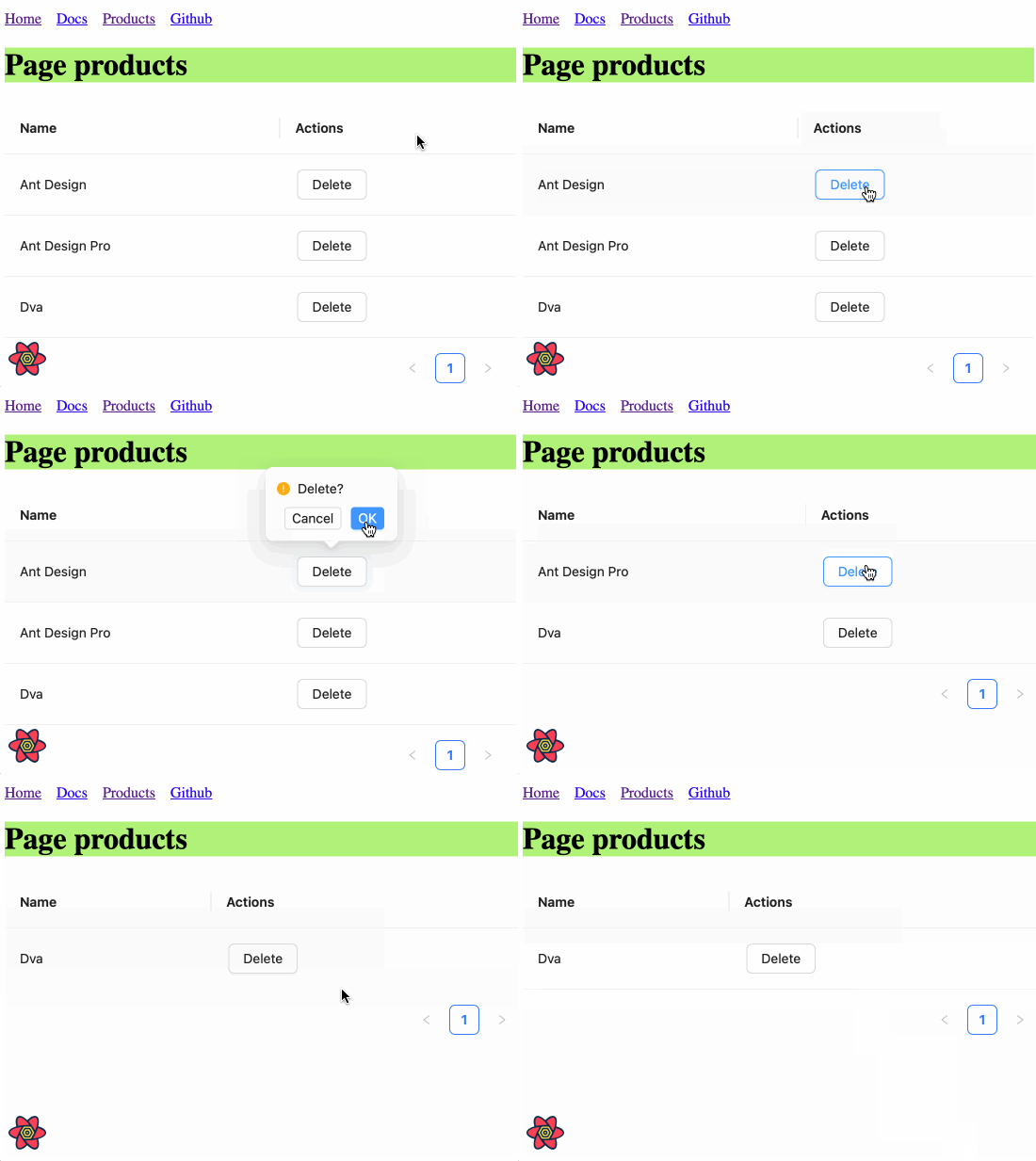
## ProLayout
A standard backend project generally need a layout, this layout is very often highly similar, [ProLayout](https://procomponents.ant.design/components/layout/) encapsulates the common menu, breadcrumbs, page headers and other functions, provides a non-dependent framework and an out-of-the-box advanced layout component. And support `side`, `mix`, `top` three modes, but also built-in menu selection, menu generation breadcrumbs, automatically set the logic of the page title.
Modify the configuration for each route to add a name field for ProLayout to do menu rendering use.
```diff
import { defineConfig } from "umi";
export default defineConfig({
routes: [
- { path: "/", component: "index" },
+ { path: "/", component: "index", name: "home" },
- { path: "/docs", component: "docs" },
+ { path: "/docs", component: "docs", name: "docs" },
- { path: "/products", component: "products" },
+ { path: "/products", component: "products", name: "products" },
],
plugins: ["@umijs/plugins/dist/react-query"],
reactQuery: {},
npmClient: "pnpm",
});
```
Edit `src/layouts/index.tsx` with the following code.
```tsx
import { ProLayout } from '@ant-design/pro-components';
import { Link, Outlet, useAppData, useLocation } from 'umi';
export default function Layout() {
const { clientRoutes } = useAppData();
const location = useLocation();
return (
{
if (menuItemProps.isUrl || menuItemProps.children) {
return defaultDom;
}
if (menuItemProps.path && location.pathname !== menuItemProps.path) {
return (
{defaultDom}
);
}
return defaultDom;
}}
>
);
}
```
Here we first use umi's `useAppData` to get the global client route `clientRoutes`, which is a nested routing object, and we pass `clientRoutes[0]` to ProLayout; then we use `useLocation()` to get the location information, which is also passed to ProLayout to decide which menu should be highlighted; we also want to do a route jump when we click on the menu, so we need to customize ProLayout's menuItemRender method.
You may have found `src/layouts/index.less` has no place to refer to him, in order to keep the project file tidy, you can choose to delete him.
The browser will automatically refresh at this point, and if it goes well, you'll see the following screen.
## Build Application
After completing the development and verifying it in the development environment, it is time to deploy it to our users by executing the following command.
```bash
$ npm run build
info - Umi v4.0.46
✔ Webpack
Compiled successfully in 5.31s
info - File sizes after gzip:
122.45 kB dist/umi.js
575 B dist/src__pages__products.async.js
312 B dist/src__pages__index.async.js
291 B dist/layouts__index.async.js
100 B dist/layouts__index.chunk.css
55 B dist/src__pages__products.chunk.css
event - Build index.html
```
The build command will package all resources, including JavaScript, CSS, Web Fonts, images, Html, etc. You can find these files in the `dist/` directory.
## Next Step
We have completed a simple application and you may still have many questions, such as
- How to handle errors uniformly?
- How to handle more routing, such as dynamic routing, nested routing, permission routing, etc.?
- How to use a data flow scheme?
- How to modify webpack configuration or switch to vite build mode?
- etc.
You can.
- Visit [Umi official website](https://umijs.org/)
- Learn about [Umi's Routing](https://umijs.org/docs/guides/routes)
- Learn about [Umi Max](https://umijs.org/docs/max/introduce), which is more integrated than Umi
- Learn about the out-of-the-box middle and backend scaffolding [Ant Design Pro](https://pro.ant.design/)
- Learn about advanced layouts [ProLayout](https://procomponents.ant.design/components/layout)
- Learn about advanced tables [ProTable](https://procomponents.ant.design/components/table)
---
Title: Basic Usage
URL: https://ant.design/docs/react/use-with-rsbuild
---
[Rsbuild](https://rsbuild.dev) is a build tool driven by Rspack. This article will try to use `Rsbuild` to create a project and import antd.
## Install and Initialization
Before all start, you may need install [yarn](https://github.com/yarnpkg/yarn) or [pnpm](https://pnpm.io) or [bun](https://bun.sh).
During the initialization process, `create-rsbuild` provides a series of templates for us to choose, We need choose the `React` template.
The tool will create and initialize environment and dependencies automatically, please try config your proxy setting or use another npm registry if any network errors happen during it.
Then we go inside project and start it.
```bash
$ cd demo
$ npm run dev
```
Open the browser at http://localhost:3000. It renders a title saying `Rsbuild with React` on the page, which is considered successful.
## Import antd
Now we install `antd` from yarn or npm or pnpm or bun.
Modify `src/App.tsx`, import Button component from `antd`.
```tsx
import React from 'react';
import { Button } from 'antd';
const App: React.FC = () => (
);
export default App;
```
OK, you should now see a blue primary button displayed on the page. Next you can choose any components of `antd` to develop your application. Visit other workflows of `Rsbuild` at its [Official documentation](https://rsbuild.dev).
### Customize Theme
Ref to the [Customize Theme documentation](/docs/react/customize-theme). Modify theme with ConfigProvider:
```tsx
import React from 'react';
import { ConfigProvider } from 'antd';
const App: React.FC = () => (
);
export default App;
```
We are successfully running the antd components using Rsbuild now, let’s start build your own application!
---
Title: Basic Usage
URL: https://ant.design/docs/react/use-with-refine
---
[Refine](https://github.com/refinedev/refine) is a React meta-framework designed for CRUD-heavy web applications. Its core hooks and components streamline development by offering solutions for authentication, access control, routing, networking, state management, and i18n.
It supports Ant Design with an integration package that includes ready-to-use components and hooks to connect Refine to Ant Design.
This article will guide you through bootstrapping a fully-functional CRUD application example using Refine and Ant Design.
## Install and Initialization
Refine integrates easily with platforms like Vite, Next.js, Remix, React Native, and Electron through a simple routing interface without additional setup.
In this guide, we'll use Vite and the `refine-antd` preset from the `create refine-app` CLI for a quick start to create a new Refine project with Ant Design using predefined options.
Before all start, you may need install [yarn](https://github.com/yarnpkg/yarn/) or [pnpm](https://pnpm.io/).
Using the `refine-antd` preset eliminates the need for extra dependencies and add example pages built with Ant Design for a quick start.
After the initialization is complete, we enter the project and start.
```bash
$ cd antd-demo
$ npm run dev
```
Once initialization is complete, all Ant Design configurations are done automatically, allowing you to start using Ant Design components in your Refine app.
Open the browser at http://localhost:5173/ and you will see example CRUD app with Ant Design components.
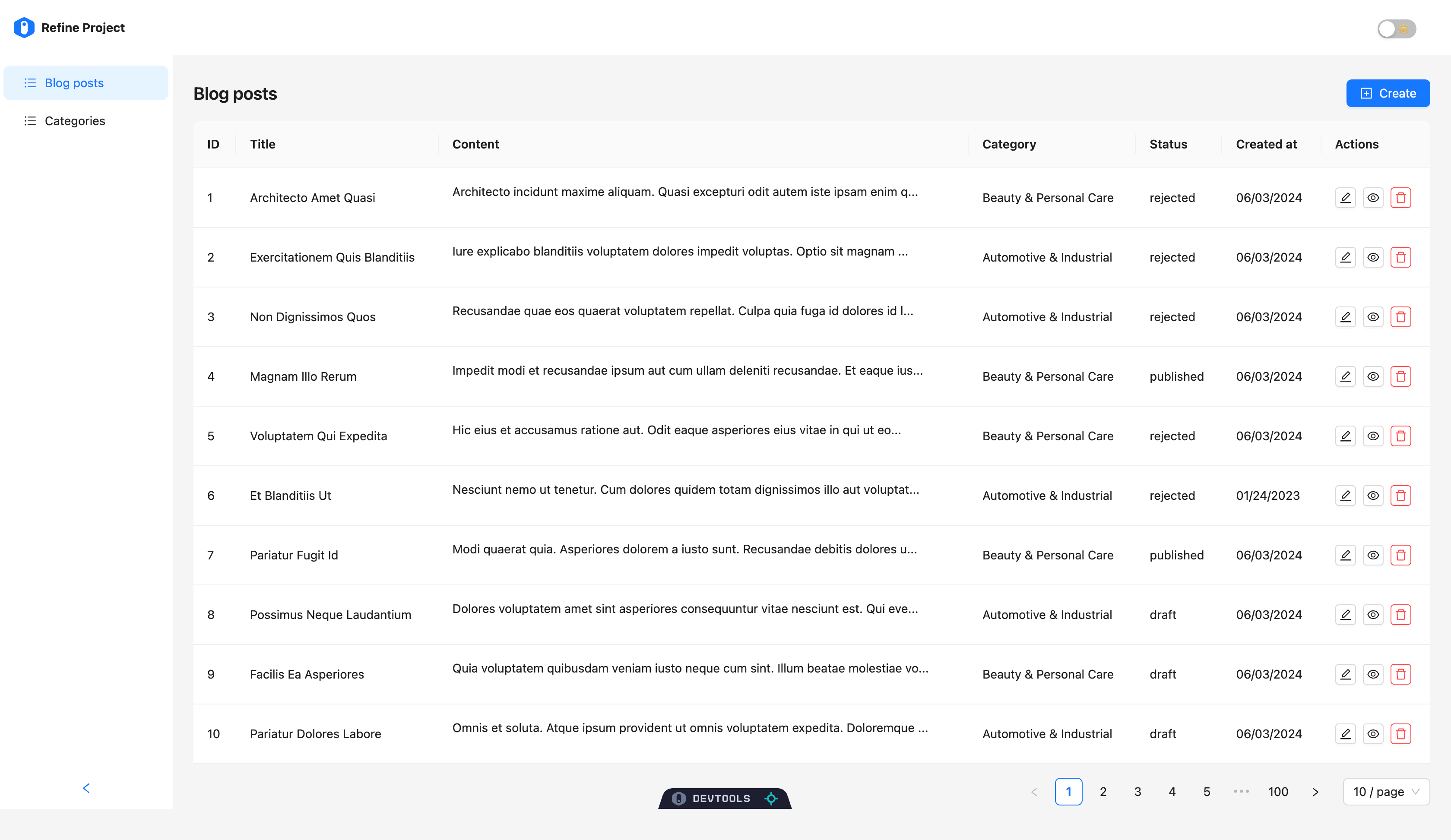
## Inspection the code
Let take a look at Ant Design usage in the one of the example component generated by the CLI command.
```tsx
import { Create, useForm } from '@refinedev/antd';
import { Form, Input } from 'antd';
export const CategoryCreate = () => {
const { formProps, saveButtonProps } = useForm();
return (
);
};
```
While Refine's integration offers a set of components and hooks, it is not a replacement for the Ant Design package, you will be able to use all the features of Ant Design in the same way you would use it in a regular React application.
Refine's integration only provides components and hooks for an easier usage of Ant Design components in combination with Refine's features and functionalities.
## How to Add Ant Design to an Existing Refine Project
You can follow the [Refine Ant Design official guide](https://refine.dev/docs/ui-integrations/ant-design/introduction/) to add Ant Design to an existing Refine project.
To bootstrap a Refine app with various integration options like Next.js and Remix, use `npm create refine-app@latest` and select Ant Design as the UI framework from the CLI.
For more detailed tutorials and guides with Ant Design, visit the [Refine documentation](https://refine.dev/tutorial/ui-libraries/intro/ant-design/react-router/).
---
Title: Basic Usage
URL: https://ant.design/docs/react/use-with-next
---
[Next.js](https://nextjs.org/) is currently the most popular React server-side isomorphic framework in the world. This article will try to use `antd` components in projects created by Next.js.
## Install and Initialization
Before all start, you may need install [yarn](https://github.com/yarnpkg/yarn/) or [pnpm](https://pnpm.io/) or [bun](https://bun.sh/).
The tool will create and initialize environment and dependencies automatically, please try config your proxy setting, or use another npm registry if any network errors happen during it.
After the initialization is complete, we enter the project and start.
```bash
$ cd antd-demo
$ npm run dev
```
Open the browser at http://localhost:3000/. if you see the NEXT logo, it is considered a success.
## Import antd
Now we install `antd` from yarn or npm or pnpm or bun.
Modify `src/app/page.tsx`, import Button component from `antd`.
```tsx
import React from 'react';
import { Button } from 'antd';
const Home = () => (
);
export default Home;
```
OK, you should now see a blue primary button displayed on the page. Next you can choose any components of `antd` to develop your application. Visit other workflows of `Next.js` at its [User Guide](https://nextjs.org/).
You could find that components of antd do not have styles in the first screen. Next, you need to choose different SSR style processing methods according to the mode of Next.js.
## Using App Router Updated
If you are using the App Router in Next.js and using antd as your component library, to make the antd component library work better in your Next.js application and provide a better user experience, you can try using the following method to extract and inject antd's first-screen styles into HTML to avoid page flicker.
1. Install `@ant-design/nextjs-registry`
2. Use it in `app/layout.tsx`
```tsx
import React from 'react';
import { AntdRegistry } from '@ant-design/nextjs-registry';
const RootLayout = ({ children }: React.PropsWithChildren) => (
{children}
);
export default RootLayout;
```
:::warning
Next.js App Router currently not support using sub-components via `.` like `` and ``. Importing them from path would solve this problem.
:::
For more detailed information, please refer to [with-nextjs-app-router-inline-style](https://github.com/ant-design/ant-design-examples/tree/main/examples/with-nextjs-app-router-inline-style).
## Using Pages Router
If you are using the Pages Router in Next.js and using antd as your component library, to make the antd component library work better in your Next.js application and provide a better user experience, you can try using the following method to extract and inject antd's first-screen styles into HTML to avoid page flicker.
1. Install `@ant-design/cssinjs`
> Notes for developers
>
> Please note that when you install `@ant-design/cssinjs`, you must ensure that the version is consistent with the version of `@ant-design/cssinjs` in local `node_modules` of `antd`, otherwise, multiple React instances will appear, resulting in ctx being unable to be read correctly. (Tips: you can use `npm ls @ant-design/cssinjs` command to view the local version)
>
>
2. Rewrite `pages/_document.tsx`
```tsx
import React from 'react';
import { createCache, extractStyle, StyleProvider } from '@ant-design/cssinjs';
import Document, { Head, Html, Main, NextScript } from 'next/document';
import type { DocumentContext } from 'next/document';
const MyDocument = () => (
);
MyDocument.getInitialProps = async (ctx: DocumentContext) => {
const cache = createCache();
const originalRenderPage = ctx.renderPage;
ctx.renderPage = () =>
originalRenderPage({
enhanceApp: (App) => (props) => (
),
});
const initialProps = await Document.getInitialProps(ctx);
const style = extractStyle(cache, true);
return {
...initialProps,
styles: (
<>
{initialProps.styles}
),
};
};
export default MyDocument;
```
3. Supports custom themes
```ts
// theme/themeConfig.ts
import type { ThemeConfig } from 'antd';
const theme: ThemeConfig = {
token: {
fontSize: 16,
colorPrimary: '#52c41a',
},
};
export default theme;
```
4. Rewrite `pages/_app.tsx`
```tsx
import React from 'react';
import { ConfigProvider } from 'antd';
import type { AppProps } from 'next/app';
import theme from './theme/themeConfig';
const App = ({ Component, pageProps }: AppProps) => (
);
export default App;
```
5. Use antd in page component
```tsx
import React from 'react';
import { Button } from 'antd';
const Home = () => (
);
export default Home;
```
For more detailed information, please refer to [with-nextjs-inline-style](https://github.com/ant-design/ant-design-examples/tree/main/examples/with-nextjs-inline-style).
---
Title: Basic Usage
URL: https://ant.design/docs/react/use-with-farm
---
[Farm](https://www.farmfe.org/) is a Rust-Based Web Building Engine to Facilitate Your Web Program and JavaScript Library. This article will try to use `Farm` to create a project and import antd.
## Install and Initialization
Before all start, you may need install [yarn](https://github.com/yarnpkg/yarn) or [pnpm](https://pnpm.io) or [bun](https://bun.sh).
During the initialization process, `farm` provides a series of templates for us to choose, We need choose the `React` template.
The tool will create and initialize environment and dependencies automatically, please try config your proxy setting or use another npm registry if any network errors happen during it.
Then we go inside project and start it.
```bash
$ cd farm-project
$ npm install
$ npm start
```
Open the browser at http://localhost:9000. It renders a title saying `Farm with React` on the page, which is considered successful.
## Import antd
Now we install `antd` from yarn or npm or pnpm or bun.
Modify `src/main.tsx`, import Button component from `antd`.
```tsx
import React from 'react';
import { Button } from 'antd';
export function Main() {
return (
);
}
```
OK, you should now see a blue primary button displayed on the page. Next you can choose any components of `antd` to develop your application. Visit other workflows of `Farm` at its [Official documentation](https://www.farmfe.org).
### Customize Theme
Ref to the [Customize Theme documentation](/docs/react/customize-theme). Modify theme with ConfigProvider:
```tsx
import React from 'react';
import { Button, ConfigProvider } from 'antd';
export function Main() {
return (
);
}
```
We are successfully running the antd components using Rsbuild now, let’s start build your own application!
---
Title: Advanced
URL: https://ant.design/docs/react/use-custom-date-library
---
By default, Ant Design uses [Day.js](https://day.js.org) to handle time and date. Day.js is an immutable date-time library alternative to Moment.js with the same API.
You might want to use another date library (**Ant design currently supports [moment](http://momentjs.com/), [date-fns](https://date-fns.org), and [luxon](https://moment.github.io/luxon/)**). We provide two ways to customize:
## Custom component
The first way is to use `generatePicker` (or `generateCalendar`) to help create Picker components.
First, we initialize an antd demo. You can refer to [Scaffolding Guide](https://u.ant.design/guide), or you can start directly here [init antd](https://github.com/xiaohuoni/antd4-generate-picker/commit/47fec964e36d48bd15760f8f5abcb9655c259aa6)
### DatePicker.tsx
Create `src/components/DatePicker.tsx`.
For example:
```tsx
import momentGenerateConfig from '@rc-component/picker/lib/generate/moment';
import { DatePicker } from 'antd';
import type { Moment } from 'moment';
const MyDatePicker = DatePicker.generatePicker(momentGenerateConfig);
export default MyDatePicker;
```
### TimePicker.tsx
Create `src/components/TimePicker.tsx`.
For example:
```tsx
import * as React from 'react';
import type { PickerTimeProps } from 'antd/es/date-picker/generatePicker';
import type { Moment } from 'moment';
import DatePicker from './DatePicker';
export interface TimePickerProps extends Omit, 'picker'> {}
const TimePicker = React.forwardRef((props, ref) => (
));
TimePicker.displayName = 'TimePicker';
export default TimePicker;
```
### Calendar.tsx
Create `src/components/Calendar.tsx`.
For example:
```tsx
import momentGenerateConfig from '@rc-component/picker/es/generate/moment';
import { Calendar } from 'antd';
import type { Moment } from 'moment';
const MyCalendar = Calendar.generateCalendar(momentGenerateConfig);
export default MyCalendar;
```
### Export Custom component
Create `src/components/index.tsx`.
For example:
```tsx
export { default as Calendar } from './Calendar';
export { default as DatePicker } from './DatePicker';
export { default as TimePicker } from './TimePicker';
```
### Use Custom component
Modify `src/App.tsx`,import `moment` and custom component.
```diff
- import { DatePicker, Calendar } from 'antd';
- import format from 'dayjs';
+ import { DatePicker, TimePicker, Calendar } from './components';
+ import format from 'moment';
```
## antd-moment-webpack-plugin
We also provide another implementation, which we provide with `@ant-design/moment-webpack-plugin`, replacing `Day.js` with `moment` directly without changing a line of existing code. More info can be found at [@ant-design/moment-webpack-plugin](https://github.com/ant-design/antd-moment-webpack-plugin).
```js
// webpack-config.js
const AntdMomentWebpackPlugin = require('@ant-design/moment-webpack-plugin');
module.exports = {
// ...
plugins: [new AntdMomentWebpackPlugin()],
};
```
## Use date-fns
[date-fns](https://date-fns.org/) currently supports custom component methods similar to `dayjs`. The difference is that the parameter types used are different. Support is provided in antd 4.5.0 and above.
For Example:
### DatePicker.tsx
Create `src/components/DatePicker.tsx`.
Code as follows:
```tsx
import dateFnsGenerateConfig from '@rc-component/picker/lib/generate/dateFns';
import { DatePicker } from 'antd';
const MyDatePicker = DatePicker.generatePicker(dateFnsGenerateConfig);
export default MyDatePicker;
```
## Use luxon
Since `antd 5.4.0`, [luxon](https://moment.github.io/luxon/) can be used instead of `dayjs` and supports the same functionality, but it does introduce some differences in behavior that we will explain below.
### Implementation
Create a `src/components/DatePicker.tsx` file, and implement the luxon based picker as follows:
```tsx
import luxonGenerateConfig from '@rc-component/picker/lib/generate/luxon';
import { DatePicker } from 'antd';
import type { DateTime } from 'luxon';
const MyDatePicker = DatePicker.generatePicker(luxonGenerateConfig);
export default MyDatePicker;
```
### Notable differences with dayjs
luxon users should be familiar with the fact that it does not come with a custom implementation for localization. Instead, it relies on the browser's native [Intl API](https://developer.mozilla.org/en-US/docs/Web/JavaScript/Reference/Global_Objects/Intl).
This introduces some formatting differences with the other date libraries. As of today, the main differences are:
- First day of the week is always Monday regardless of locale.
- Week of year number is sometimes different (ISO week rules are used to determine it).
- Short week days format will sometimes be different for custom locales (it might have 3 characters instead of 2).
- Selected week label format will be slightly different (e.g. "2021-01" instead of "2021-1st").
It is possible to customize these default luxon behaviors by adjusting the luxon config:
```tsx
import luxonGenerateConfig from '@rc-component/picker/lib/generate/luxon';
import { DatePicker } from 'antd';
import type { DateTime } from 'luxon';
const customLuxonConfig = {
...luxonGenerateConfig,
getWeekFirstDay(locale) {
// Your custom implementation goes here
},
};
const MyDatePicker = DatePicker.generatePicker(customLuxonConfig);
export default MyDatePicker;
```
Note that by doing such customization, the resulting DatePicker behavior might be altered in unexpected ways, so make sure you are testing for edge cases.
---
Title: Advanced
URL: https://ant.design/docs/react/server-side-rendering
---
There are two options for server-side rendering styles, each with advantages and disadvantages:
- **Inline mode**: there is no need to request additional style files during rendering. The advantage is to reduce additional network requests. The disadvantage is that the HTML volume will increase and the speed of the first screen rendering will be affected. Relevant discussion: [#39891](https://github.com/ant-design/ant-design/issues/39891)
- **Whole export**: The antd component is pre-baked and styled as a css file to be introduced in the page. The advantage is that when opening any page, the same set of css files will be reused just like the traditional css scheme to hit the cache. The disadvantage is that if there are multiple themes in the page, additional baking is required
## Inline Style
Use `@ant-design/cssinjs` to extract style:
```tsx
import React from 'react';
import { createCache, extractStyle, StyleProvider } from '@ant-design/cssinjs';
import type Entity from '@ant-design/cssinjs/es/Cache';
import { renderToString } from 'react-dom/server';
const App = () => {
// SSR Render
const cache = React.useMemo(() => createCache(), []);
const html = renderToString(
,
);
// Grab style from cache
const styleText = extractStyle(cache);
// Mix with style
return `
${styleText}
${html}
`;
};
export default App;
```
## Whole Export
If you want to detach a style file into a css file, try the following schemes:
1. Installation dependency
```bash
npm install ts-node tslib cross-env --save-dev
```
2. Add `tsconfig.node.json`
```json
{
"compilerOptions": {
"strictNullChecks": true,
"module": "NodeNext",
"jsx": "react",
"esModuleInterop": true
},
"include": ["next-env.d.ts", "**/*.ts", "**/*.tsx"]
}
```
3. Add `scripts/genAntdCss.tsx`
```tsx
// scripts/genAntdCss.tsx
import fs from 'fs';
import { extractStyle } from '@ant-design/static-style-extract';
const outputPath = './public/antd.min.css';
const css = extractStyle();
fs.writeFileSync(outputPath, css);
```
If you want to use mixed themes or custom themes, you can use the following script:
```tsx
import fs from 'fs';
import React from 'react';
import { extractStyle } from '@ant-design/static-style-extract';
import { ConfigProvider } from 'antd';
const outputPath = './public/antd.min.css';
const testGreenColor = '#008000';
const testRedColor = '#ff0000';
const css = extractStyle((node) => (
<>
{node}
{node}
));
fs.writeFileSync(outputPath, css);
```
You can choose to execute this script before starting the development command or before compiling. Running this script will generate a full antd.min.css file directly in the specified directory of the current project (e.g. public).
Take Next.js for example([example](https://github.com/ant-design/ant-design-examples/tree/main/examples/with-nextjs-inline-style)):
```json
// package.json
{
"scripts": {
"dev": "next dev",
"build": "next build",
"start": "next start",
"lint": "next lint",
"predev": "ts-node --project ./tsconfig.node.json ./scripts/genAntdCss.tsx",
"prebuild": "cross-env NODE_ENV=production ts-node --project ./tsconfig.node.json ./scripts/genAntdCss.tsx"
}
}
```
Then, you just need to import this file into the `pages/_app.tsx` file:
```tsx
import { StyleProvider } from '@ant-design/cssinjs';
import type { AppProps } from 'next/app';
import '../public/antd.min.css'; // add this line
import '../styles/globals.css';
export default function App({ Component, pageProps }: AppProps) {
return (
);
}
```
### Custom theme
If you're using a custom theme for your project, try baking in the following ways:
```tsx
import { extractStyle } from '@ant-design/static-style-extract';
import { ConfigProvider } from 'antd';
const cssText = extractStyle((node) => (
{node}
));
```
### Mixed theme
If you're using a mixed theme for your project, try baking in the following ways:
```tsx
import { extractStyle } from '@ant-design/static-style-extract';
import { ConfigProvider } from 'antd';
const cssText = extractStyle((node) => (
<>
{node}
{node}
));
```
More about static-style-extract, see [static-style-extract](https://github.com/ant-design/static-style-extract).
## Extract on demand
```tsx
// scripts/genAntdCss.tsx
import { createHash } from 'crypto';
import fs from 'fs';
import path from 'path';
import { extractStyle } from '@ant-design/cssinjs';
import type Entity from '@ant-design/cssinjs/lib/Cache';
export interface DoExtraStyleOptions {
cache: Entity;
dir?: string;
baseFileName?: string;
}
export const doExtraStyle = (opts: DoExtraStyleOptions) => {
const { cache, dir = 'antd-output', baseFileName = 'antd.min' } = opts;
const baseDir = path.resolve(__dirname, '../../static/css');
const outputCssPath = path.join(baseDir, dir);
if (!fs.existsSync(outputCssPath)) {
fs.mkdirSync(outputCssPath, { recursive: true });
}
const css = extractStyle(cache, true);
if (!css) {
return '';
}
const md5 = createHash('md5');
const hash = md5.update(css).digest('hex');
const fileName = `${baseFileName}.${hash.substring(0, 8)}.css`;
const fullpath = path.join(outputCssPath, fileName);
const res = `_next/static/css/${dir}/${fileName}`;
if (fs.existsSync(fullpath)) {
return res;
}
fs.writeFileSync(fullpath, css);
return res;
};
```
Export on demand using the above tools in `_document.tsx`
```tsx
// _document.tsx
import { createCache, StyleProvider } from '@ant-design/cssinjs';
import type { DocumentContext } from 'next/document';
import Document, { Head, Html, Main, NextScript } from 'next/document';
import { doExtraStyle } from '../scripts/genAntdCss';
export default class MyDocument extends Document {
static async getInitialProps(ctx: DocumentContext) {
const cache = createCache();
let fileName = '';
const originalRenderPage = ctx.renderPage;
ctx.renderPage = () =>
originalRenderPage({
enhanceApp: (App) => (props) => (
),
});
const initialProps = await Document.getInitialProps(ctx);
// 1.1 extract style which had been used
fileName = doExtraStyle({
cache,
});
return {
...initialProps,
styles: (
<>
{initialProps.styles}
{/* 1.2 inject css */}
{fileName && }
),
};
}
render() {
return (
);
}
}
```
See the demo:[Export the css files on demand demo](https://github.com/ant-design/ant-design-examples/tree/main/examples/with-nextjs-generate-css-on-demand)
---
Title: Other
URL: https://ant.design/docs/react/recommendation
---
`antd` is built to implement [a set of high-quality React UI components](/components/overview) which follow Ant Design specification. It is impossible to include all useful components in one package, so we also recommend that using other great third-party libraries in React community.
| Category | Recommended Components |
| --- | --- |
| Visualization and charts | [Ant Design Charts](https://charts.ant.design) [AntV Data Visualization](https://antv.vision/en) |
| React Hooks Library | [ahooks](https://github.com/alibaba/hooks) |
| React Form Library | [ProForm](https://procomponents.ant.design/components/form) [Formily](https://github.com/alibaba/formily) [react-hook-form](https://github.com/react-hook-form/react-hook-form) [formik](https://github.com/formium/formik) |
| Router | [react-router](https://github.com/ReactTraining/react-router) |
| Layout | [react-grid-layout](https://github.com/react-grid-layout/react-grid-layout) [react-grid-system](https://github.com/sealninja/react-grid-system) [rc-dock](https://github.com/ticlo/rc-dock) |
| Drag and drop | [dnd-kit](https://github.com/clauderic/dnd-kit) [react-beautiful-dnd](https://github.com/atlassian/react-beautiful-dnd/) [react-dnd](https://github.com/gaearon/react-dnd) |
| Code Editor | [react-codemirror2](https://github.com/scniro/react-codemirror2) [react-monaco-editor](https://github.com/react-monaco-editor/react-monaco-editor) |
| Rich Text Editor | [react-quill](https://github.com/zenoamaro/react-quill) |
| JSON Viewer | [react-json-view](https://github.com/mac-s-g/react-json-view) |
| Color Picker | [react-colorful](https://github.com/omgovich/react-colorful) [react-color](https://casesandberg.github.io/react-color/) |
| Media Query | [react-responsive](https://github.com/contra/react-responsive) |
| Copy to clipboard | [react-copy-to-clipboard](https://github.com/nkbt/react-copy-to-clipboard) |
| Document head manager | [react-helmet-async](https://github.com/staylor/react-helmet-async) |
| Icons | [react-fontawesome](https://github.com/FortAwesome/react-fontawesome) [react-icons](https://github.com/gorangajic/react-icons) |
| QR Code | [qrcode.react](https://github.com/zpao/qrcode.react) |
| Top Progress Bar | [react-nprogress](https://github.com/tanem/react-nprogress) |
| i18n | [FormatJS](https://github.com/formatjs/formatjs) [react-i18next](https://react.i18next.com) |
| Code highlight | [react-syntax-highlighter](https://github.com/conorhastings/react-syntax-highlighter) |
| Markdown renderer | [react-markdown](https://remarkjs.github.io/react-markdown/) |
| Infinite Scroll | [rc-virtual-list](https://github.com/react-component/virtual-list/) [react-infinite-scroll-component](https://github.com/ankeetmaini/react-infinite-scroll-component) |
| Map | [google-map-react](https://github.com/istarkov/google-map-react) [@uiw/react-amap](https://github.com/uiwjs/react-amap) |
| Video | [react-player](https://github.com/CookPete/react-player) [video-react](https://github.com/video-react/video-react) [video.js](https://docs.videojs.com/tutorial-react.html) |
| Context Menu | [react-contexify](https://github.com/fkhadra/react-contexify) |
| Emoji | [emoji-picker-react](https://github.com/ealush/emoji-picker-react) [emoji-mart](https://github.com/missive/emoji-mart) |
| Split View | [react-split-pane](https://github.com/tomkp/react-split-pane) [react-resizable-panels](https://github.com/bvaughn/react-resizable-panels) |
| Image Crop | [antd-img-crop](https://github.com/nanxiaobei/antd-img-crop) [react-image-crop](https://github.com/DominicTobias/react-image-crop) |
| Keywords highlight | [react-highlight-words](https://github.com/bvaughn/react-highlight-words) |
| Text Loop | [react-text-loop-next](https://github.com/samarmohan/react-text-loop-next) [react-fast-marquee](https://github.com/justin-chu/react-fast-marquee) |
| Animation | [motion](https://github.com/framer/motion) [Ant Motion](https://motion.ant.design/components/tween-one) [react-spring](https://github.com/pmndrs/react-spring) |
| Page Footer | [rc-footer](https://github.com/react-component/footer) |
| Number/Currency | [react-countup](https://www.npmjs.com/package/react-countup) [react-number-format](https://github.com/s-yadav/react-number-format) [react-currency-input-field](https://github.com/cchanxzy/react-currency-input-field) |
| Application Frameworks | [umi](https://github.com/umijs/umi/) [remix](https://github.com/remix-run/remix) [refine](https://github.com/pankod/refine) |
| Flow-based UI | [reactflow](https://reactflow.dev/) [x6](https://github.com/antvis/x6) |
| Phone Input | [react-phone-number-input](https://gitlab.com/catamphetamine/react-phone-number-input) [antd-phone-input](https://github.com/ArtyomVancyan/antd-phone-input/) |
| AI Chat | [Ant Design X](https://github.com/ant-design/x) |
| PDF | [react-pdf](https://github.com/diegomura/react-pdf) [@react-pdf/renderer](https://github.com/diegomura/react-pdf) |
| React Gesture | [use-gesture](https://use-gesture.netlify.app) |
## Products we are using ✨
There are some products to recommend for developer/designer/product manager.
| Category | Recommended Products |
| ----------------- | --------------------------------------------------------------------- |
| Documentation | [🐦 Yuque](https://www.yuque.com/?chInfo=ch_antd) |
| Icon | [Iconfont](https://www.iconfont.cn/) |
| Sketch plugin | [Kitchen](https://kitchen.alipay.com) |
| Online Playground | [codesandbox](https://codesandbox.io/) [codepen](https://codepen.io/) |
| Image Compressor | [tinypng](https://tinypng.com/) |
---
Title: Migration
URL: https://ant.design/docs/react/migration-v5
---
This document will help you upgrade from antd `4.x` version to antd `5.x` version. If you are using `3.x` or older version, please refer to the previous [upgrade document](https://4x.ant.design/docs/react/migration-v4) to 4.x.
## Upgrade preparation
1. Please upgrade to the latest version of 4.x first, and remove / modify related APIs according to the console warning message.
## Incompatible changes in v5
### Design specification
- Basic rounded corner adjustment, changed from `2px` to four layers of radius, which are `2px` `4px` `6px` and `8px`. For example, radius of default Button is modified from `2px` to `6px`.
- Primary color adjustment, changed from `#1890ff` to `#1677ff`.
- Global shadow optimization, adjusted from three layers of shadows to two layers, which are used in common components (Card .e.g) and popup components (Dropdown .e.g).
- Overall reduction in wireframe usage.
### Technology adjustment
- Remove less, adopt CSS-in-JS, for better support of dynamic themes. The bottom layer uses [@ant-design/cssinjs](https://github.com/ant-design/cssinjs) as a solution.
- All less files are removed, and less variables are no longer exported.
- CSS files are no longer included in package. Since CSS-in-JS supports importing on demand, the original `antd/dist/antd.css` has also been abandoned. If you need to reset some basic styles, please import `antd/dist/reset.css`.
- If you need to reset the style of the component, but you don't want to introduce `antd/dist/reset.css` to pollute the global style, You can try using the [App](/components/app) in the outermost layer to solve the problem that native elements do not have antd specification style.
- Remove css variables and dynamic theme built on top of them.
- LocaleProvider has been deprecated in 4.x (use `` instead), we removed the related folder `antd/es/locale-provider` and `antd/lib/locale-provider` in 5.x.
- Replace built-in Moment.js with Dayjs. For more: [Use custom date library](/docs/react/use-custom-date-library/).
- `babel-plugin-import` is no longer supported. CSS-in-JS itself has the ability to import on demand, and plugin support is no longer required. Umi users can remove related configurations.
```diff
// config/config.ts
export default {
antd: {
- import: true,
},
};
```
### Compatibility
- DO NOT support IE browser anymore.
#### Component API adjustment
- The classname API of the component popup box is unified to `popupClassName`, and `dropdownClassName` and other similar APIs will be replaced.
- AutoComplete
- Cascader
- Select
- TreeSelect
- TimePicker
- DatePicker
- Mentions
```diff
import { Select } from 'antd';
const App: React.FC = () => (
);
export default App;
```
- The controlled visible API of the component popup is unified to `open`, and `visible` and other similar APIs will be replaced.
- Drawer `visible` changed to `open`.
- Modal `visible` changed to `open`.
- Dropdown `visible` changed to `open`.
- Tooltip `visible` changed to `open`.
- Tag `visible` is removed.
- Slider `tooltip` related API converged to `tooltip` property.
- Table `filterDropdownVisible` changed to `filterDropdownOpen`.
```diff
import { Modal, Tag, Table, Slider } from 'antd';
const App: React.FC = () => {
const [visible, setVisible] = useState(true);
return (
<>
- content
+ content
- tag
+ {visible && tag}
-
+
);
}
export default App;
```
- `getPopupContainer`: All `getPopupContainer` are guaranteed to return a unique div. This method will be called repeatedly under React 18 concurrent mode.
- Upload List structure changes. [#34528](https://github.com/ant-design/ant-design/pull/34528)
- Notification
- Static methods are no longer allowed to dynamically set `prefixCls` `maxCount` `top` `bottom` `getContainer` in `open`, Notification static methods will now have only one instance. If you need a different configuration, use `useNotification`.
- `close` was renamed to `destroy` to be consistent with message.
- Drawer `style` & `className` are migrated to Drawer panel node, the original properties are replaced by `rootClassName` and `rootStyle`.
- The deprecated `message.warn` in 4.x is now completely removed, please use `message.warning` instead.
#### Component refactoring and removal
- Remove `locale-provider` Directory. `LocaleProvider` was removed in v4, please use `ConfigProvider` instead.
- Move Comment component into `@ant-design/compatible`.
- Move PageHeader component into `@ant-design/pro-components`.
```diff
- import { PageHeader, Comment } from 'antd';
+ import { Comment } from '@ant-design/compatible';
+ import { PageHeader } from '@ant-design/pro-components';
const App: React.FC = () => (
<>
);
export default App;
```
- BackTop is deprecated in `5.0.0`, and is merged into FloatButton.
```diff
- import { BackTop } from 'antd';
+ import { FloatButton } from 'antd';
const App: React.FC = () => (
---
## ✨ Features
- 🌈 Enterprise-class UI designed for web applications.
- 📦 A set of high-quality React components out of the box.
- 🛡 Written in TypeScript with predictable static types.
- ⚙️ Whole package of design resources and development tools.
- 🌍 Internationalization support for dozens of languages.
- 🎨 Powerful theme customization in every detail.
## Environment Support
- Modern browsers
- Server-side Rendering
- [Electron](https://www.electronjs.org/)
| [](https://godban.github.io/browsers-support-badges/)Edge | [](https://godban.github.io/browsers-support-badges/)Firefox | [](https://godban.github.io/browsers-support-badges/)Chrome | [](https://godban.github.io/browsers-support-badges/)Safari | [](https://godban.github.io/browsers-support-badges/)Opera | [](https://godban.github.io/browsers-support-badges/)Electron |
| --- | --- | --- | --- | --- | --- |
| Edge | last 2 versions | last 2 versions | last 2 versions | last 2 versions | last 2 versions |
Polyfills are needed for IE browsers. We recommend [@babel/preset-env](https://babeljs.io/docs/en/babel-preset-env) for it. You can set `targets` config if you are using [umi](https://umijs.org/).
> Dropped support of IE8 after `antd@2.0`. Dropped support of React 15 and IE9/10 after `antd@4.0`. Dropped support of IE after `antd@5.0`.
## Version
- Stable: [](https://www.npmjs.org/package/antd)
You can subscribe to this feed for new version notifications: https://github.com/ant-design/ant-design/releases.atom
## Installation
### Using npm or yarn or pnpm or bun
**We recommend using [npm](https://www.npmjs.com/) or [yarn](https://github.com/yarnpkg/yarn/) or [pnpm](https://pnpm.io/) or [bun](https://bun.sh/) to install**, it not only makes development easier, but also allow you to take advantage of the rich ecosystem of Javascript packages and tooling.
If you are in a bad network environment, you can try other registries and tools like [cnpm](https://github.com/cnpm/cnpm).
### Import in Browser
Add `script` and `link` tags in your browser and use the global variable `antd`.
We provide `antd.js` and `antd.min.js` `reset.css` under [dist](https://unpkg.com/browse/antd@5.0.0/dist/) folder in antd's npm package. You can also download these files directly from [](https://cdnjs.com/libraries/antd), [](https://www.jsdelivr.com/package/npm/antd) or [unpkg](https://unpkg.com/antd/dist).
> **We strongly discourage loading the entire files** this will add bloat to your application and make it more difficult to receive bugfixes and updates. Antd is intended to be used in conjunction with a build tool, such as [webpack](https://webpack.github.io/), which will make it easy to import only the parts of antd that you are using.
> Note: You should import `react`, `react-dom`, `dayjs` before using `antd.js`.
## Usage
```jsx
import React from 'react';
import { DatePicker } from 'antd';
const App = () => {
return ;
};
export default App;
```
### Use modularized antd
`antd` supports ES modules tree shaking by default.
### TypeScript
`antd` provides a built-in ts definition, don't install `@types/antd`.
## Links
- [Home page](/)
- [China Mirrors](https://github.com/ant-design/ant-design/issues/25661)
- [Components](/components/overview)
- [Change Log](/changelog)
- [rc-components](https://react-component.github.io/)
- [Ant Design Icons](https://github.com/ant-design/ant-design-icons)
- [Ant Design Colors](https://github.com/ant-design/ant-design-colors)
- [🆕 Ant Design X](https://x.ant.design/index-cn)
- [Ant Design Pro](https://pro.ant.design/)
- [Pro Components](https://procomponents.ant.design)
- [Ant Design Mobile](https://mobile.ant.design)
- [Ant Design Mini](https://mini.ant.design)
- [Ant Design Charts](https://charts.ant.design)
- [Ant Design Web3](https://web3.ant.design)
- [Landing Pages](https://landing.ant.design)
- [Ant Motion](https://motion.ant.design)
- [Scaffold Market](https://scaffold.ant.design)
- [Developer Instruction](https://github.com/ant-design/ant-design/wiki/Development)
- [Versioning Release Note](https://github.com/ant-design/ant-design/wiki/%E8%BD%AE%E5%80%BC%E8%A7%84%E5%88%99%E5%92%8C%E7%89%88%E6%9C%AC%E5%8F%91%E5%B8%83%E6%B5%81%E7%A8%8B)
- [FAQ](/docs/react/faq)
- [CodeSandbox Template](https://u.ant.design/codesandbox-repro) for bug reports
- [Awesome Ant Design](https://github.com/websemantics/awesome-ant-design)
- [Customize Theme](/docs/react/customize-theme)
- [How to Apply for Being A Collaborator](https://github.com/ant-design/ant-design/wiki/Collaborators#how-to-apply-for-being-a-collaborator)
## Non-React Implementations
React is used to encapsulate a library of components which embody our design language. We welcome the community to implement our design system [in other front-end frameworks](/docs/spec/introduce#front-end-implementation) of their choice.
## Companies using antd
Ant Design is widely used for building enterprise-level websites both domestically and internationally. You can refer to wappalyzer for reference data. If your company or product uses Ant Design, let us know [here](https://github.com/ant-design/ant-design/issues/477)!
## Contributing
Please read our [CONTRIBUTING.md](https://github.com/ant-design/ant-design/blob/master/.github/CONTRIBUTING.md) first.
If you'd like to help us improve antd, just create a [Pull Request](https://github.com/ant-design/ant-design/pulls). Feel free to report bugs and issues [here](https://new-issue.ant.design/).
> If you're new to posting issues, we ask that you read [_How To Ask Questions The Smart Way_](https://www.catb.org/~esr/faqs/smart-questions.html) and [How to Ask a Question in Open Source Community](https://github.com/seajs/seajs/issues/545) and [How to Report Bugs Effectively](https://www.chiark.greenend.org.uk/~sgtatham/bugs.html) prior to posting. Well written bug reports help us help you!
## Need Help?
For questions on how to use antd, please post questions to [GitHub Discussions](https://github.com/ant-design/ant-design/discussions) using the `Q&A` tag or [](https://stackoverflow.com/questions/tagged/antd) using the `antd` tag.
As always, we encourage experienced users to help those who are not familiar with `antd`!
---
Title: Advanced
URL: https://ant.design/docs/react/i18n
---
The default language of `antd` is currently English. If you wish to use other languages, follow the instructions below.
## ConfigProvider
`antd` provides a React Component [ConfigProvider](/components/config-provider) for configuring antd locale text globally.
```jsx
import { ConfigProvider } from 'antd';
import frFR from 'antd/locale/fr_FR';
return (
);
```
You can see the complete configuration here: [ConfigProvider](/components/config-provider).
Note: `fr_FR` is the filename, the following table also follows the same rules.
The following languages are currently supported:
### Supported languages:
| Language | Filename |
| ------------------------ | -------- |
| Arabic | ar_EG |
| Azerbaijani | az_AZ |
| Bulgarian | bg_BG |
| Bangla (Bangladesh) | bn_BD |
| Belarusian | by_BY |
| Catalan | ca_ES |
| Czech | cs_CZ |
| Danish | da_DK |
| German | de_DE |
| Greek | el_GR |
| English (United Kingdom) | en_GB |
| English | en_US |
| Spanish | es_ES |
| Basque | eu_ES |
| Estonian | et_EE |
| Persian | fa_IR |
| Finnish | fi_FI |
| French (Belgium) | fr_BE |
| French (Canada) | fr_CA |
| French (France) | fr_FR |
| Irish (Ireland) | ga_IE |
| Galician (Spain) | gl_ES |
| Hebrew | he_IL |
| Hindi | hi_IN |
| Croatian | hr_HR |
| Hungarian | hu_HU |
| Armenian | hy_AM |
| Indonesian | id_ID |
| Italian | it_IT |
| Icelandic | is_IS |
| Japanese | ja_JP |
| Georgian | ka_GE |
| Kurdish (Kurmanji) | kmr_IQ |
| Kannada | kn_IN |
| Kazakh | kk_KZ |
| Khmer | km_KH |
| Korean | ko_KR |
| Lithuanian | lt_LT |
| Latvian | lv_LV |
| Macedonian | mk_MK |
| Malayalam (India) | ml_IN |
| Mongolian | mn_MN |
| Malay (Malaysia) | ms_MY |
| Burmese | my_MM |
| Norwegian | nb_NO |
| Nepali | ne_NP |
| Dutch (Belgium) | nl_BE |
| Dutch | nl_NL |
| Polish | pl_PL |
| Portuguese (Brazil) | pt_BR |
| Portuguese | pt_PT |
| Romanian | ro_RO |
| Russian | ru_RU |
| Sinhalese / Sinhala | si_LK |
| Slovak | sk_SK |
| Serbian | sr_RS |
| Slovenian | sl_SI |
| Swedish | sv_SE |
| Tamil | ta_IN |
| Thai | th_TH |
| Turkish | tr_TR |
| Turkmen | tk_TK |
| Urdu (Pakistan) | ur_PK |
| Ukrainian | uk_UA |
| Uzbek(latn) | uz_UZ |
| Vietnamese | vi_VN |
| Chinese (Simplified) | zh_CN |
| Chinese (Traditional) | zh_HK |
| Chinese (Traditional) | zh_TW |
See more usage at [ConfigProvider](/components/config-provider).
## Adding new language
If your language is not in above list, feel free to create a locale package based on the [en_US](https://github.com/ant-design/ant-design/blob/master/components/locale/en_US.ts) language pack and send us a pull request. For reference, you can refer to the pull request of adding the [Azerbaijani](https://github.com/ant-design/ant-design/pull/21387) language as a sample.
Do it step by step:
1. Fork `antd` and git clone to local, switch to `feature` branch, pull it to make sure it's up-to-date, create a new branch based on `feature` branch, all work will be done in it.
```bash
git clone git@github.com:/ant-design.git
cd ant-design/
git remote add upstream git@github.com:ant-design/ant-design.git
git checkout -b upstream/feature
```
2. Add the language support for [@rc-component/picker](https://github.com/react-component/picker), for example [this](https://github.com/react-component/picker/blob/master/src/locale/en_US.ts).
3. Add the language support for [@rc-component/pagination](https://github.com/react-component/pagination), for example [this](https://github.com/react-component/pagination/blob/master/src/locale/en_US.ts).
4. Wait for `@rc-component/picker` and `@rc-component/pagination` to release the new version containing the above.
5. Update the `@rc-component/picker` and `@rc-component/pagination` versions in `antd` and add the remaining other necessary content for the language. for example [Azerbaijani PR](https://github.com/ant-design/ant-design/pull/21387).
6. Add a test case for the language in [index.test.tsx](https://github.com/ant-design/ant-design/blob/master/components/locale/__tests__/index.test.tsx).
7. update snapshots, you may also need to delete `node_modules`, lock files (`yarn.lock` or `package-lock.json`) and reinstall at first.
```bash
npm run test -- components/locale -u
```
8. Add the language to i18n list [docs/react/i18n.en-US.md](https://github.com/ant-design/ant-design/blob/master/docs/react/i18n.en-US.md) and [docs/react/i18n.zh-CN.md](https://github.com/ant-design/ant-design/blob/master/docs/react/i18n.zh-CN.md).
9. Watch out the CI status, and if it failed, look at the logs and make some changes until it all passes.
10. Ok, now everything is ready for review.
---
Title: Basic Usage
URL: https://ant.design/docs/react/getting-started
---
Ant Design React is dedicated to providing a **good development experience** for programmers. Before starting, it is recommended to learn [React](https://react.dev) first, and correctly install and configure [Node.js](https://nodejs.org/) v16 or above.
The official guide also assumes that you have intermediate knowledge about HTML, CSS, and JavaScript, and React. If you are just starting to learn front-end or React, it may not be the best idea to use the UI framework as your first step.
Finally, if you are working in a local development environment, please refer to [Scaffolding Guide](https://u.ant.design/guide) to create a new project.
---
## Your First Example
Here is a simple online codesandbox demo of an Ant Design component to show the usage of Ant Design React.
```sandpack
const sandpackConfig = {
autorun: true,
};
import React from 'react';
import { Button, Space, DatePicker, version } from 'antd';
const App = () => (
antd version: {version}
);
export default App;
```
Follow the steps below to play around with Ant Design yourself:
### 1. Create a codesandbox
Visit https://u.ant.design/codesandbox-repro to create a codesandbox -- don't forget to press the save button as well to create a new instance.
### 2. Use and modify an antd component
Replace the contents of `index.js` with the following code. As you can see, there is no difference between antd's components and typical React components.
If you have already set things up by following the [Use with create-react-app](/docs/react/use-with-create-react-app), replace the content of `/src/index.js` as follows:
```jsx
import React, { useState } from 'react';
import { DatePicker, message } from 'antd';
import { createRoot } from 'react-dom/client';
import './index.css';
const App = () => {
const [date, setDate] = useState(null);
const [messageApi, contextHolder] = message.useMessage();
const handleChange = (value) => {
messageApi.info(`Selected Date: ${value ? value.format('YYYY-MM-DD') : 'None'}`);
setDate(value);
};
return (
);
};
createRoot(document.getElementById('root')).render();
```
### 3. Explore more components
You can view the list of components in the side menu of the Components page, such as the [Alert](/components/alert) component. Plenty of examples are also provided in the component pages and API documentation as well.
Click the "Open in Editor" icon in the first example to open an editor with source code to use out-of-the-box. Now you can import the `Alert` component into the codesandbox:
```diff
- import { DatePicker, message } from 'antd';
+ import { DatePicker, message, Alert } from 'antd';
```
Now add the following jsx inside the `render` function.
```diff
this.handleChange(value)} />
```
Select a date, and you can see the effect in the preview area on the right:
OK! Now that you know the basics of using antd components, you are welcome to explore more components in the codesandbox. When reporting a bug with ant design, we also strongly recommend using codesandbox to provide a reproducible demo as well.
### 4. Next Steps
During actual real-world project development, you will most likely need a development workflow consisting of `compile/build/deploy/lint/debug/` deployment. You can read the following documents on the subject or use the following scaffolds and examples provided below:
- [Ant Design Pro](https://pro.ant.design/)
- [create-next-app](https://github.com/ant-design/ant-design-examples/tree/main/examples/with-nextjs-inline-style)
- More scaffolds at [Scaffold Market](https://scaffold.ant.design/)
## Test with Jest
If you use `create-react-app` follow the instructions [here](/docs/react/use-with-create-react-app) instead.
Jest does not support `esm` modules, and Ant Design uses them. In order to test your Ant Design application with Jest you have to add the following to your Jest config :
```json
"transform": { "^.+\\.(ts|tsx|js|jsx)?$": "ts-jest" }
```
## Import on Demand
`antd` supports tree shaking of ES modules, so using `import { Button } from 'antd';` would drop js code you didn't use.
## Customize your Workflow
If you want to customize your workflow, we recommend using [webpack](https://webpack.js.org) or [vite](https://vitejs.dev/) to build and debug code. You can try out plenty of [boilerplates](https://github.com/enaqx/awesome-react#react-tools) available in the React ecosystem.
There are also some [scaffolds](https://scaffold.ant.design/) which have already been integrated into antd, so you can try and start with one of these and even contribute.
---
Title: Other
URL: https://ant.design/docs/react/faq
---
Here are the frequently asked questions about Ant Design and antd that you should look up before you ask in the community or create a new issue. We also maintain a [FAQ issues label](http://u.ant.design/faq) for common GitHub issues.
---
## Is there a difference between `undefined` and `null` in the controlled components of `antd`?
**Yes. antd will treat `undefined` as uncontrolled but `null` as controlled component which means empty value of it.**
As input element, React treats both `undefined` and `null` as uncontrolled. When the `value` is converted from a valid value to `undefined` or `null`, the component is no longer controlled, which causes some unexpected cases.
But in antd, `undefined` is treated as uncontrolled, and `null` is used as an explicit empty value of controlled components. To deal with some cases (e.g. `allowClear`) like clearing the `value` when the `value` is non-primitive. If you need a component controlled with the `value` valid, just set the `value` as `null`.
Note: For `options` in `Select-like` components, it is **strongly recommended not** to use `undefined` and `null` as `value` in `option`. Please use `string | number` as a valid `value` in `option`.
## Can I use internal API which is not documented on the site?
NOT RECOMMENDED. Internal API is not guaranteed to be compatible with future versions. It may be removed or changed in some versions. If you really need to use it, you should make sure these APIs are still valid when upgrading to a new version or just lock version for usage.
## Why API request should be strict discussion?
We are cautious when adding APIs because some APIs may not be abstract enough to become historical debt. For example, when there is a need to change the way of interaction, these poor abstractions may cause breaking changes. To avoid such problems, we recommend that new features be implemented through HOCs first.
## `Select Dropdown DatePicker TimePicker Popover Popconfirm` disappears when I click another popup component inside it. How do I resolve this?
This is an old bug that has been fixed since `v3.11.x`. If you're using an older version, you can use `


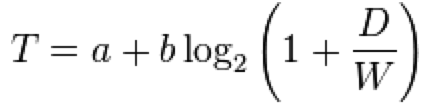 The time to acquire a target is a function of the distance to and size of the target. It is proportional to the distance to the target and inversely proportional to the width of the target.
---
## Always-Visible Tools
The time to acquire a target is a function of the distance to and size of the target. It is proportional to the distance to the target and inversely proportional to the width of the target.
---
## Always-Visible Tools




 ](https://godban.github.io/browsers-support-badges/)Edge | [
 ](https://godban.github.io/browsers-support-badges/)Firefox | [
 ](https://godban.github.io/browsers-support-badges/)Chrome | [
 ](https://godban.github.io/browsers-support-badges/)Safari | [
 ](https://godban.github.io/browsers-support-badges/)Opera | [
 ](https://godban.github.io/browsers-support-badges/)Electron |
| --- | --- | --- | --- | --- | --- |
| Edge | last 2 versions | last 2 versions | last 2 versions | last 2 versions | last 2 versions |
Polyfills are needed for IE browsers. We recommend [@babel/preset-env](https://babeljs.io/docs/en/babel-preset-env) for it. You can set `targets` config if you are using [umi](https://umijs.org/).
> Dropped support of IE8 after `antd@2.0`. Dropped support of React 15 and IE9/10 after `antd@4.0`. Dropped support of IE after `antd@5.0`.
## Version
- Stable: [](https://www.npmjs.org/package/antd)
You can subscribe to this feed for new version notifications: https://github.com/ant-design/ant-design/releases.atom
## Installation
### Using npm or yarn or pnpm or bun
**We recommend using [npm](https://www.npmjs.com/) or [yarn](https://github.com/yarnpkg/yarn/) or [pnpm](https://pnpm.io/) or [bun](https://bun.sh/) to install**, it not only makes development easier, but also allow you to take advantage of the rich ecosystem of Javascript packages and tooling.
](https://godban.github.io/browsers-support-badges/)Electron |
| --- | --- | --- | --- | --- | --- |
| Edge | last 2 versions | last 2 versions | last 2 versions | last 2 versions | last 2 versions |
Polyfills are needed for IE browsers. We recommend [@babel/preset-env](https://babeljs.io/docs/en/babel-preset-env) for it. You can set `targets` config if you are using [umi](https://umijs.org/).
> Dropped support of IE8 after `antd@2.0`. Dropped support of React 15 and IE9/10 after `antd@4.0`. Dropped support of IE after `antd@5.0`.
## Version
- Stable: [](https://www.npmjs.org/package/antd)
You can subscribe to this feed for new version notifications: https://github.com/ant-design/ant-design/releases.atom
## Installation
### Using npm or yarn or pnpm or bun
**We recommend using [npm](https://www.npmjs.com/) or [yarn](https://github.com/yarnpkg/yarn/) or [pnpm](https://pnpm.io/) or [bun](https://bun.sh/) to install**, it not only makes development easier, but also allow you to take advantage of the rich ecosystem of Javascript packages and tooling.
 ](https://stackoverflow.com/questions/tagged/antd) using the `antd` tag.
As always, we encourage experienced users to help those who are not familiar with `antd`!
---
Title: Advanced
URL: https://ant.design/docs/react/i18n
---
The default language of `antd` is currently English. If you wish to use other languages, follow the instructions below.
## ConfigProvider
`antd` provides a React Component [ConfigProvider](/components/config-provider) for configuring antd locale text globally.
```jsx
import { ConfigProvider } from 'antd';
import frFR from 'antd/locale/fr_FR';
return (
](https://stackoverflow.com/questions/tagged/antd) using the `antd` tag.
As always, we encourage experienced users to help those who are not familiar with `antd`!
---
Title: Advanced
URL: https://ant.design/docs/react/i18n
---
The default language of `antd` is currently English. If you wish to use other languages, follow the instructions below.
## ConfigProvider
`antd` provides a React Component [ConfigProvider](/components/config-provider) for configuring antd locale text globally.
```jsx
import { ConfigProvider } from 'antd';
import frFR from 'antd/locale/fr_FR';
return (
 OK! Now that you know the basics of using antd components, you are welcome to explore more components in the codesandbox. When reporting a bug with ant design, we also strongly recommend using codesandbox to provide a reproducible demo as well.
### 4. Next Steps
During actual real-world project development, you will most likely need a development workflow consisting of `compile/build/deploy/lint/debug/` deployment. You can read the following documents on the subject or use the following scaffolds and examples provided below:
- [Ant Design Pro](https://pro.ant.design/)
- [create-next-app](https://github.com/ant-design/ant-design-examples/tree/main/examples/with-nextjs-inline-style)
- More scaffolds at [Scaffold Market](https://scaffold.ant.design/)
## Test with Jest
If you use `create-react-app` follow the instructions [here](/docs/react/use-with-create-react-app) instead.
Jest does not support `esm` modules, and Ant Design uses them. In order to test your Ant Design application with Jest you have to add the following to your Jest config :
```json
"transform": { "^.+\\.(ts|tsx|js|jsx)?$": "ts-jest" }
```
## Import on Demand
`antd` supports tree shaking of ES modules, so using `import { Button } from 'antd';` would drop js code you didn't use.
## Customize your Workflow
If you want to customize your workflow, we recommend using [webpack](https://webpack.js.org) or [vite](https://vitejs.dev/) to build and debug code. You can try out plenty of [boilerplates](https://github.com/enaqx/awesome-react#react-tools) available in the React ecosystem.
There are also some [scaffolds](https://scaffold.ant.design/) which have already been integrated into antd, so you can try and start with one of these and even contribute.
---
Title: Other
URL: https://ant.design/docs/react/faq
---
Here are the frequently asked questions about Ant Design and antd that you should look up before you ask in the community or create a new issue. We also maintain a [FAQ issues label](http://u.ant.design/faq) for common GitHub issues.
---
## Is there a difference between `undefined` and `null` in the controlled components of `antd`?
**Yes. antd will treat `undefined` as uncontrolled but `null` as controlled component which means empty value of it.**
As input element, React treats both `undefined` and `null` as uncontrolled. When the `value` is converted from a valid value to `undefined` or `null`, the component is no longer controlled, which causes some unexpected cases.
But in antd, `undefined` is treated as uncontrolled, and `null` is used as an explicit empty value of controlled components. To deal with some cases (e.g. `allowClear`) like clearing the `value` when the `value` is non-primitive. If you need a component controlled with the `value` valid, just set the `value` as `null`.
Note: For `options` in `Select-like` components, it is **strongly recommended not** to use `undefined` and `null` as `value` in `option`. Please use `string | number` as a valid `value` in `option`.
## Can I use internal API which is not documented on the site?
NOT RECOMMENDED. Internal API is not guaranteed to be compatible with future versions. It may be removed or changed in some versions. If you really need to use it, you should make sure these APIs are still valid when upgrading to a new version or just lock version for usage.
## Why API request should be strict discussion?
We are cautious when adding APIs because some APIs may not be abstract enough to become historical debt. For example, when there is a need to change the way of interaction, these poor abstractions may cause breaking changes. To avoid such problems, we recommend that new features be implemented through HOCs first.
## `Select Dropdown DatePicker TimePicker Popover Popconfirm` disappears when I click another popup component inside it. How do I resolve this?
This is an old bug that has been fixed since `v3.11.x`. If you're using an older version, you can use `
OK! Now that you know the basics of using antd components, you are welcome to explore more components in the codesandbox. When reporting a bug with ant design, we also strongly recommend using codesandbox to provide a reproducible demo as well.
### 4. Next Steps
During actual real-world project development, you will most likely need a development workflow consisting of `compile/build/deploy/lint/debug/` deployment. You can read the following documents on the subject or use the following scaffolds and examples provided below:
- [Ant Design Pro](https://pro.ant.design/)
- [create-next-app](https://github.com/ant-design/ant-design-examples/tree/main/examples/with-nextjs-inline-style)
- More scaffolds at [Scaffold Market](https://scaffold.ant.design/)
## Test with Jest
If you use `create-react-app` follow the instructions [here](/docs/react/use-with-create-react-app) instead.
Jest does not support `esm` modules, and Ant Design uses them. In order to test your Ant Design application with Jest you have to add the following to your Jest config :
```json
"transform": { "^.+\\.(ts|tsx|js|jsx)?$": "ts-jest" }
```
## Import on Demand
`antd` supports tree shaking of ES modules, so using `import { Button } from 'antd';` would drop js code you didn't use.
## Customize your Workflow
If you want to customize your workflow, we recommend using [webpack](https://webpack.js.org) or [vite](https://vitejs.dev/) to build and debug code. You can try out plenty of [boilerplates](https://github.com/enaqx/awesome-react#react-tools) available in the React ecosystem.
There are also some [scaffolds](https://scaffold.ant.design/) which have already been integrated into antd, so you can try and start with one of these and even contribute.
---
Title: Other
URL: https://ant.design/docs/react/faq
---
Here are the frequently asked questions about Ant Design and antd that you should look up before you ask in the community or create a new issue. We also maintain a [FAQ issues label](http://u.ant.design/faq) for common GitHub issues.
---
## Is there a difference between `undefined` and `null` in the controlled components of `antd`?
**Yes. antd will treat `undefined` as uncontrolled but `null` as controlled component which means empty value of it.**
As input element, React treats both `undefined` and `null` as uncontrolled. When the `value` is converted from a valid value to `undefined` or `null`, the component is no longer controlled, which causes some unexpected cases.
But in antd, `undefined` is treated as uncontrolled, and `null` is used as an explicit empty value of controlled components. To deal with some cases (e.g. `allowClear`) like clearing the `value` when the `value` is non-primitive. If you need a component controlled with the `value` valid, just set the `value` as `null`.
Note: For `options` in `Select-like` components, it is **strongly recommended not** to use `undefined` and `null` as `value` in `option`. Please use `string | number` as a valid `value` in `option`.
## Can I use internal API which is not documented on the site?
NOT RECOMMENDED. Internal API is not guaranteed to be compatible with future versions. It may be removed or changed in some versions. If you really need to use it, you should make sure these APIs are still valid when upgrading to a new version or just lock version for usage.
## Why API request should be strict discussion?
We are cautious when adding APIs because some APIs may not be abstract enough to become historical debt. For example, when there is a need to change the way of interaction, these poor abstractions may cause breaking changes. To avoid such problems, we recommend that new features be implemented through HOCs first.
## `Select Dropdown DatePicker TimePicker Popover Popconfirm` disappears when I click another popup component inside it. How do I resolve this?
This is an old bug that has been fixed since `v3.11.x`. If you're using an older version, you can use `